
List view
New Releases
New Releases
Getting Started
Getting Started


Order Management
Order Management


Inspection Management
Inspection Management
Templates
Templates
Step by step guide
Reminder: In Fingertip, everything starts with an order. Each order consists of a set of Properties that make up your Order Info. There are 3 ways to create an order: Manually (from scratch, with or without a template), via Excel document upload or through an API connection to your existing ERP solution where all your order info sits.
In order to save time during the order creation process, you can easily clone an existing order to create a new one with the same properties in ORDER INFO TAB. you can then change all info that are not the same as previous order, such as Order No., delivery date, etc…
Detailed steps of Order Creation from Scratch without a template:
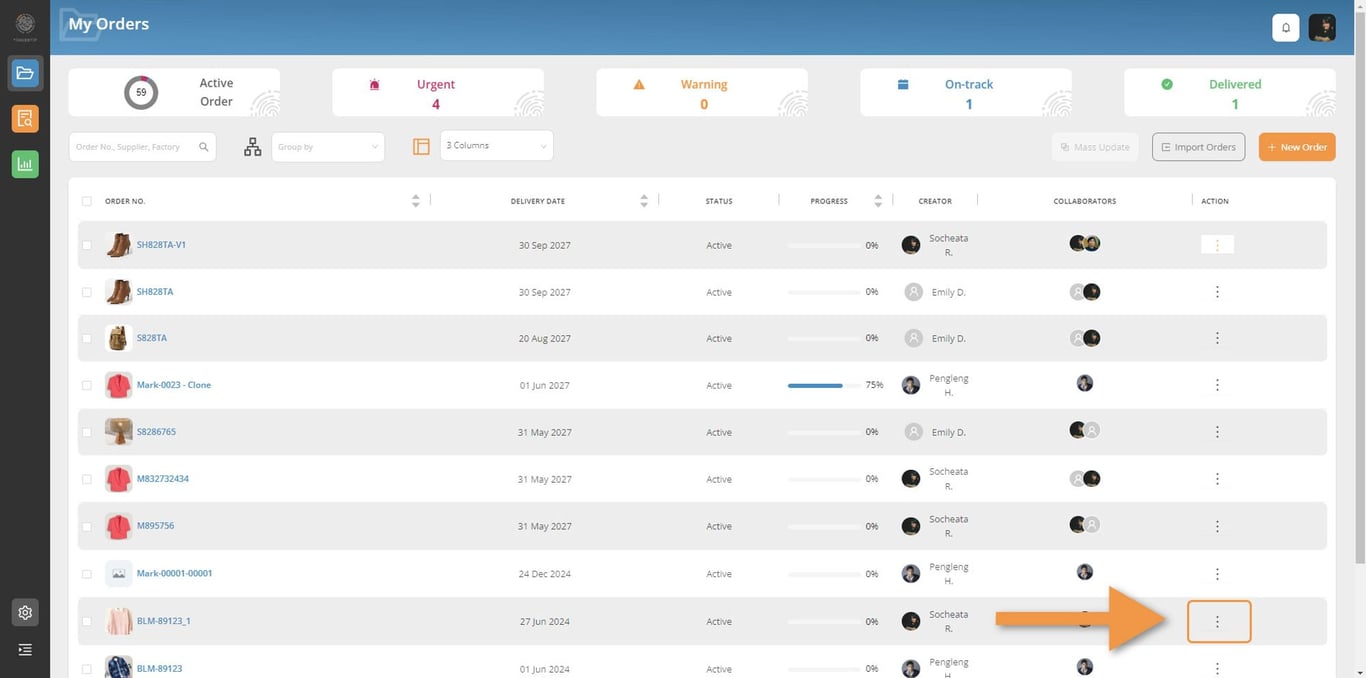
Step 1: Go to your order listing and choose the order you want to clone. Click on the “3 dots” button of the order that you want to clone. Then click on “Clone”.
Step 2: It will create a new order and open your order creation page on the ORDER INFO TAB. You can edit or keep most of the information in Order info. But you have to change Order Number.
⚠️ In this current version of Fingertip, only ORDER INFO TAB will be cloned. PRODUCT INFO TAB and REQUIREMENTS TAB have to be filled in again.
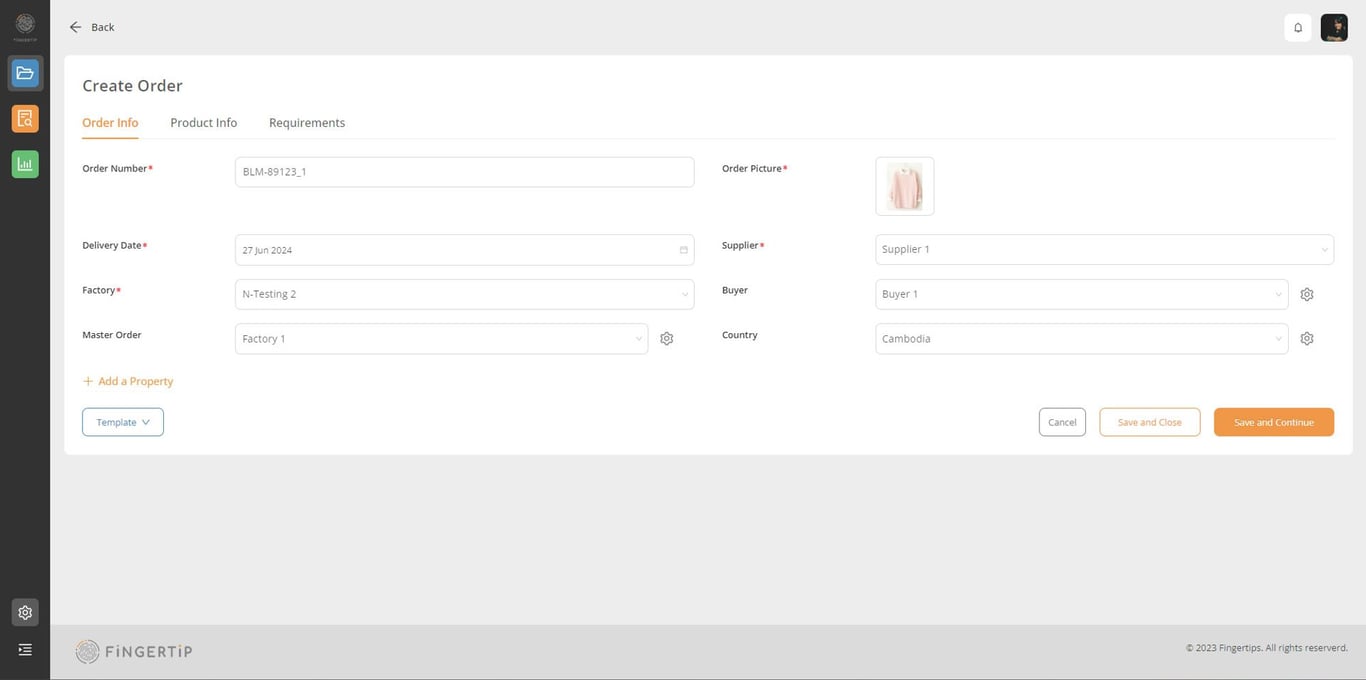
You can update all fields the same way you did in Create an order from scratch.
 Made with Bullet