List view
New Releases
New Releases
Getting Started
Getting Started


Order Management
Order Management


Inspection Management
Inspection Management
Templates
Templates
Create a Workflow
From scratch
In order to create a new Time and Action Project, you first need to select the order you wish to track.
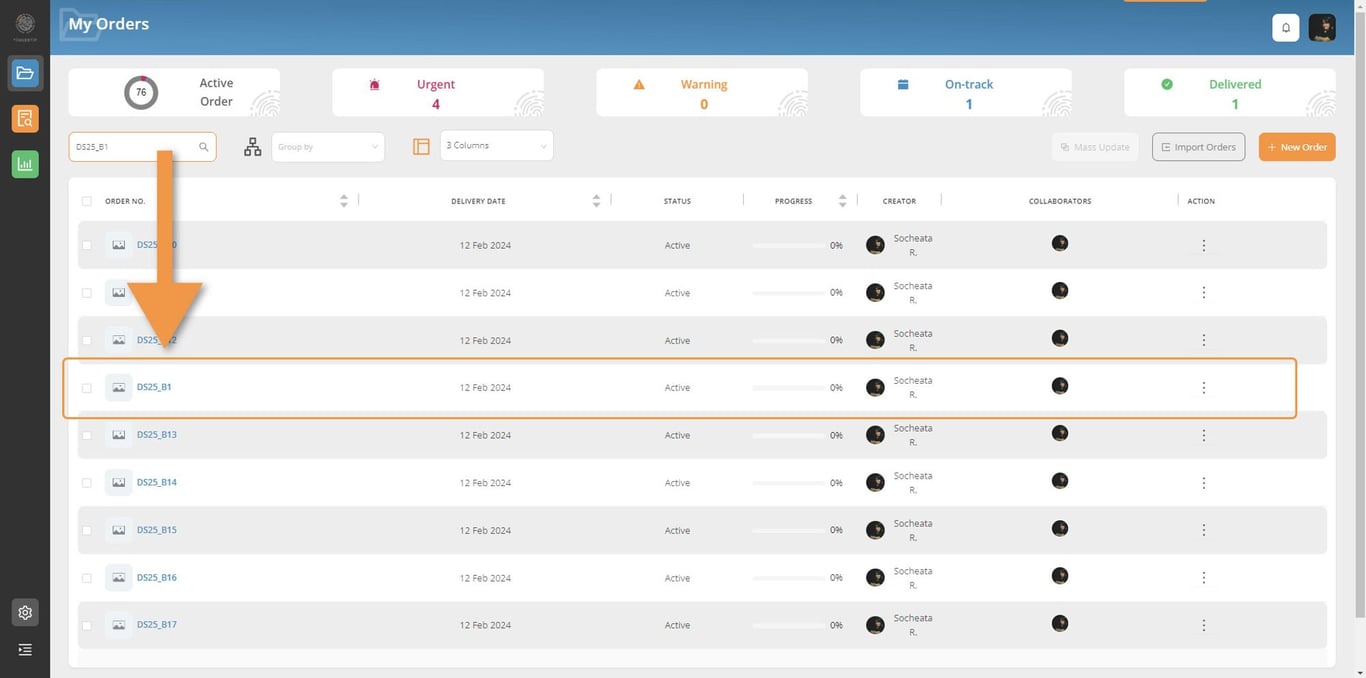
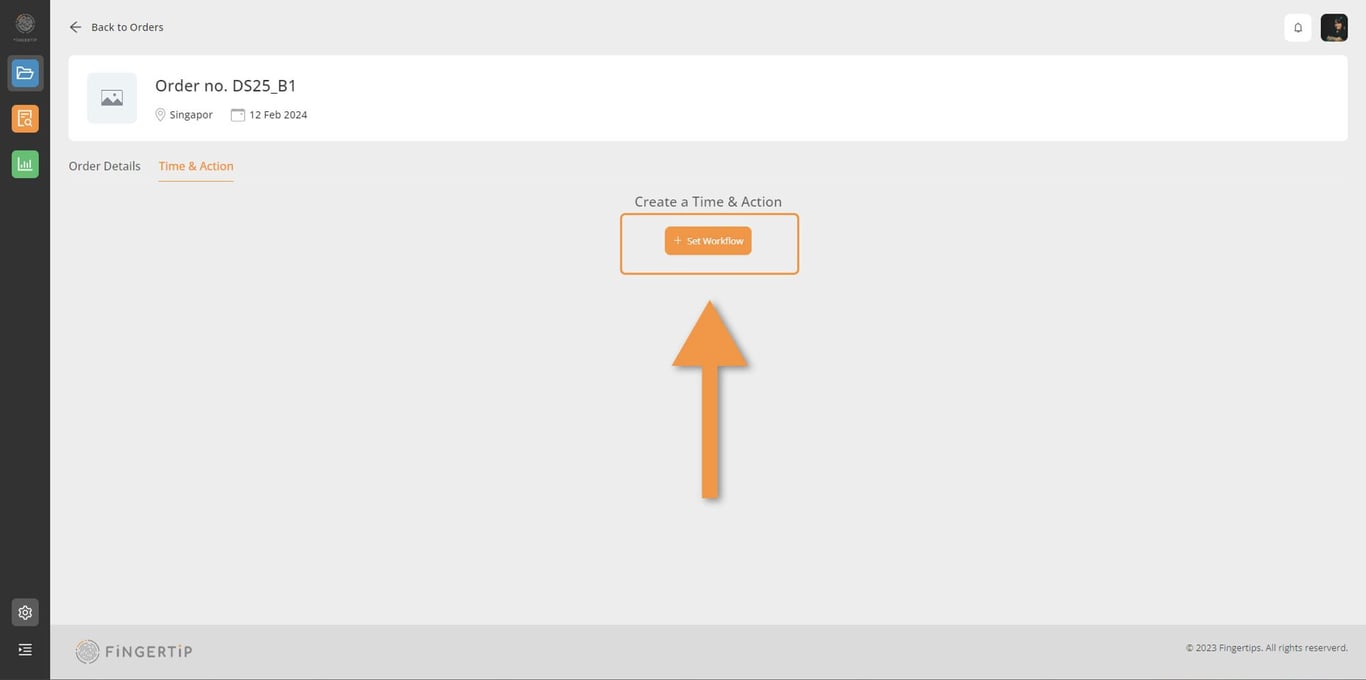
You will see Time & Action tab. Then Click on Set Workflow button.
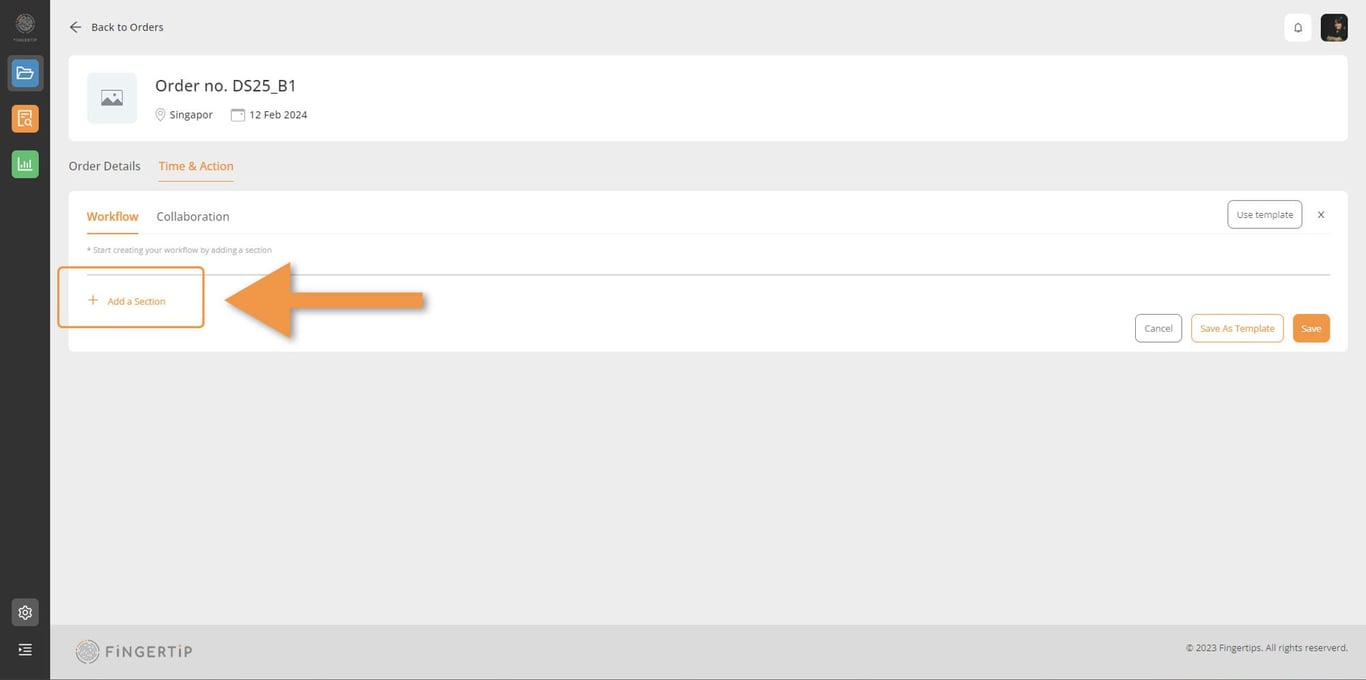
- Select on Add a Section
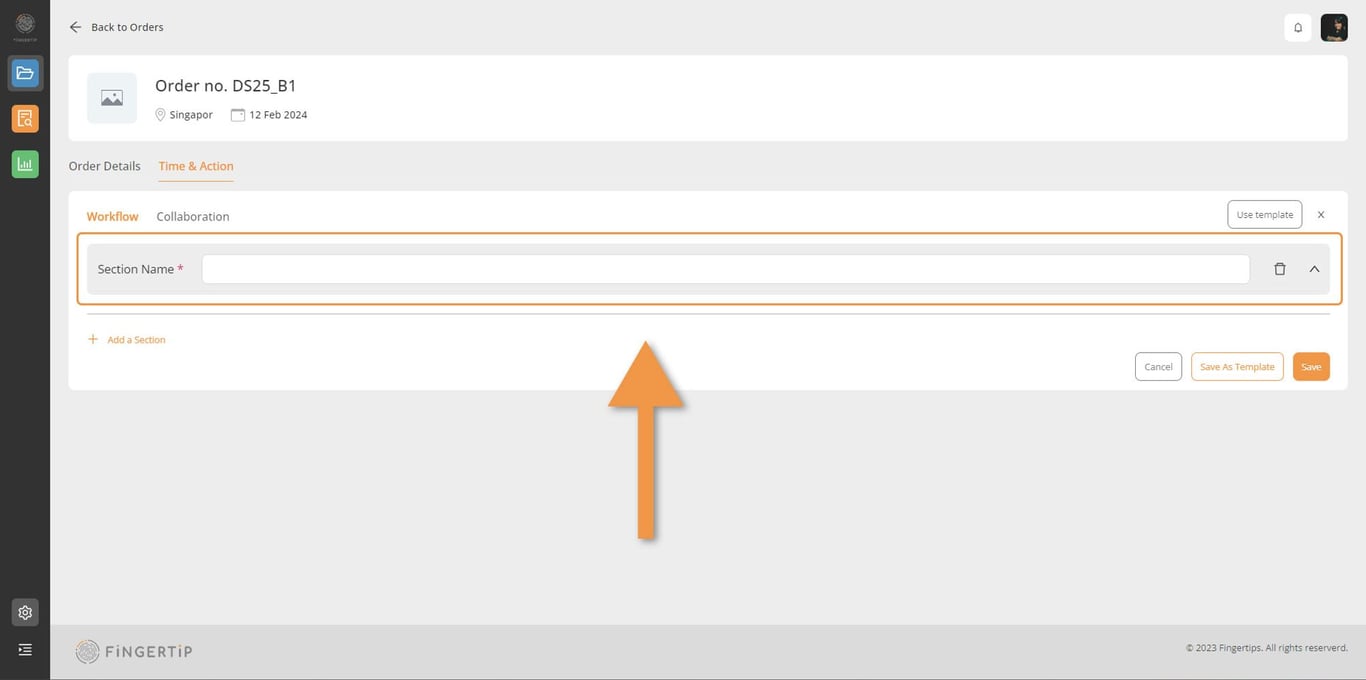
- The section will appear immediately after you click on Add a Section. Name your Section.
- Add your sub-Section this arrow. And Add a Sub Section will appear under the Section Name.
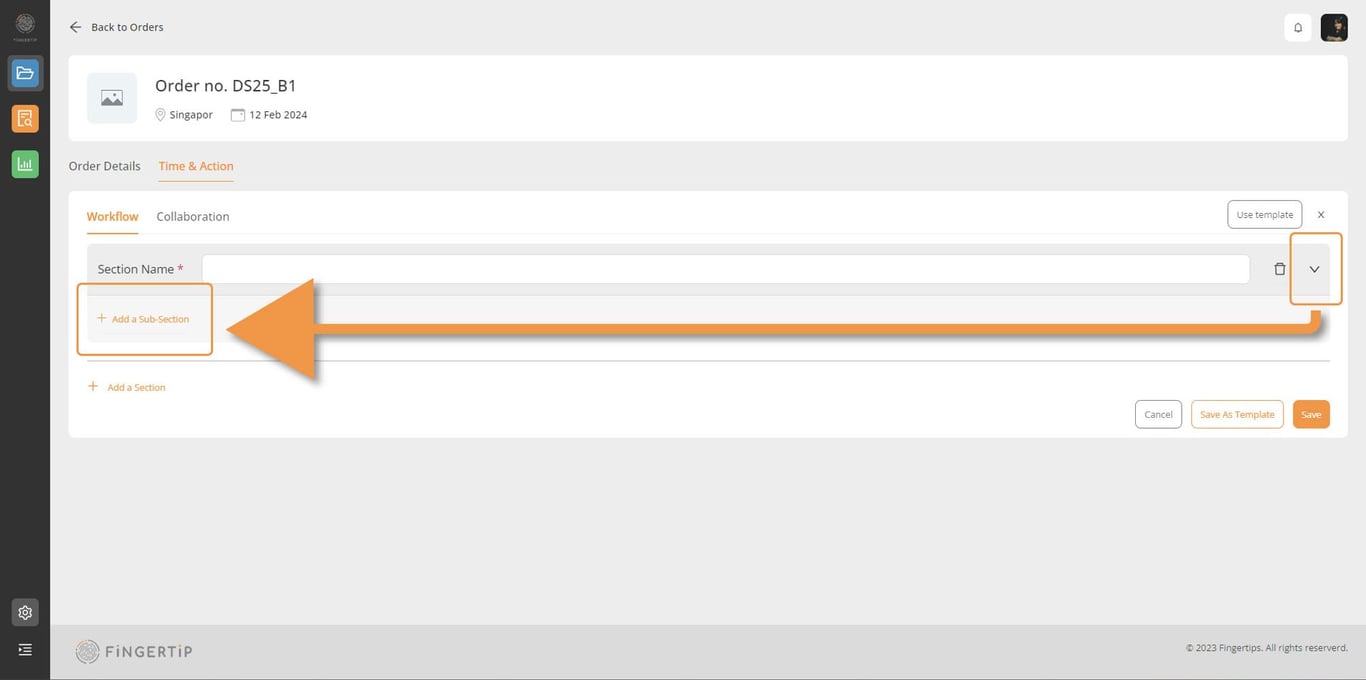
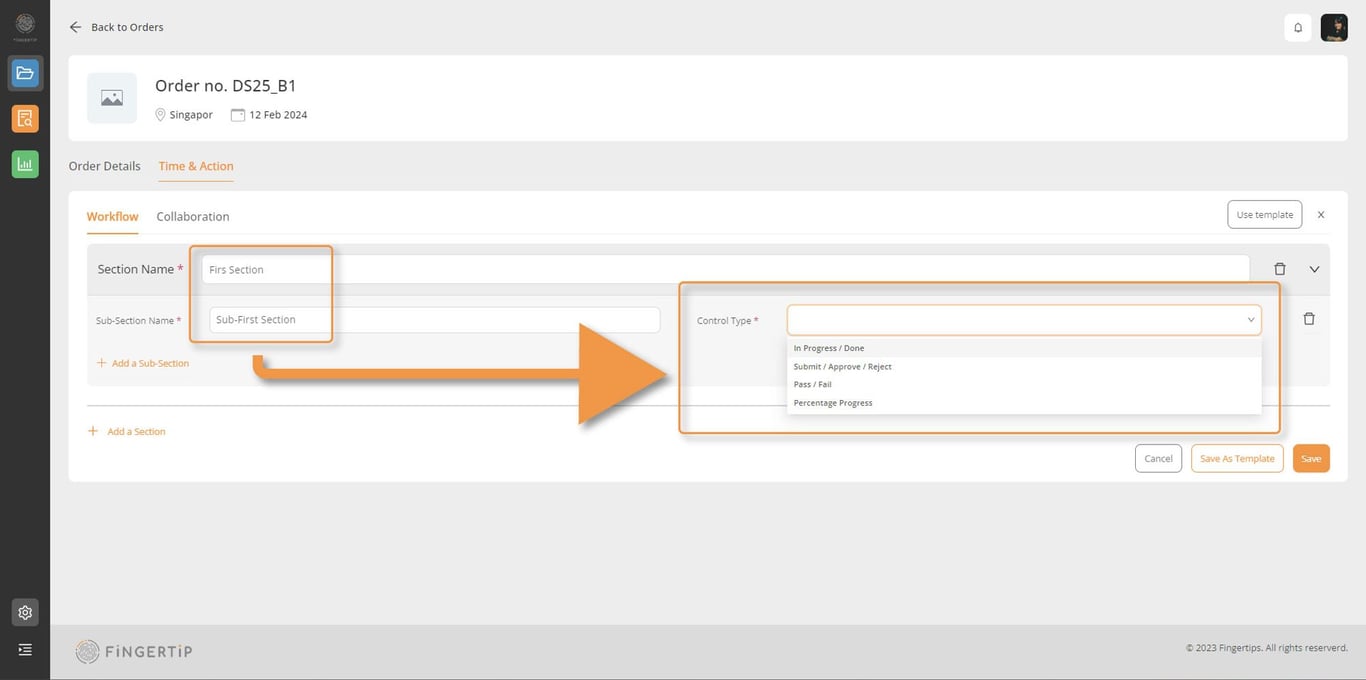
- Name your Section and Sub-Section, then chose your Control Type
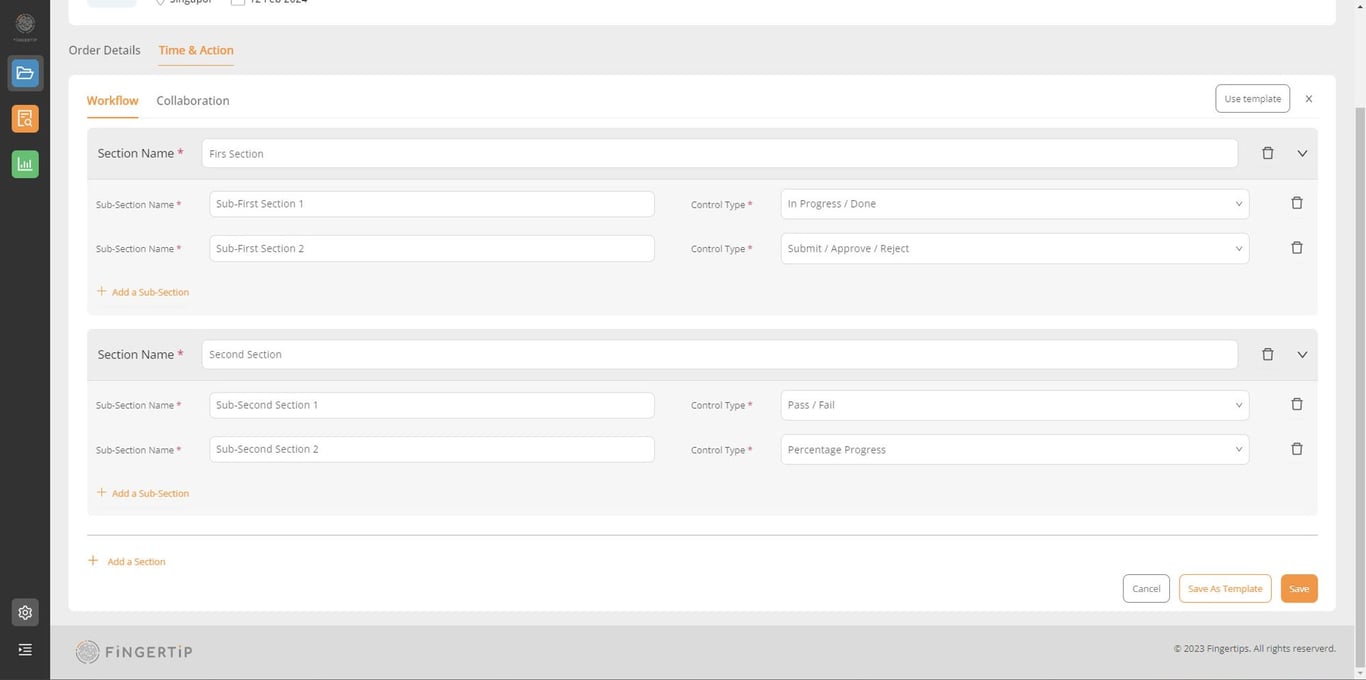
- Keep adding more Section and Subsection until you are happy with it. You can click on Save to save or Save As Template if you need to re-use this setup.
- To create template for Time & Action, you need to click on Save As Template
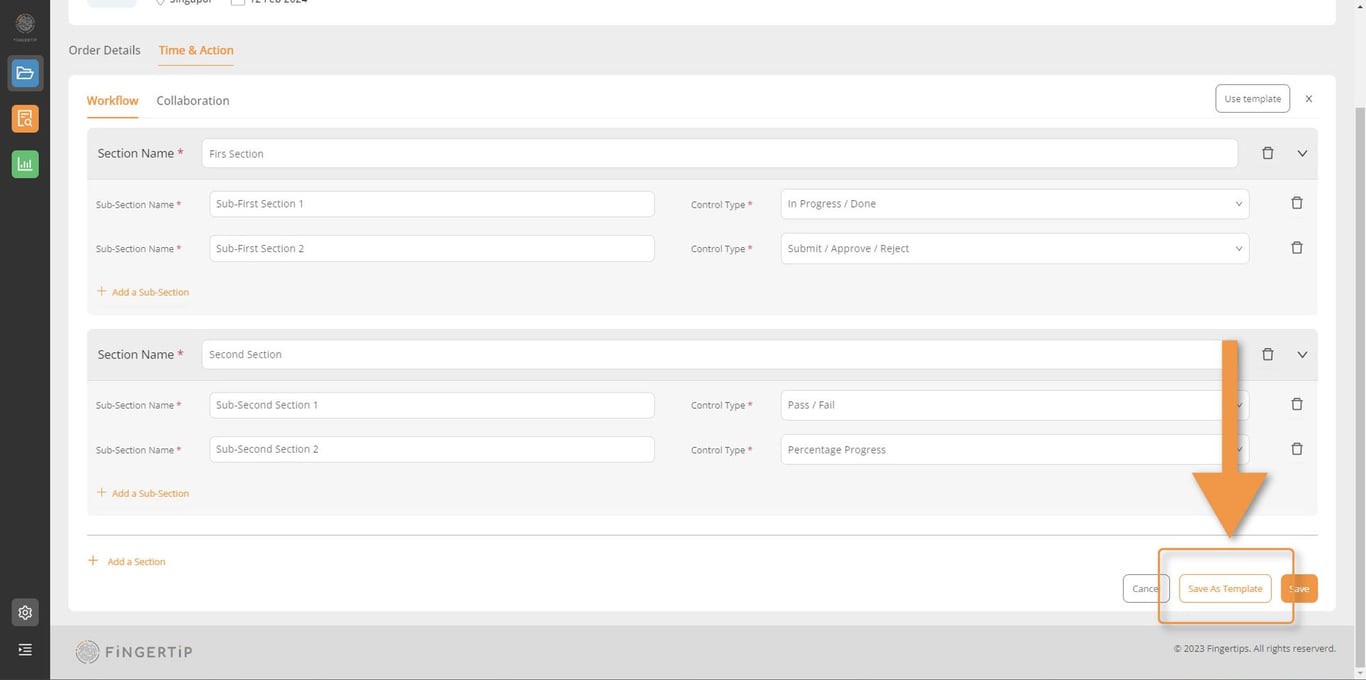
Give the new name to your Time & Action Template, and save.
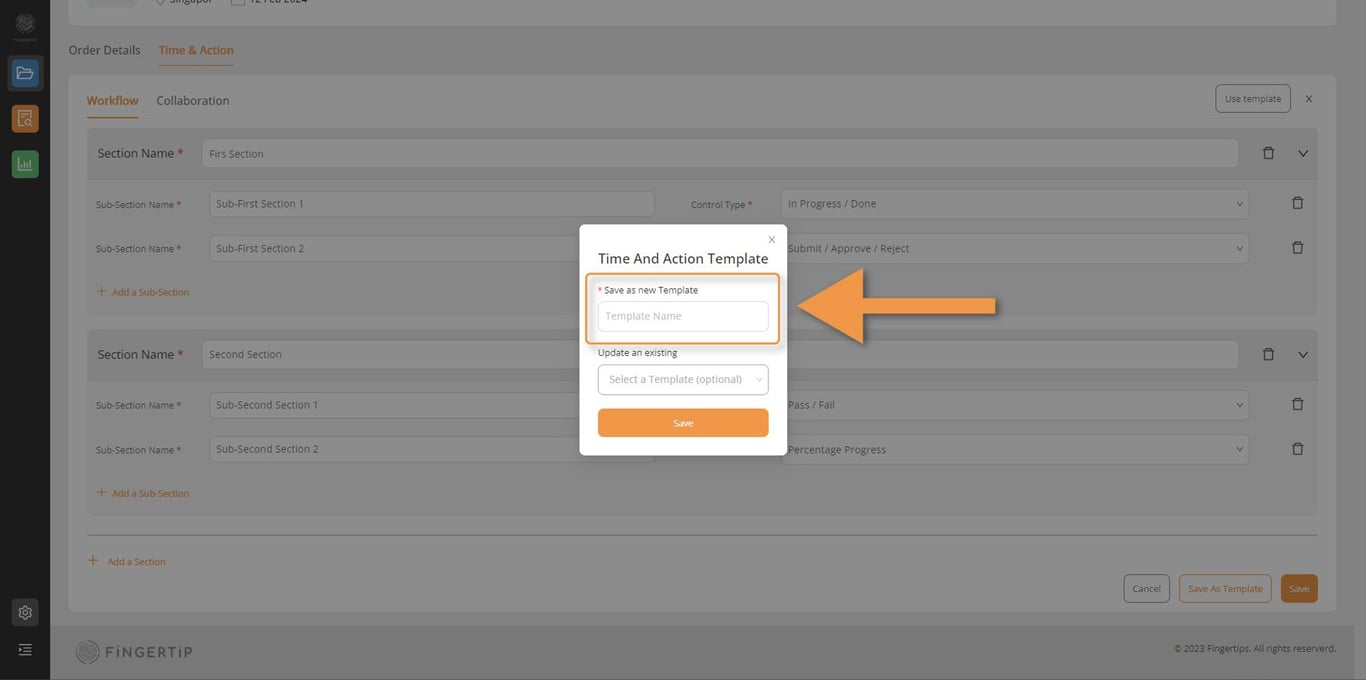
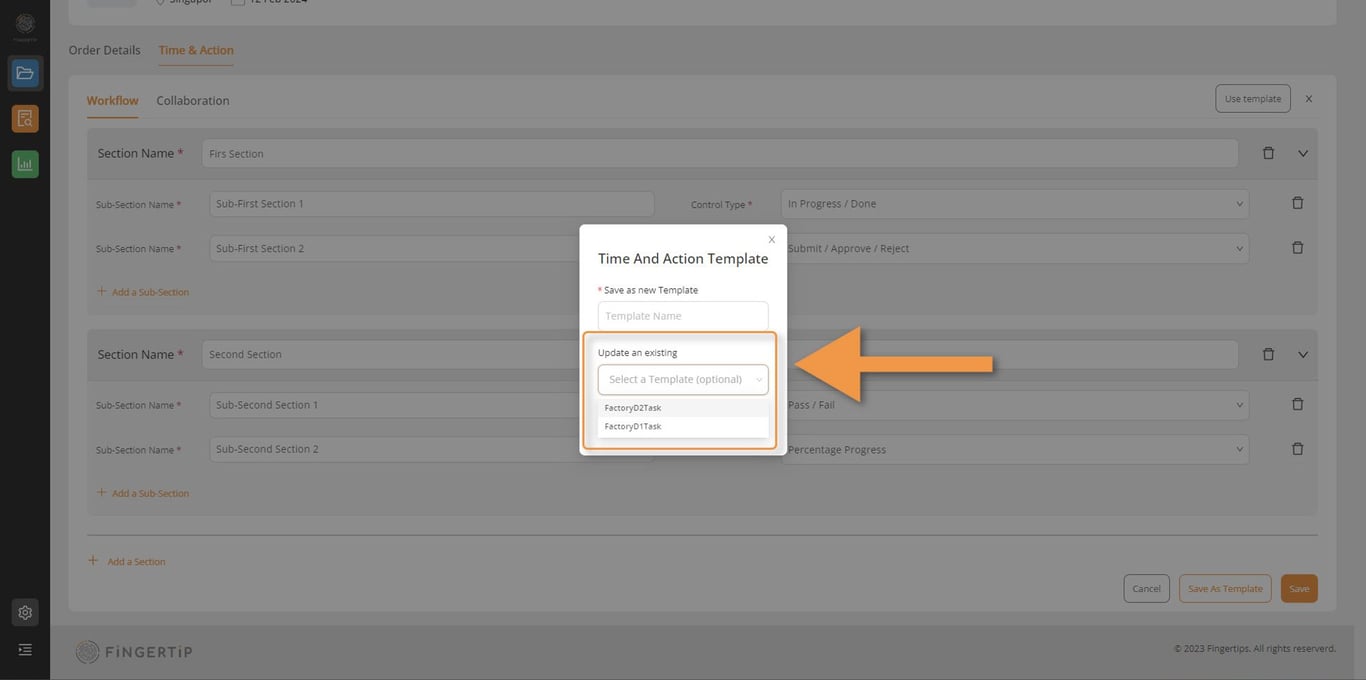
Or you can chose to update your existing one by select the name and click on save.
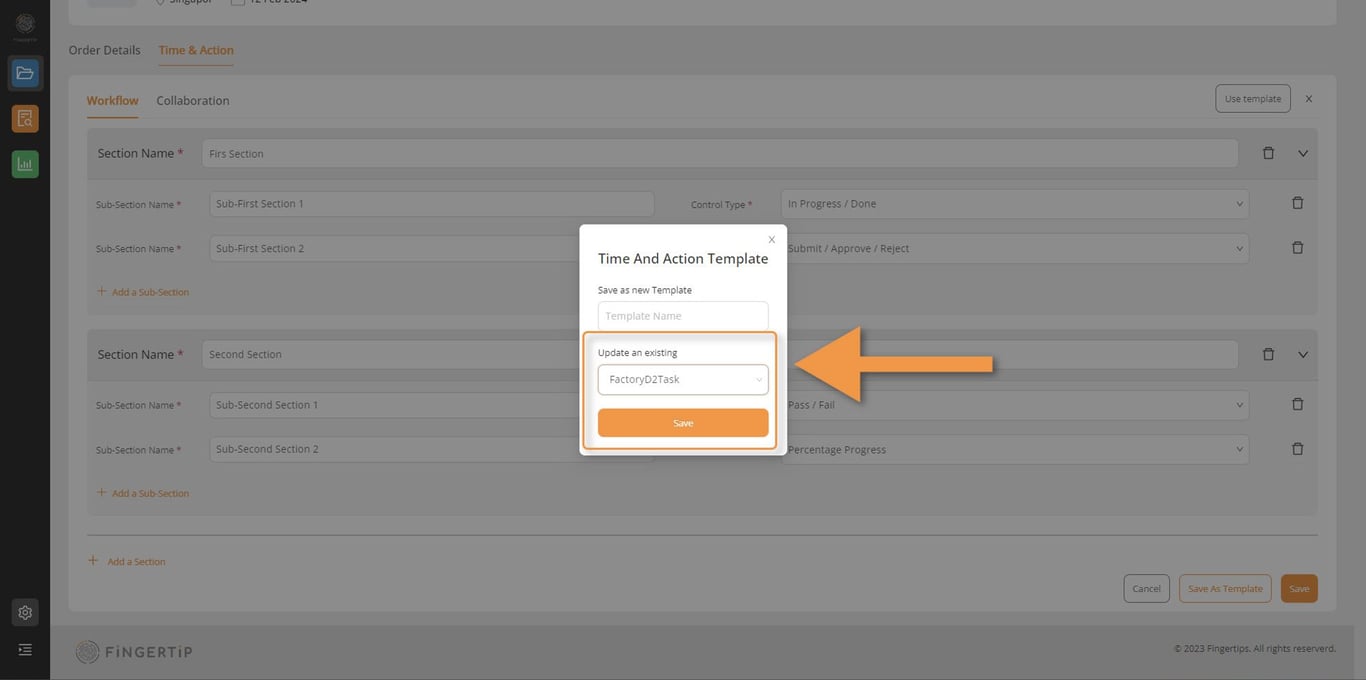
- Click on Save to save your Time & Action
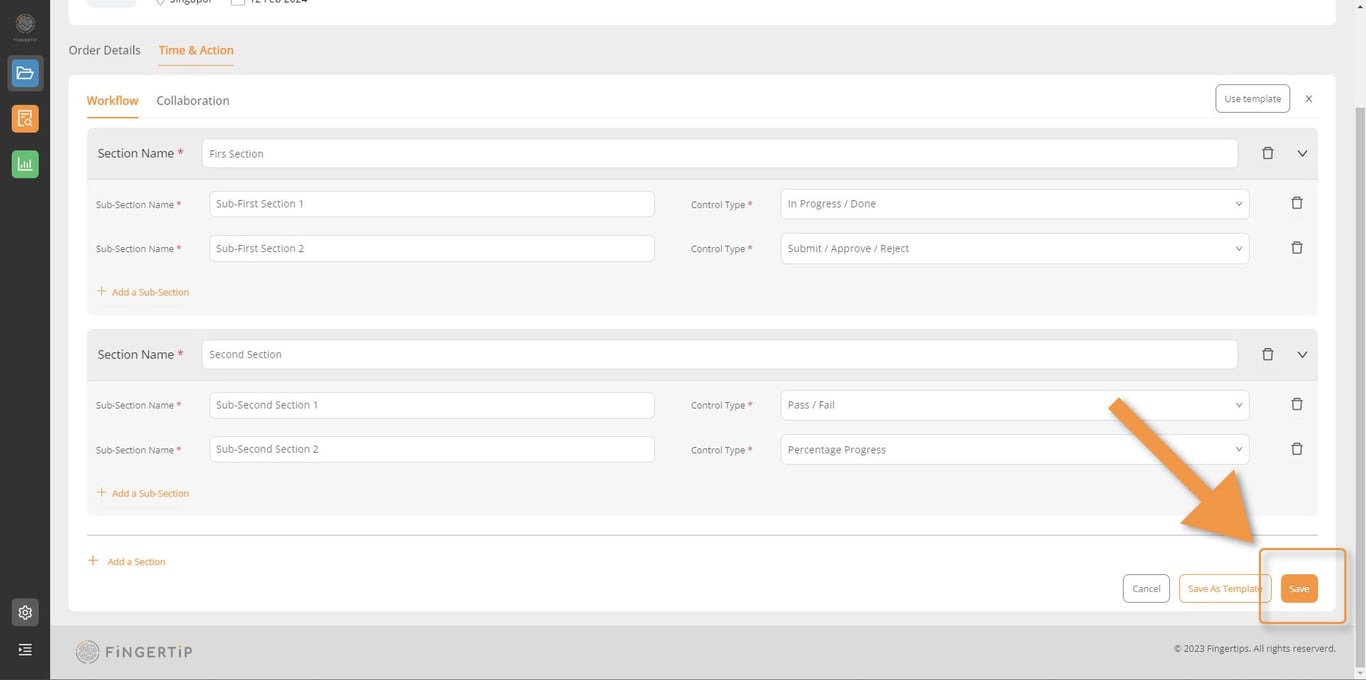
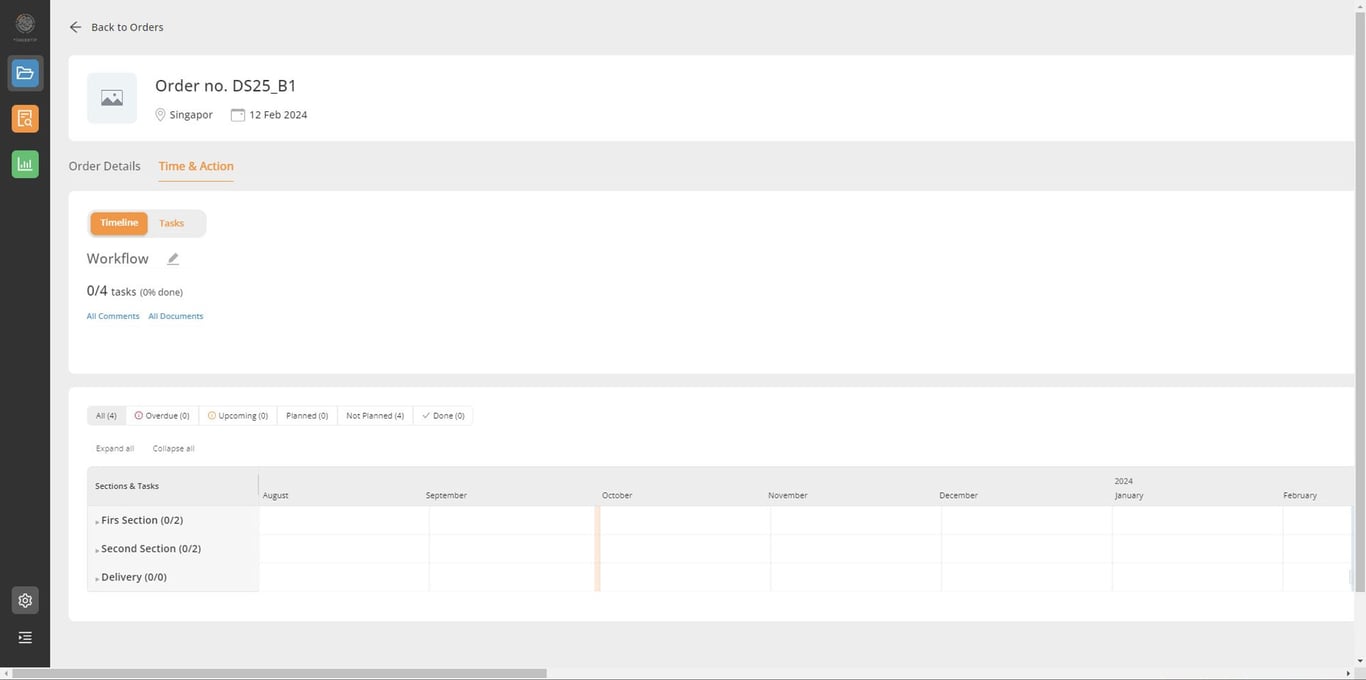
- Here you got your Time & Action
From a Template
Time and Action Template create from the creation Time and Action manually from scratch. And we save it as template.
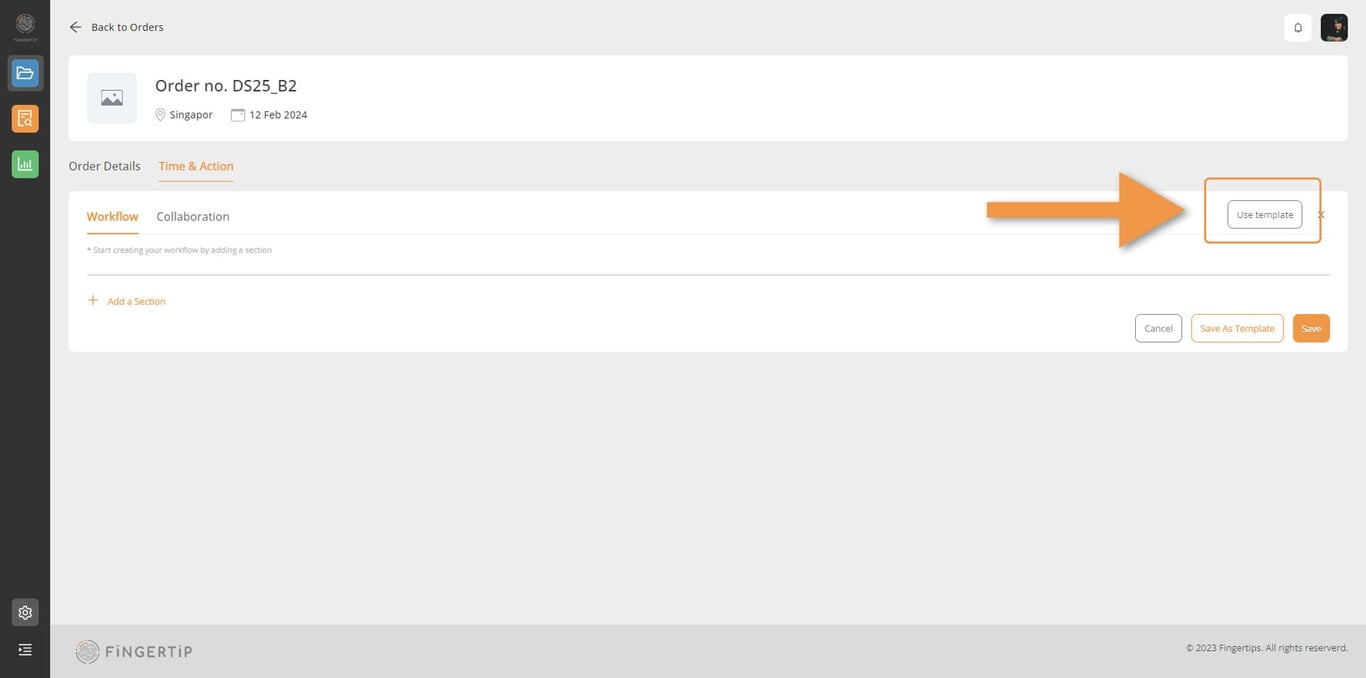
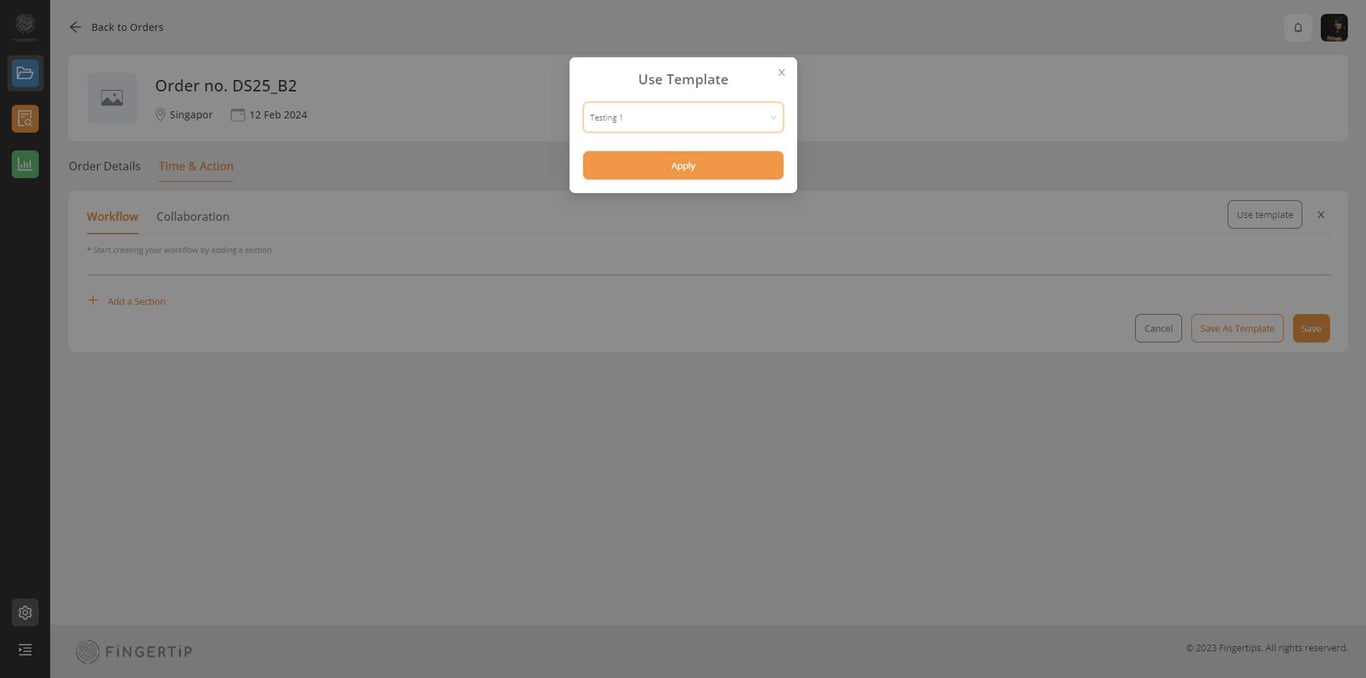
We can use those template by click on Use template
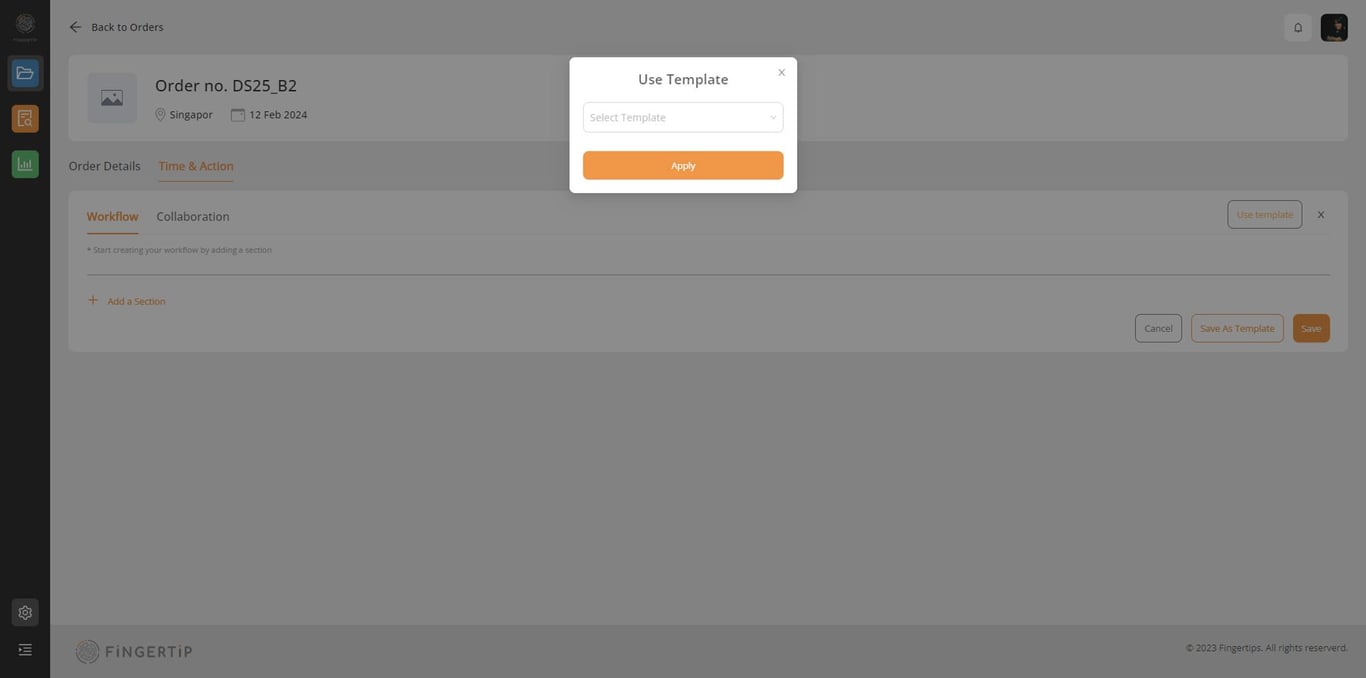
You will see this below message.
Chose which template that you want to use.
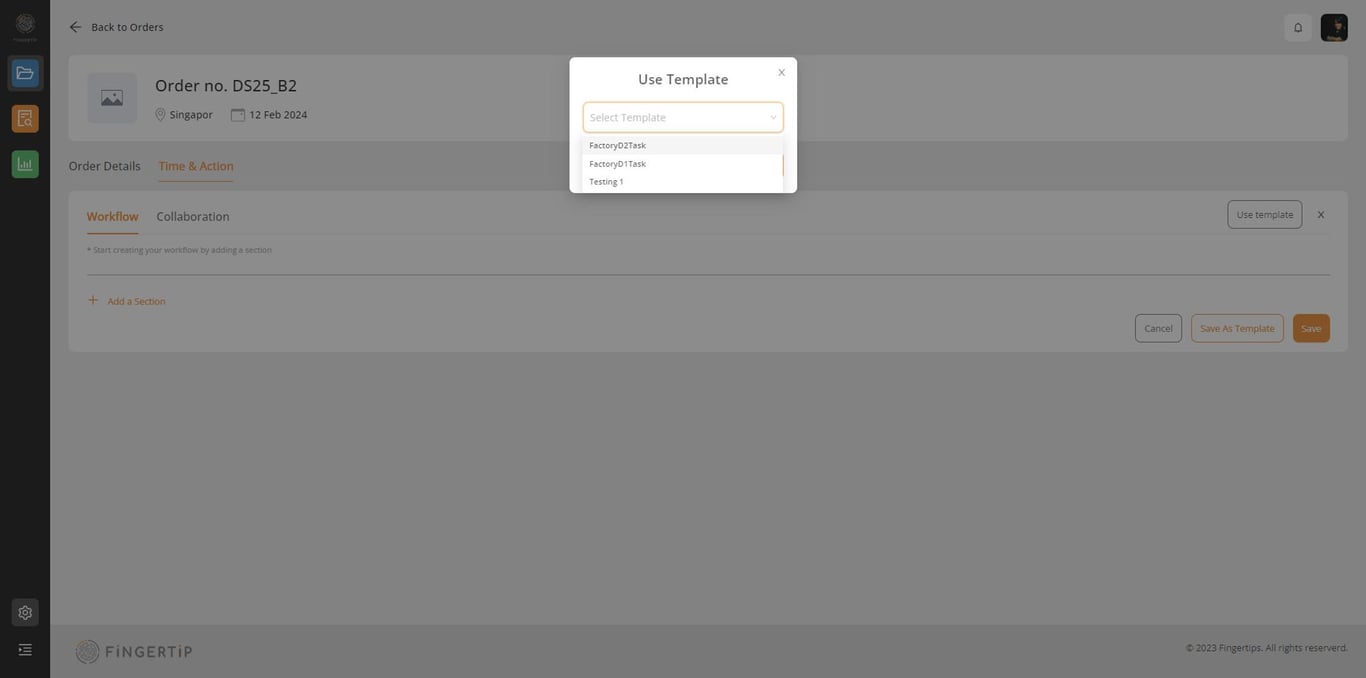
And click apply
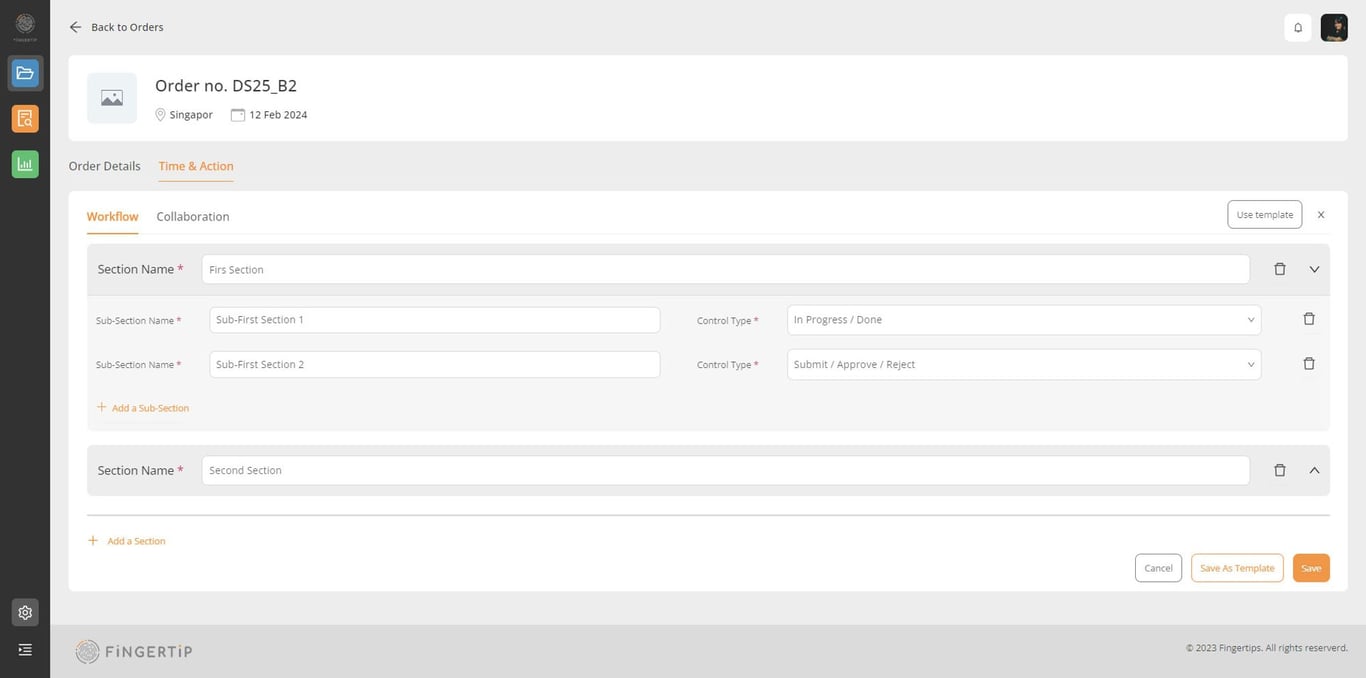
Once you click apply, you will see this below page. You can edit and add text. So, if there’s nothing to change, you can just save it.
 Made with Bullet