List view
New Releases
New Releases
Getting Started
Getting Started


Order Management
Order Management


Inspection Management
Inspection Management
Templates
Templates
Email Management in Mobile App
This guide will help you navigate the new feature for managing email lists and recipients in the mobile app. You can manage your emails from the "Email Recipients" section in each inspection summary or through your account settings.
Whether you're adding new emails, editing existing ones, or managing recipients for inspection notifications, these steps will guide you through the process efficiently, providing immediate access and control over your email lists.
Please note that this feature is available only on demand and locally on each device.
Accessing the Email Management Feature
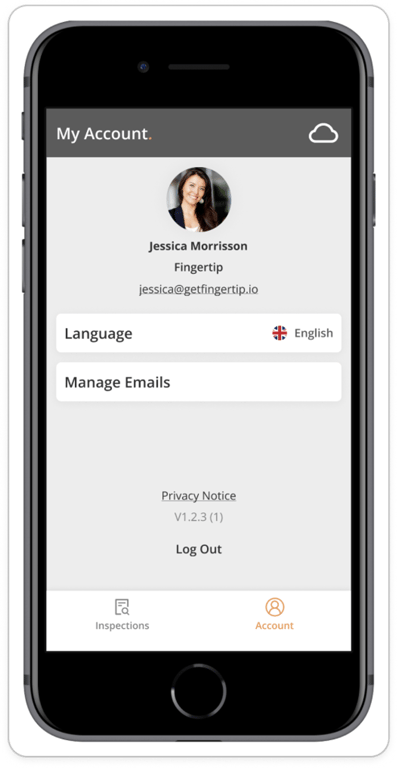
- From Account Settings:
- Open the app settings from your "Account" profile.
- Tap on "Manage Emails".
- From Inspection Summary:
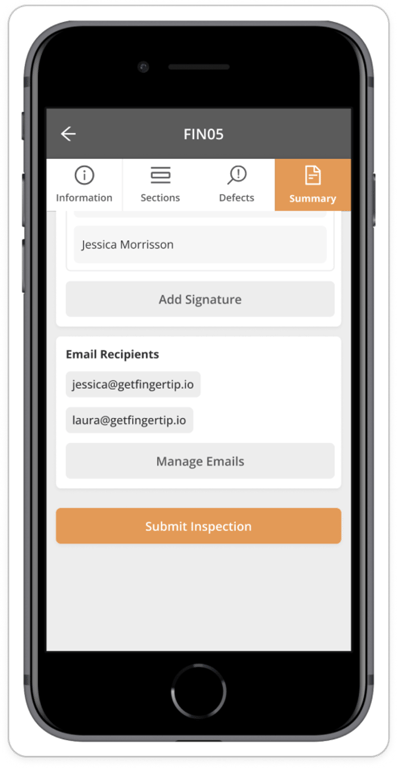
- Navigate to the inspection "Summary" tab.
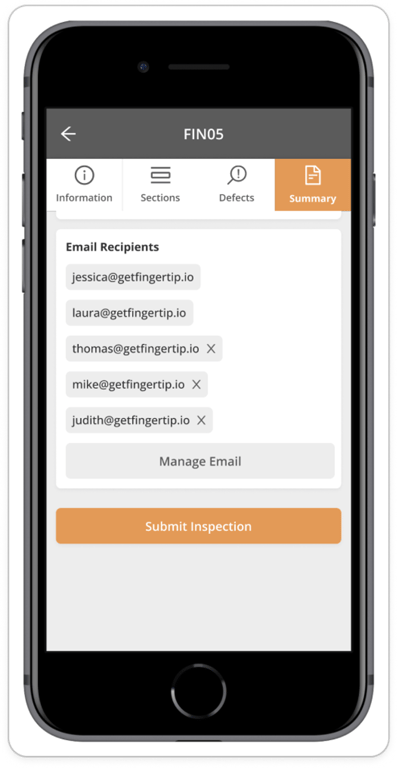
- Locate the "Email Recipients" section.
- Tap on "Manage Emails".
Managing Emails
You can add new emails, edit existing ones, or delete them as needed.
- Adding a New Email:
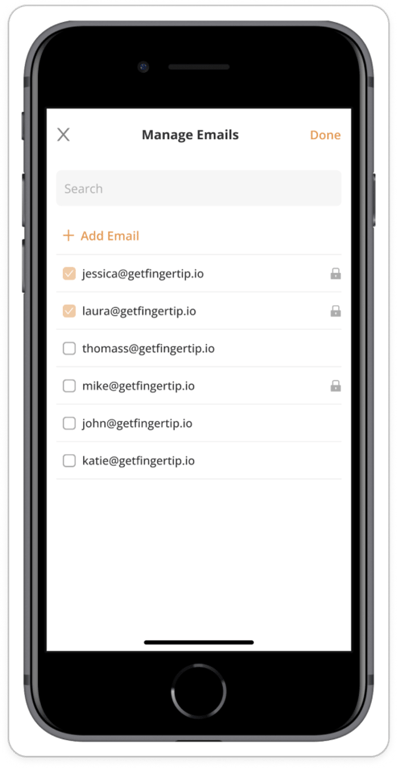
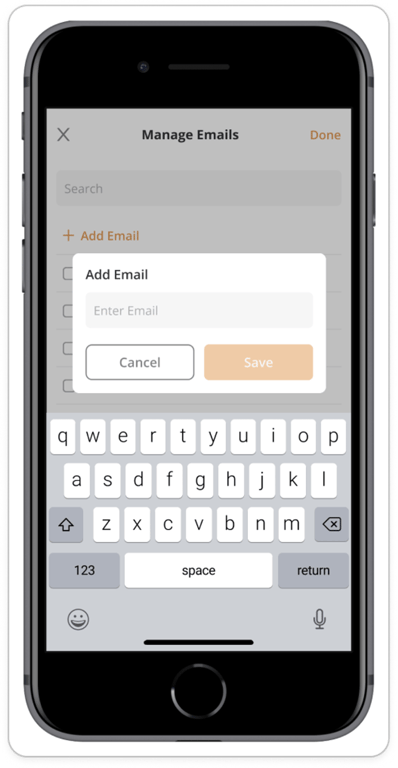
- In the "Manage Emails" section, tap on "+ Add Email".
- Enter the new email address.
- Tap "Save" to add the email to your list.
- Editing an Existing Email:
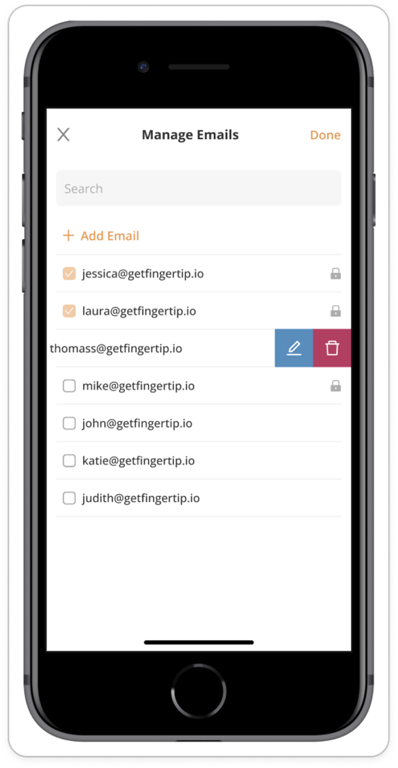
- Swipe left on the email you wish to edit.
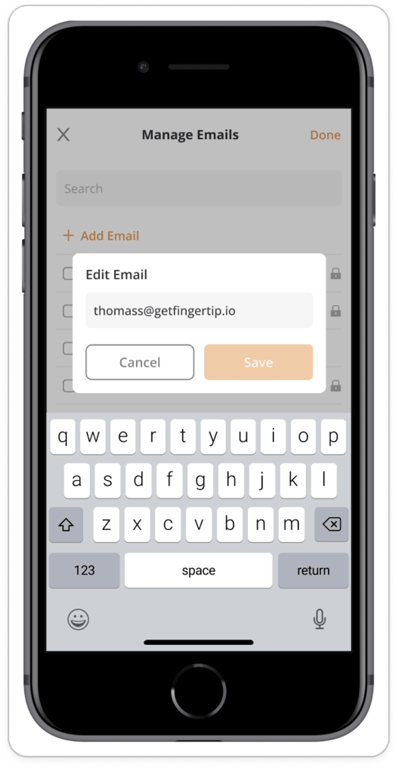
- Tap on the "Edit" icon.
- Modify the email address as needed.
- Tap "Save" to update the email.
- Deleting an Existing Email:
- Swipe left on the email you wish to delete.
- Tap on the "Delete" icon.
- Confirm the deletion when prompted.
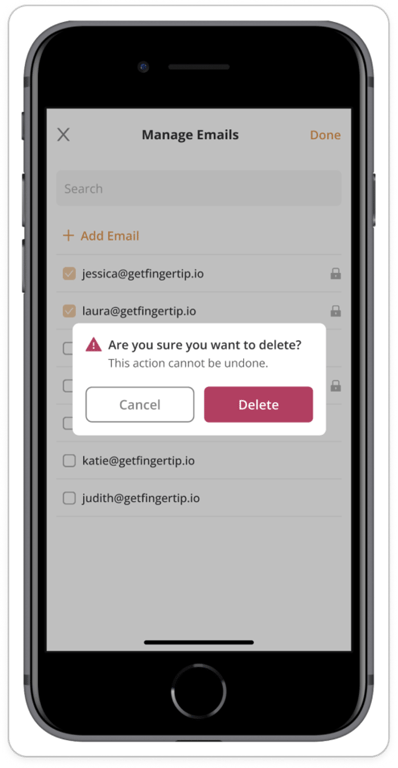
Note: Emails used by default for active inspections cannot be edited or deleted. These emails will have a lock icon displayed to their right, and the edit/delete actions will be disabled.
Managing Email Recipients
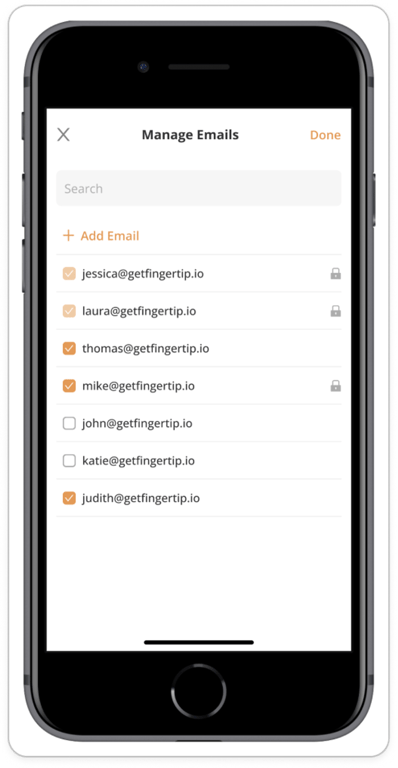
By default, the inspection creator and the assigned inspector received an email notification when the inspection is submitted. You can select emails from your list to be added as extra recipients for the notification.
In Inspection Summary:
- Go to the "Email Recipients" section in the inspection summary.
- Tap on "Manage Emails".
- Select the emails you want to add as recipients.
- Tap "Done" to save your selections.
- Added emails can be removed by taping on "x"(except for default emails).
 Made with Bullet