
List view
New Releases
New Releases
Getting Started
Getting Started


Order Management
Order Management


Inspection Management
Inspection Management
Templates
Templates
Step by step guide
Reminder: In Fingertip, everything starts with an order. Each order consists of a set of Properties that make up your Order Info. There are 3 ways to create an order: Manually (from scratch, with or without a template), via Excel document upload or through an API connection to your existing ERP solution where all your order info sits.
When you have a big amount of orders that you need to create, Order Creation using Order Import feature allows you to import your orders from an Excel file.
Detailed steps of Order Creation using Order Import feature:
Get your Excel template
Import order window
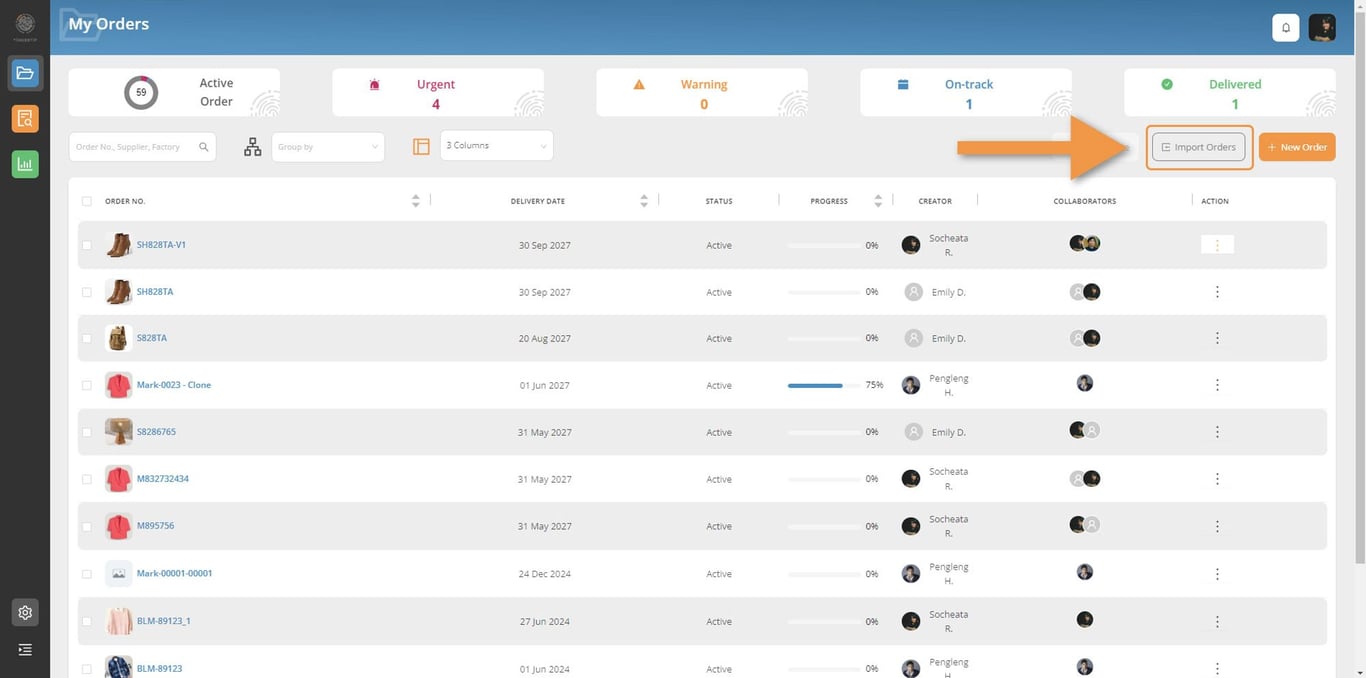
First click on ‘Import Orders’ button
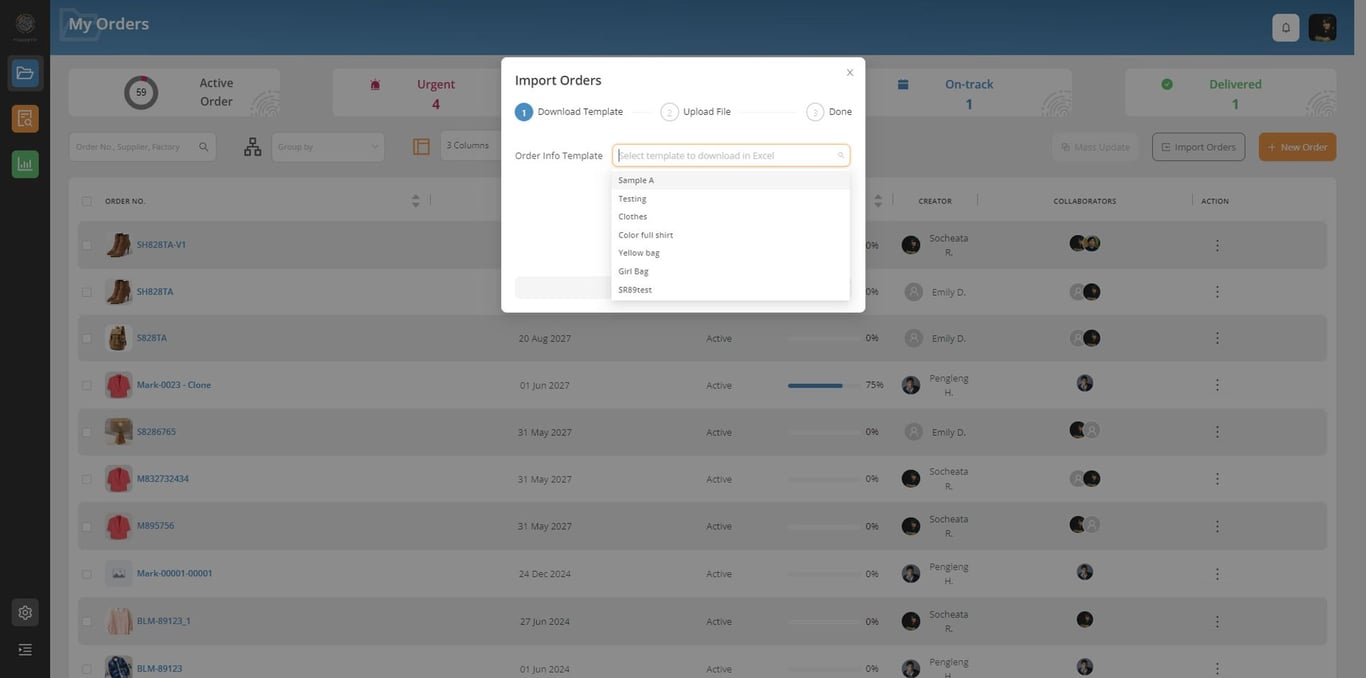
Choose Order Info Template
Each workflow (or TnA tracker critical path) has their own template, meaning a standard critical path for your organization (Remember you can save as many TnA templates as you want. For example, one template per product category, or one template per customer, etc…).
Select the relevant workflow template for the orders you wish to import.
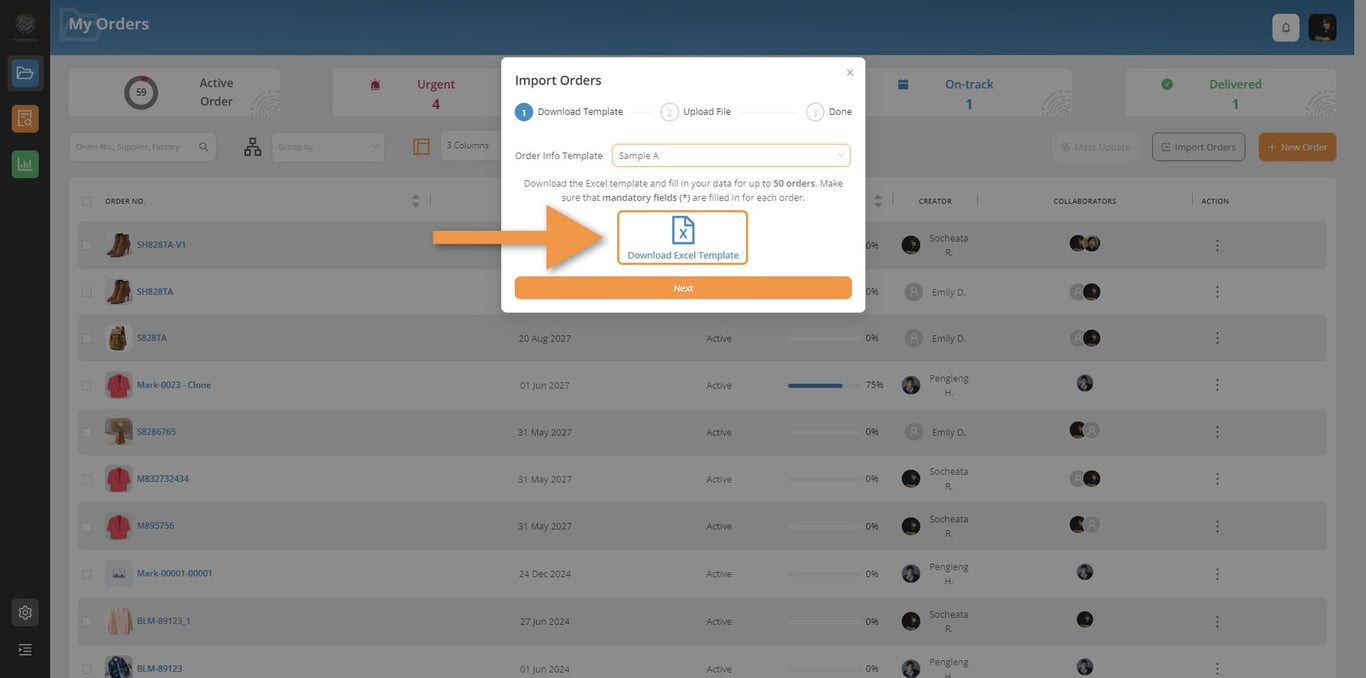
Get your Excel template
Click on Download Excel Template on the blue icon. The file is being immediately downloaded.
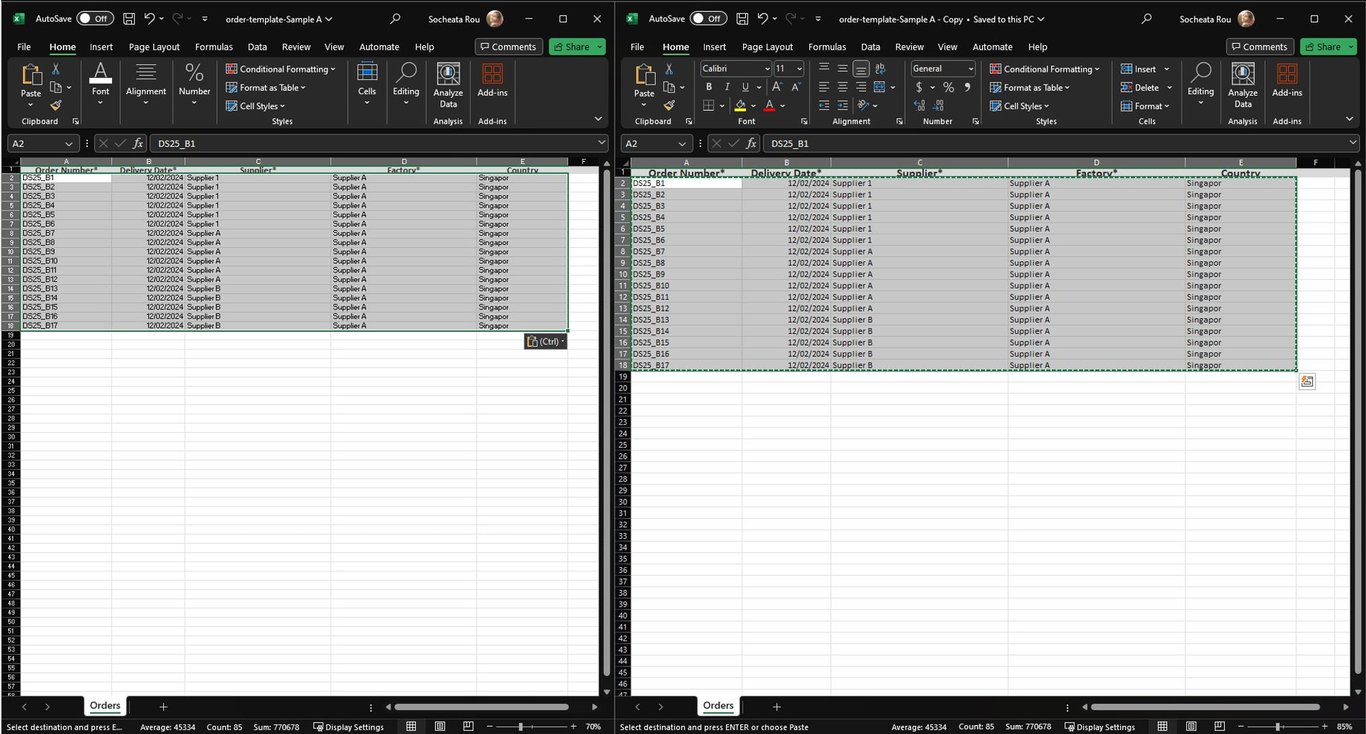
Fill in the Excel template
Open the the Excel that you just download. You can fill the information direct in this Excel file or you can copy the information from your excel file in to the Excel that you just downloaded.
Upload the Excel template
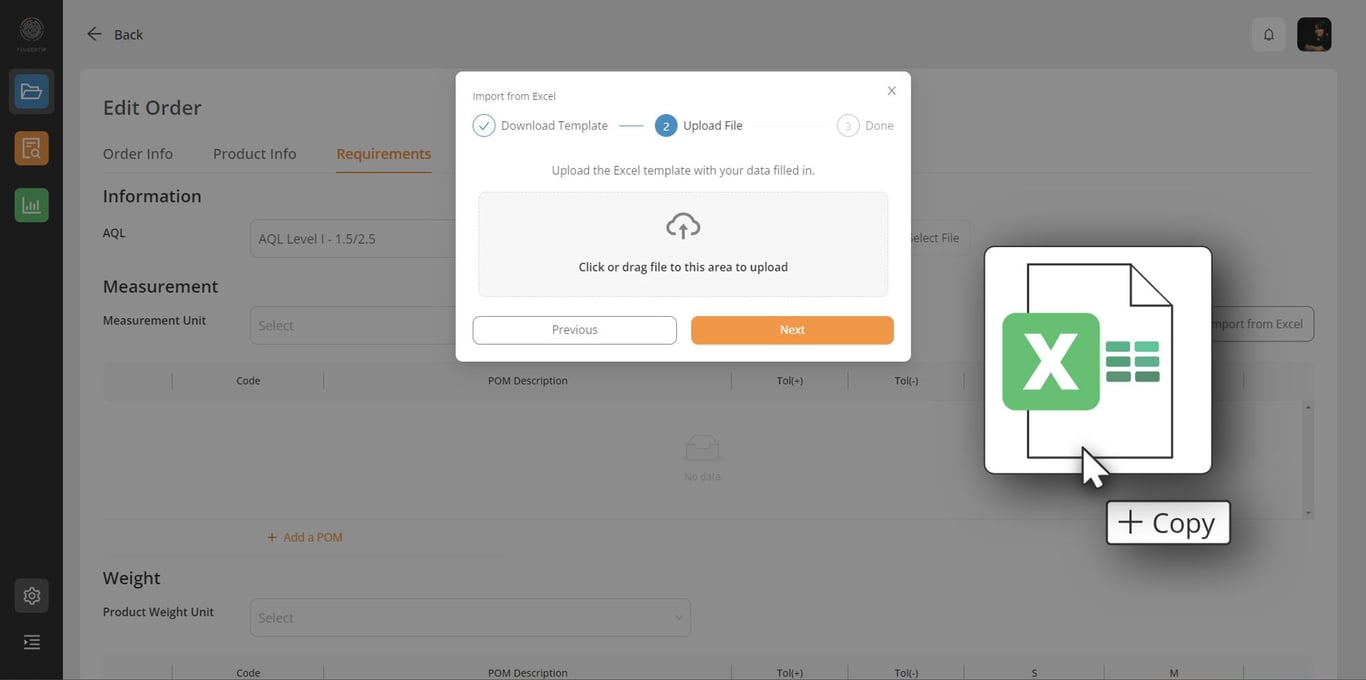
Drop your file
Click on next to go to upload process.
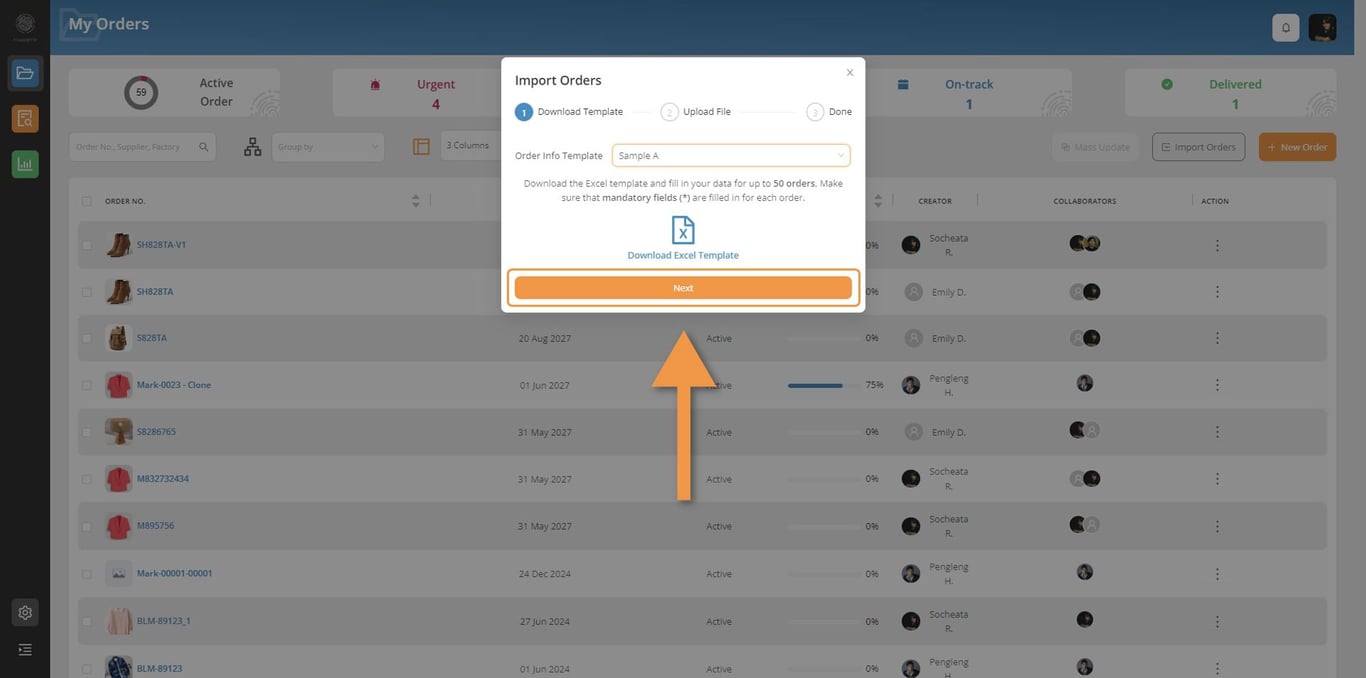
Drop your Excel file
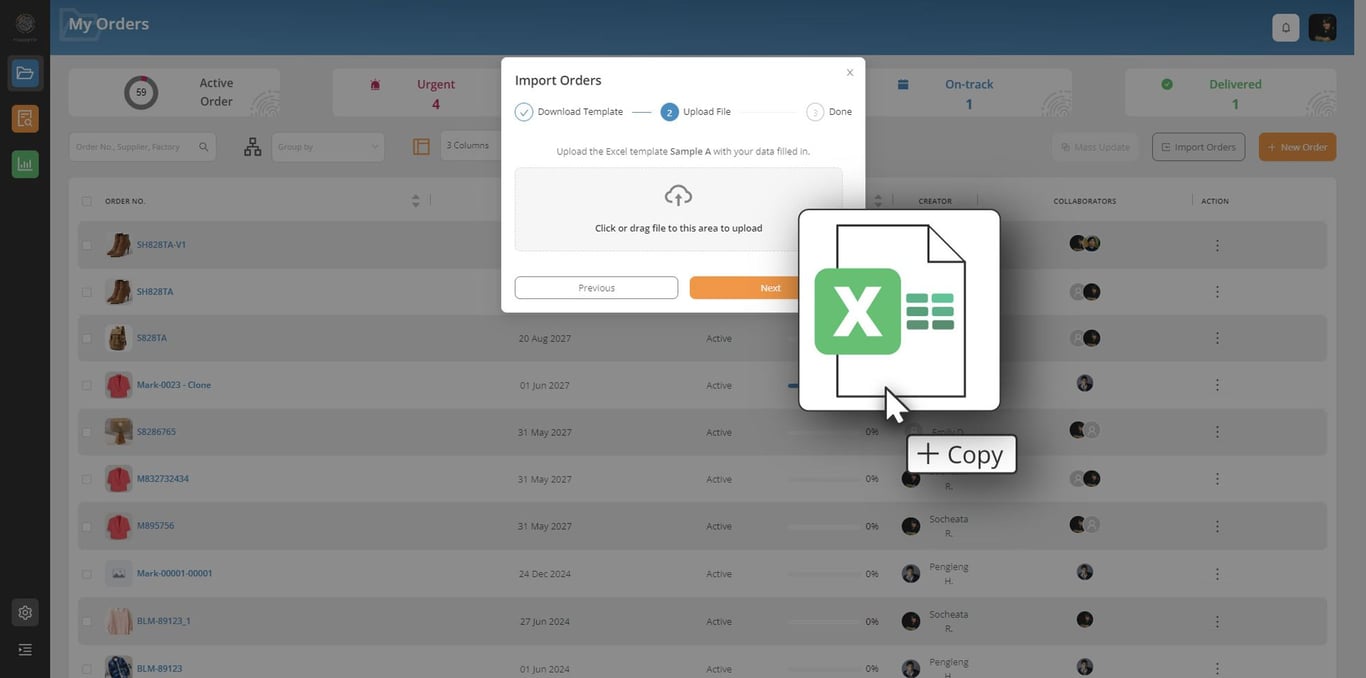
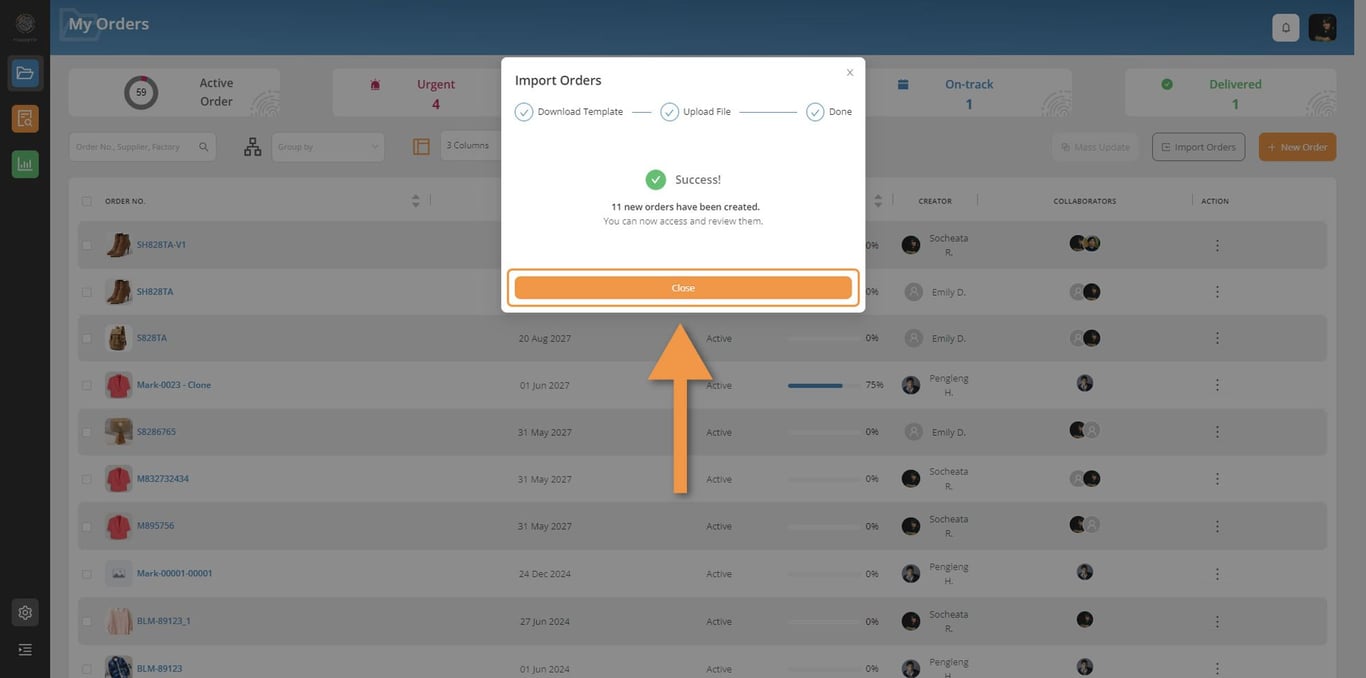
Click on next to process the data. You will need to wait for a moment until it finishes to import. If everything goes well, you will get a SUCCESS message. You can then close to dialogue box and start managing your orders.
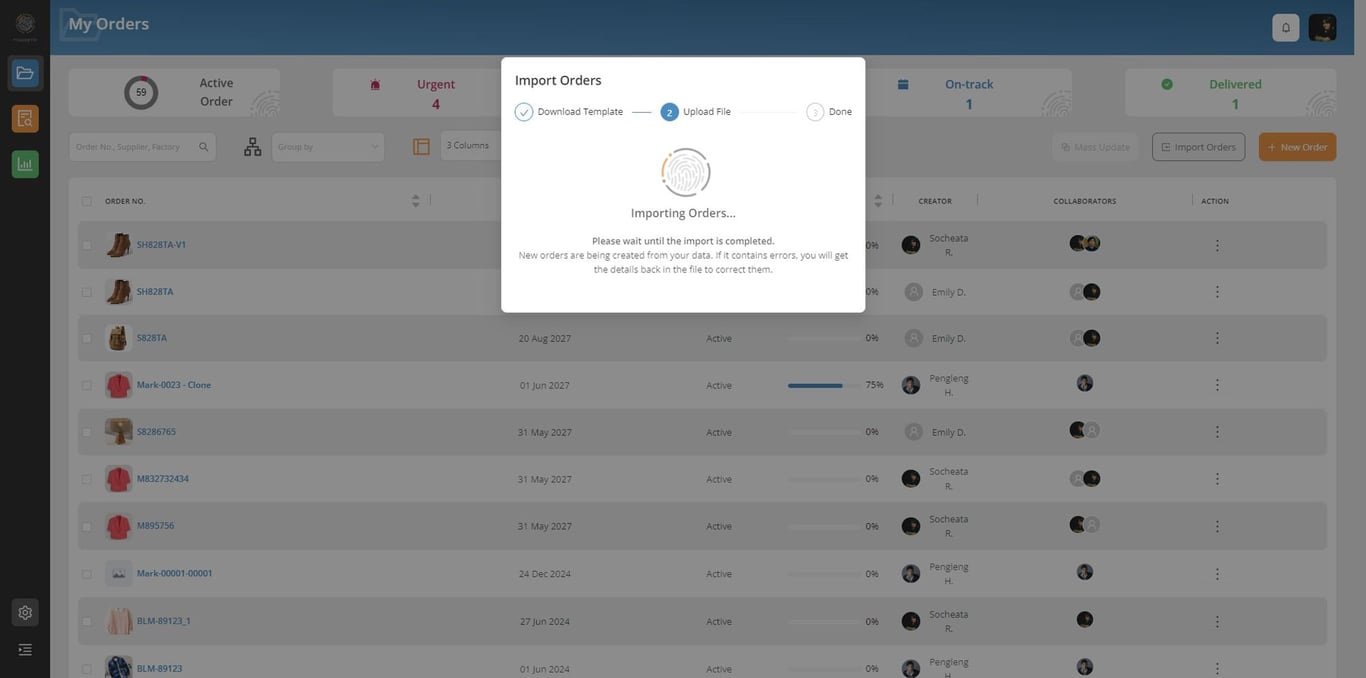
Fail import
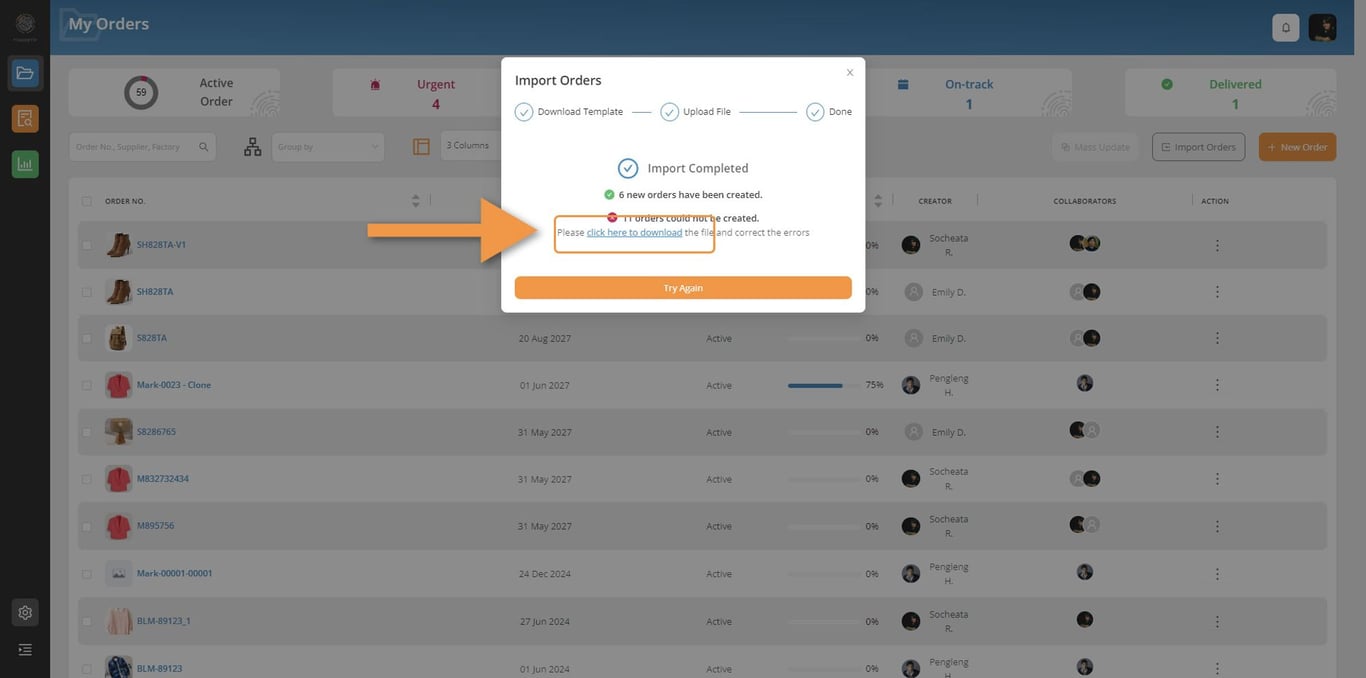
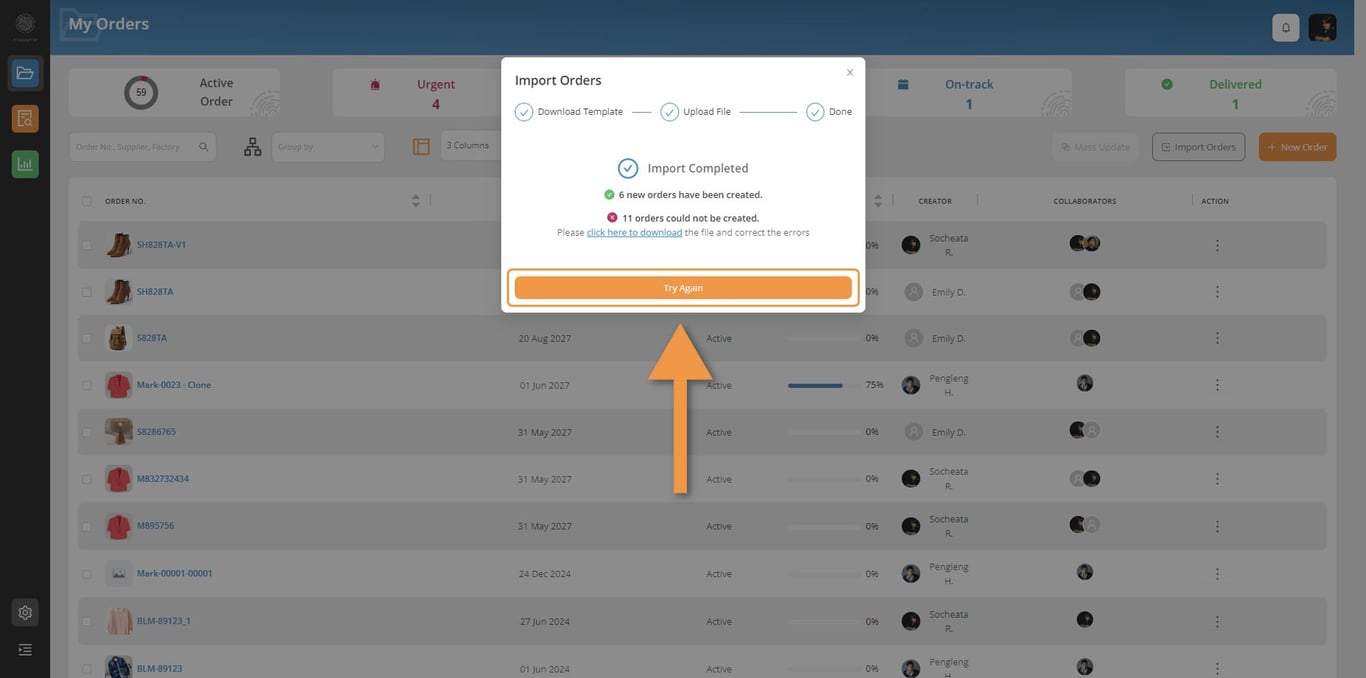
If there is any issue with your order information in your Excel file, you will get an alert.
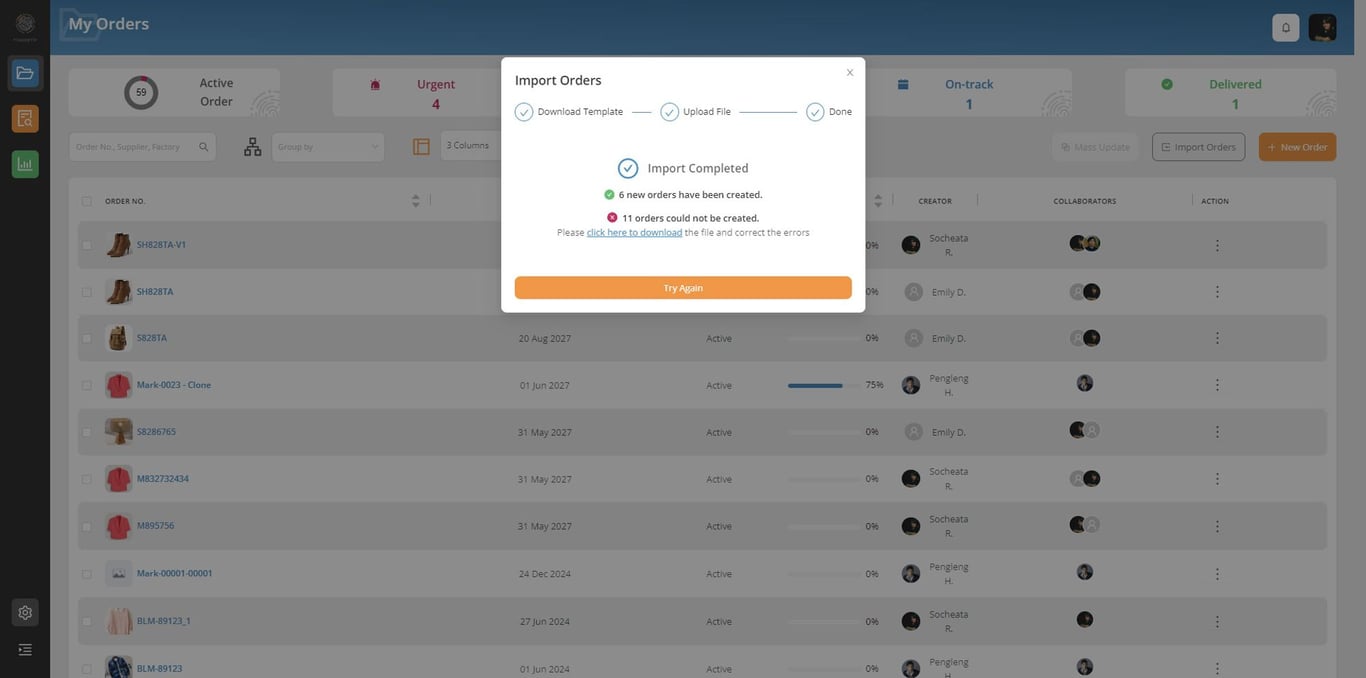
Check reason for fail import
Click on “Click here to download” to download the Excel file which will tell you what need to change.
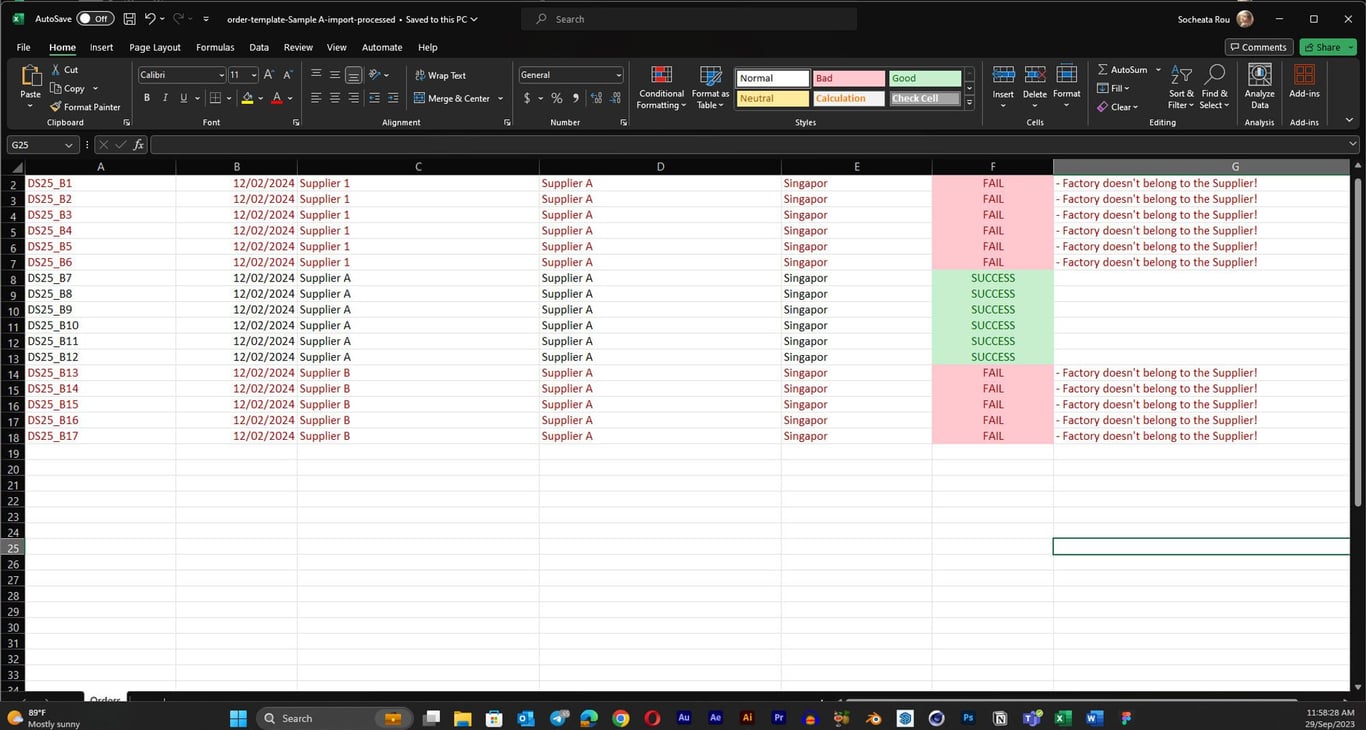
Review the Excel fail details
You can immediately see explanation of the failure in red and and the highlight on failed orders.
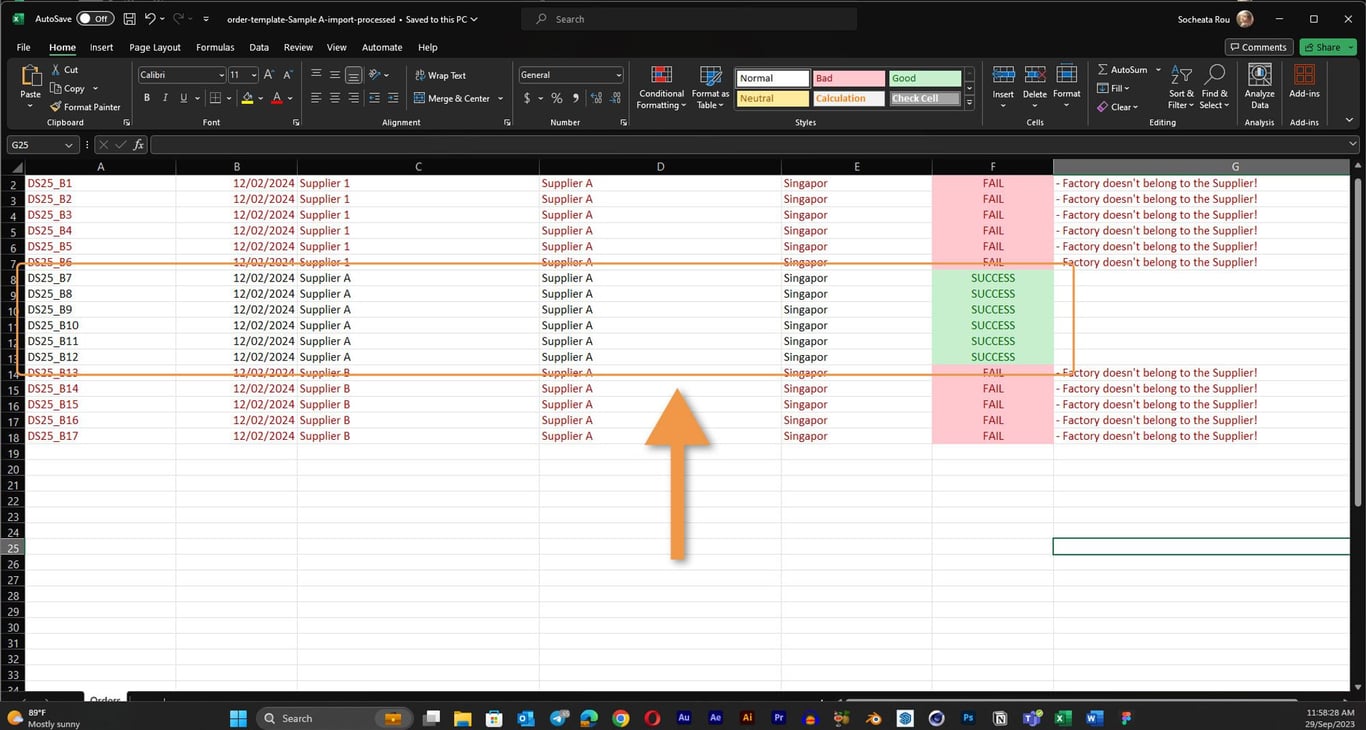
⚠️ You can delete the success orders because they are already uploaded.
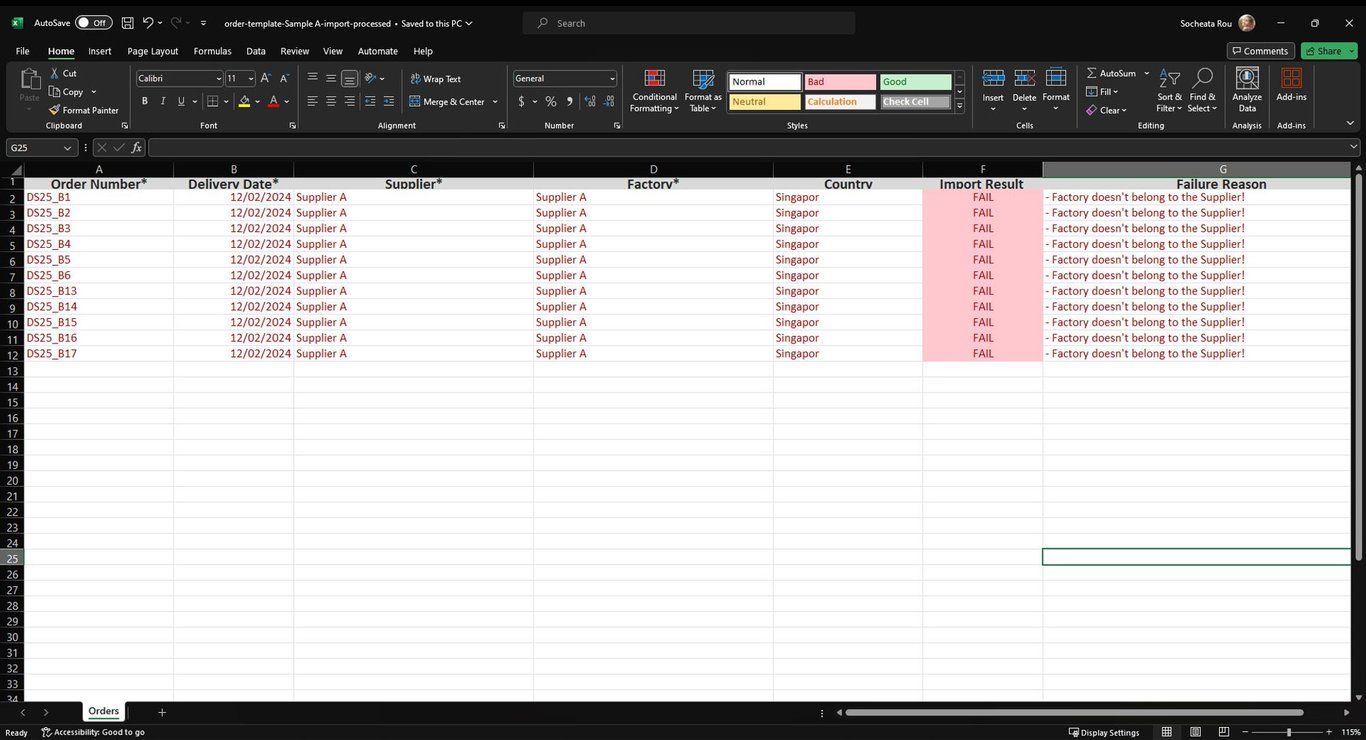
Then correct your orders and save.
Upload Excel File again
Click on try again to be able to upload the updated file.
Upload your updated file once again
When the upload is SUCCESS, click on Close to finish your orders’ upload.
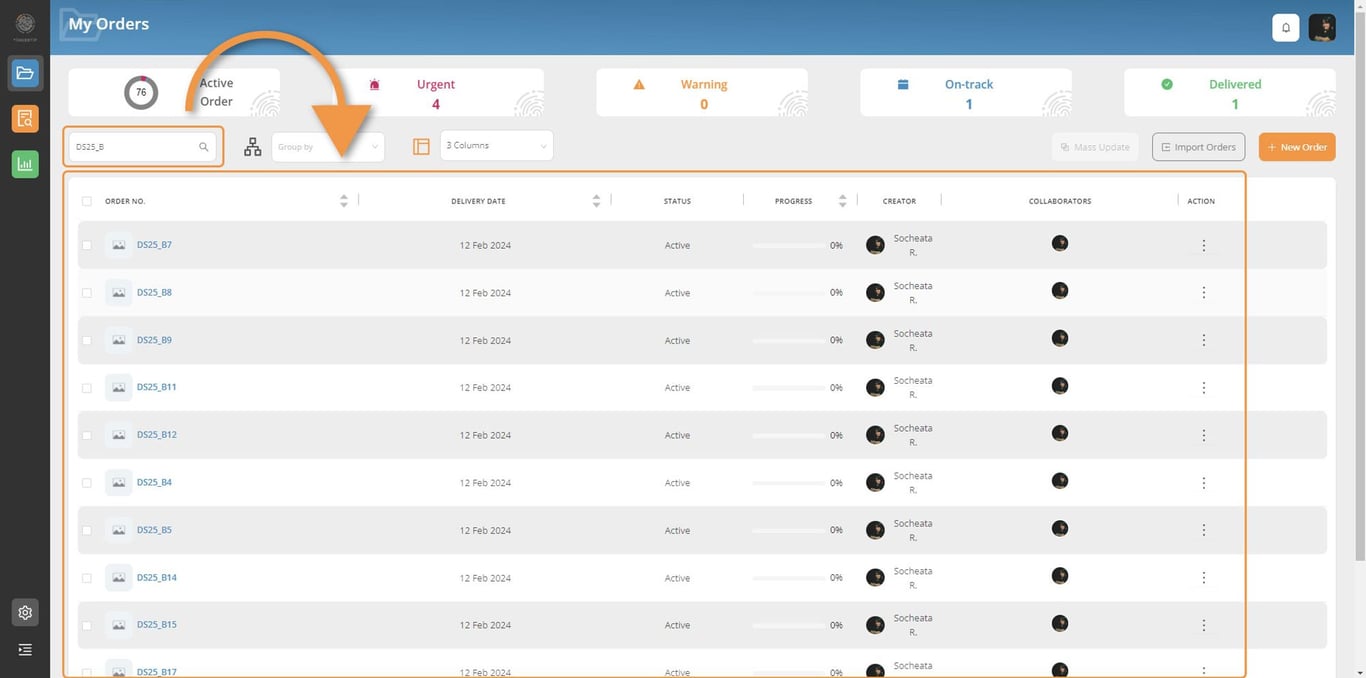
⚠️ You order may not appear in the first page, depending on their delivery date. By default, Fingertip shows the orders with the furthest delivery date first. You can look for them via Order Searching feature.
Step by step guideDetailed steps of Order Creation using Order Import feature:Get your Excel templateImport order windowChoose Order Info TemplateGet your Excel templateFill in the Excel templateUpload the Excel templateDrop your fileFail importCheck reason for fail importReview the Excel fail detailsUpload Excel File again
 Made with Bullet