List view
New Releases
New Releases
Getting Started
Getting Started


Order Management
Order Management


Inspection Management
Inspection Management
Templates
Templates
Introduction
Welcome to the new chapter of our user manual, where we introduce an exciting feature in our Fingertip inspection app: Search Functionality. With this powerful new tool, you can now effortlessly search for inspections using order numbers or purchase orders (PO). This enhancement allows you to quickly and efficiently locate specific inspections within a long list of assignments, streamlining your workflow and saving valuable time. Whether you're managing multiple inspections or tracking down specific details, our search feature ensures you have the information you need at your fingertips.
🎬 Video Tour How to use in-app search function (Ch subtitles).
📝Step-by-Step guide to in-app inspection search
Search Icon
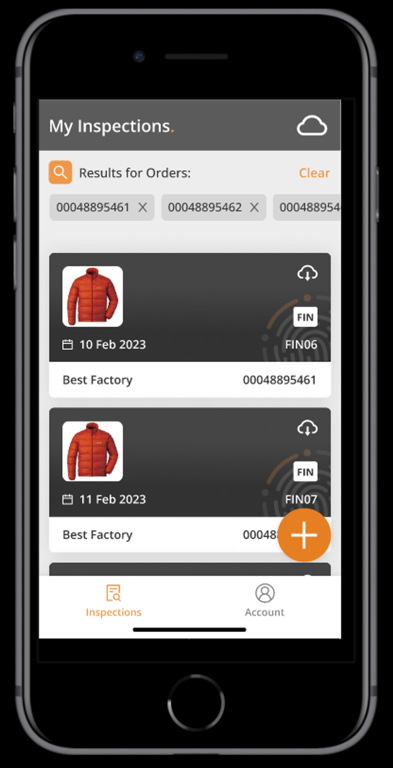
The new home screen of our Fingertip inspection app features a prominent enhancement: the big orange + floating button. This intuitive and easily accessible icon allows you to trigger the search function effortlessly. By tapping this button, you can initiate a search for specific inspections using order numbers or purchase orders, making it simple to navigate through your assignments and find exactly what you need with ease.
Step 1
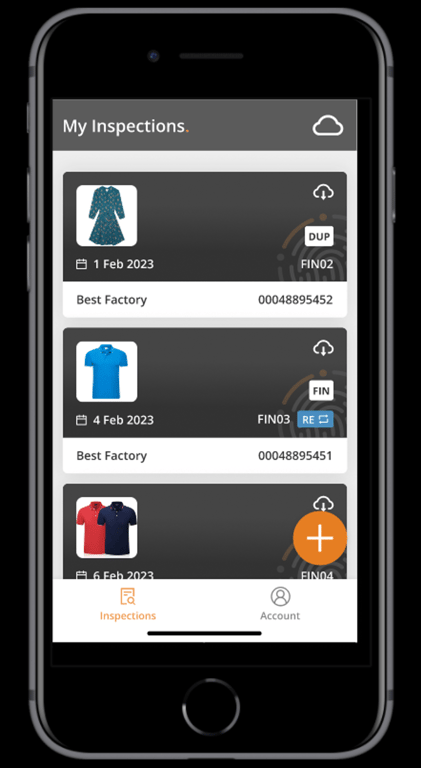
Step 2
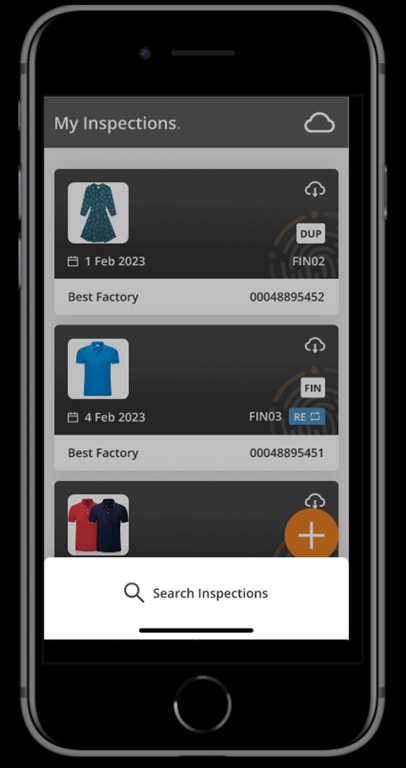
Search for your order or PO
When you access the search screen, you can type in your order number, whether it's a part or the full identification. The app will then display all relevant orders that match your input. From this list, you can select all the orders you want to view inspections for. Once you've made your selections, simply click on "Done" to see the inspections associated with those orders. This streamlined process ensures that you can quickly and efficiently locate the inspections you need.
Search your order(s)
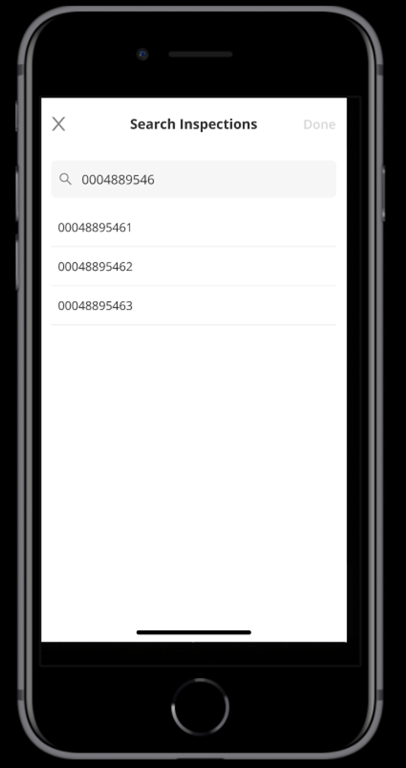
Select your order(s)
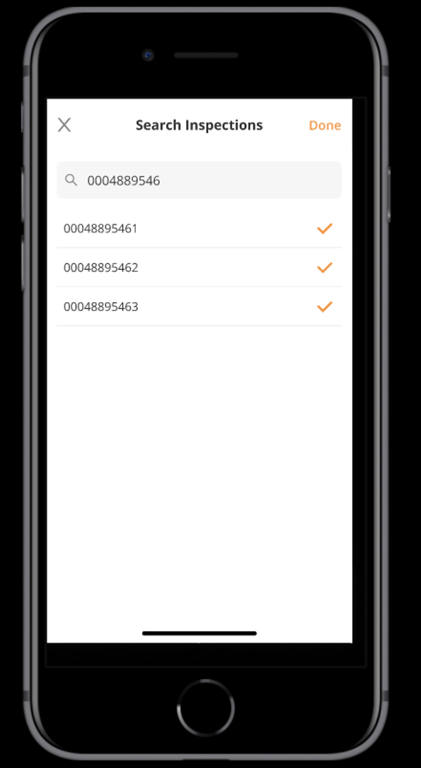
Click on the “Done” button at the top right corner
Find your inspection(s)
Once you have selected your orders, your relevant inspections are automatically listed down
 Made with Bullet