List view
New Releases
New Releases
Getting Started
Getting Started


Order Management
Order Management


Inspection Management
Inspection Management
Templates
Templates
Introduction
In this section, you will learn how to effectively manage your inspection reports using Fingertip. This guide will walk you through viewing, downloading, editing, approving, and tracking the history of changes made to your reports. By leveraging Fingertip’s features, you will benefit from enhanced transparency, improved visibility, increased accountability, and seamless collaboration. Our user-friendly interface ensures that managing your inspection reports is both efficient and straightforward.
🎬 Video Tour: Manage your Reports
📝 Step by Step guide: Manage your reports
View Report
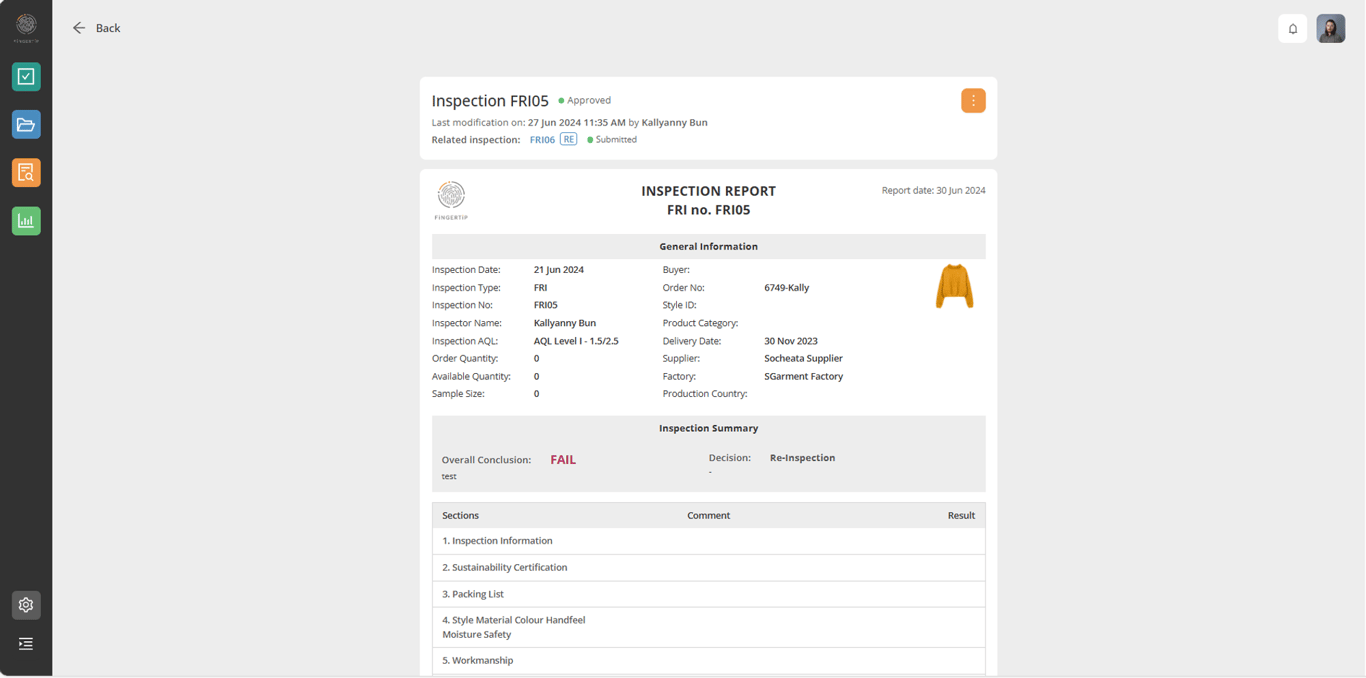
After the inspector finishes and submits the inspection, the Admin user will review and download the report. There are 2 options for the Admin user to navigate to the inspection report page.
From Email Notification
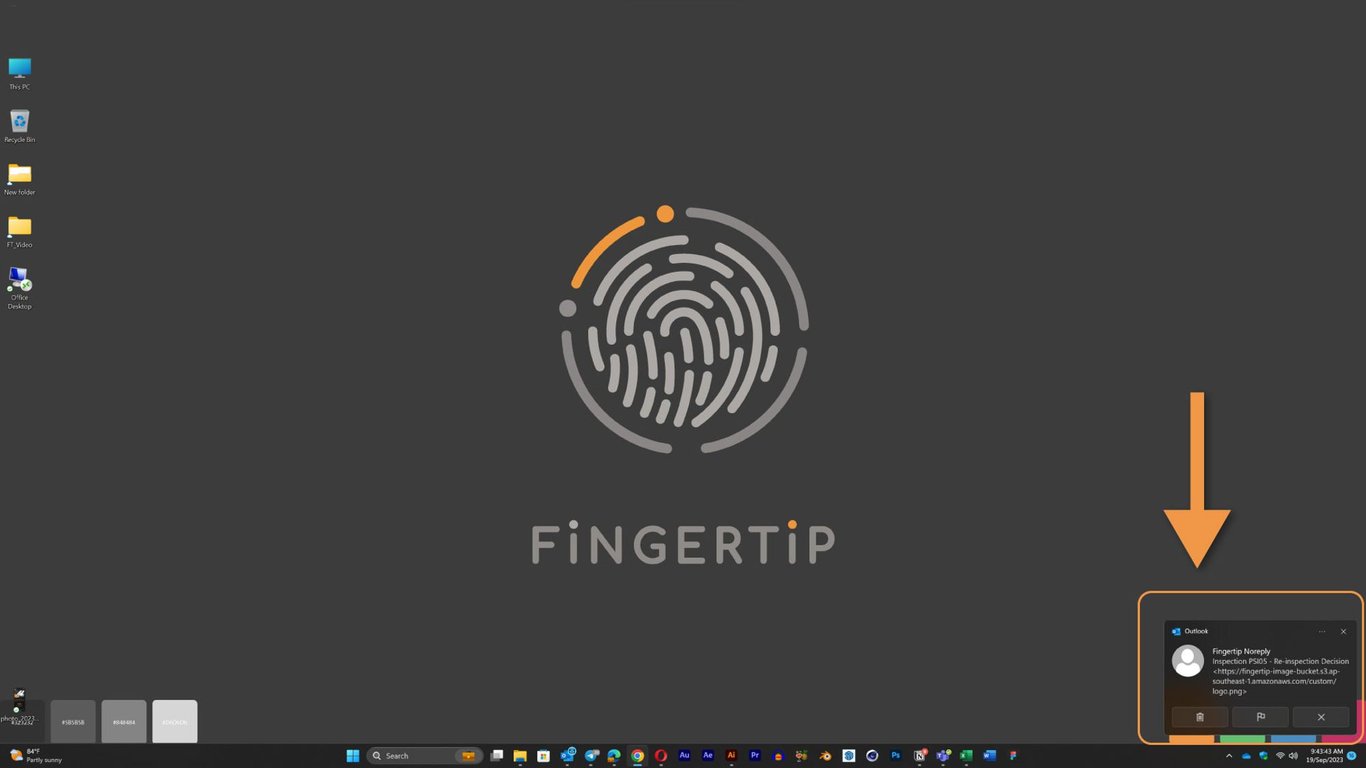
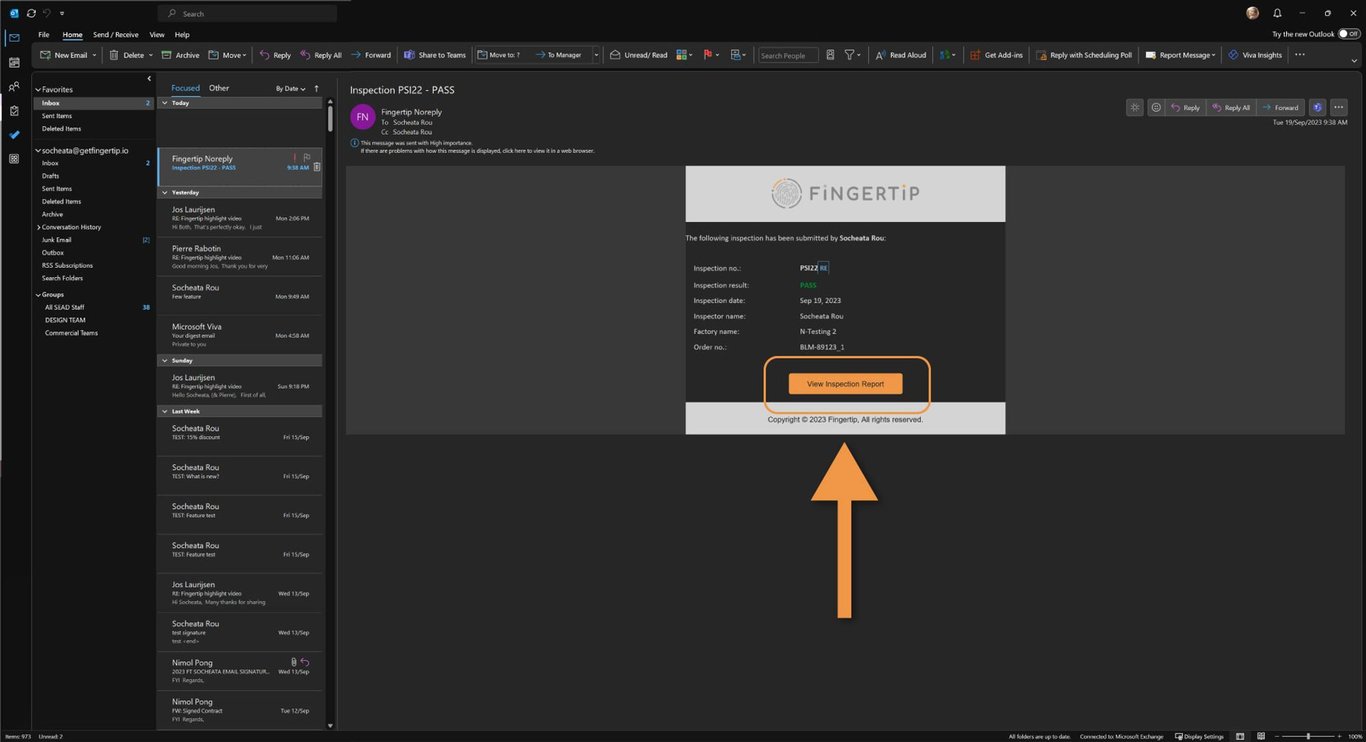
Once an inspection is submitted by the inspector, Admin user in charge will receive an email with a quick summary of the inspection as well as a link to the report. (Only available through web - Laptop / Desktop)
Go to your email and find the notification email.
Click on the “View Inspection Report” to open the inspection report page.
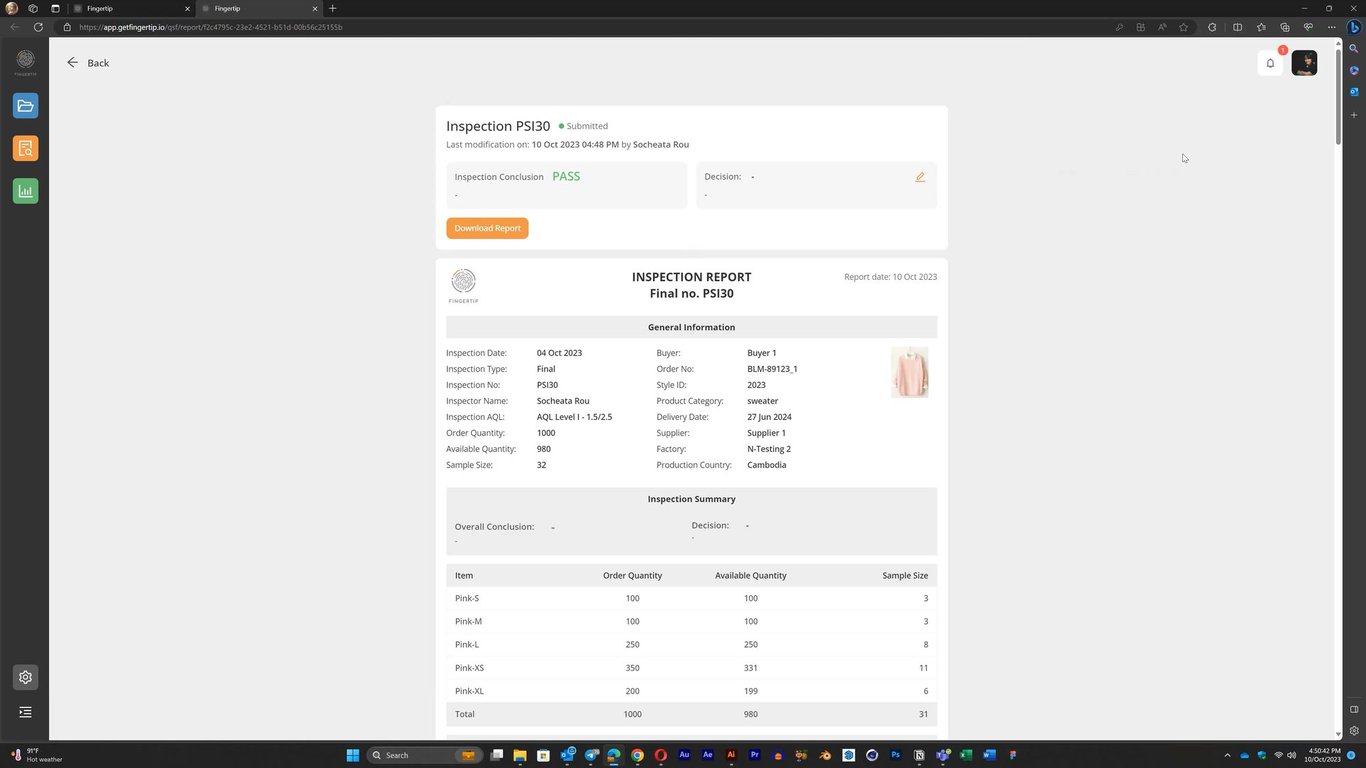
From Submitted Inspection Page
The Admin user can also navigate to the Inspection Submitted page in Fingertip web version and find the inspection they want to review.
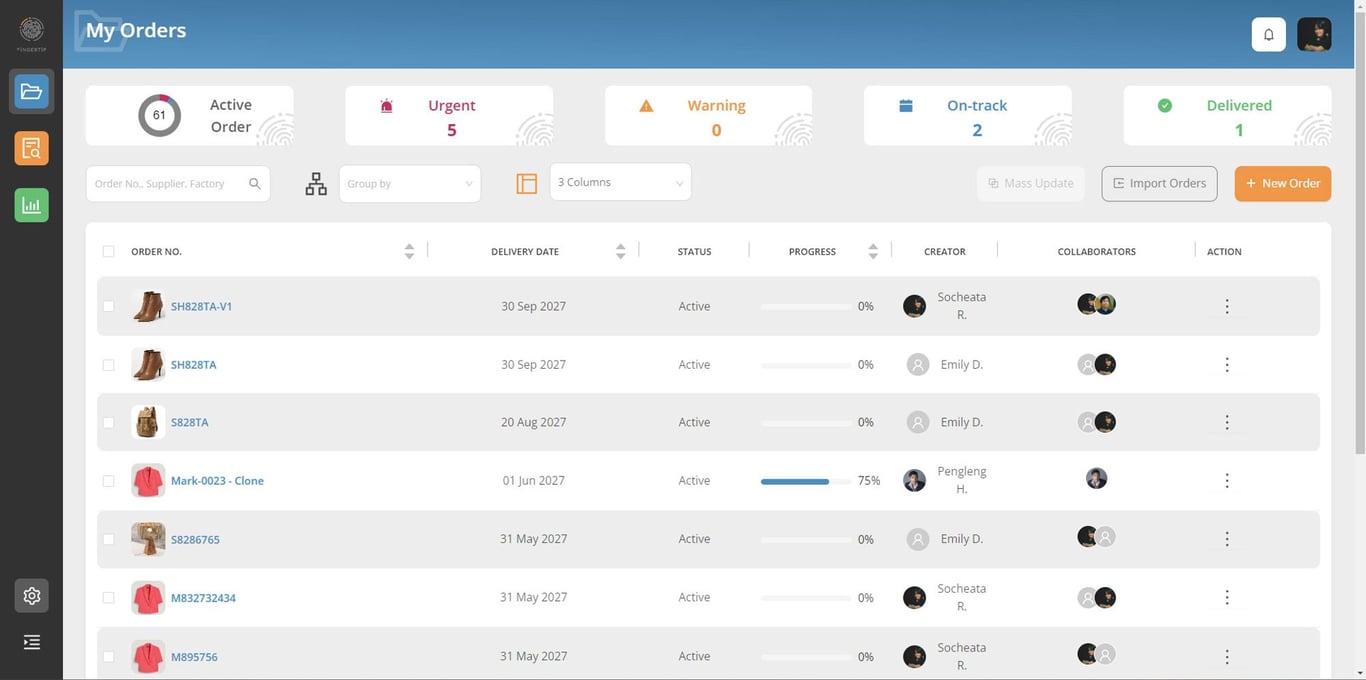
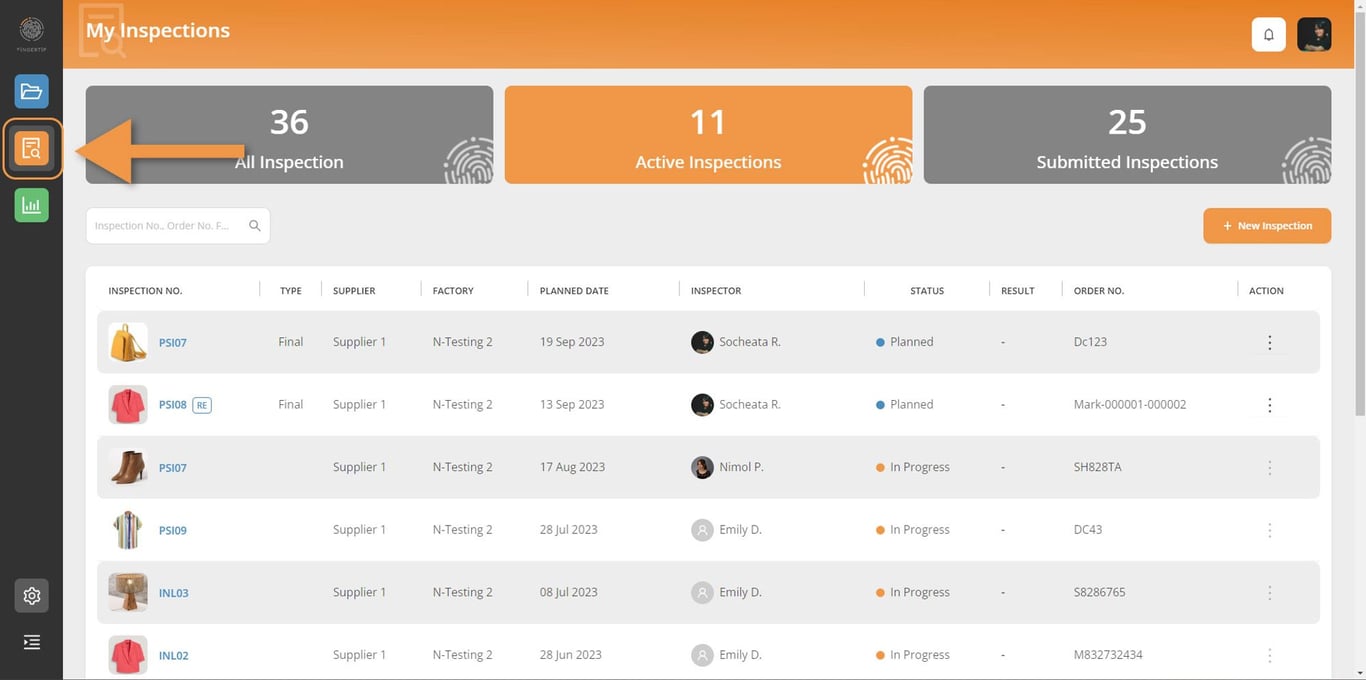
Click on the Inspection module.
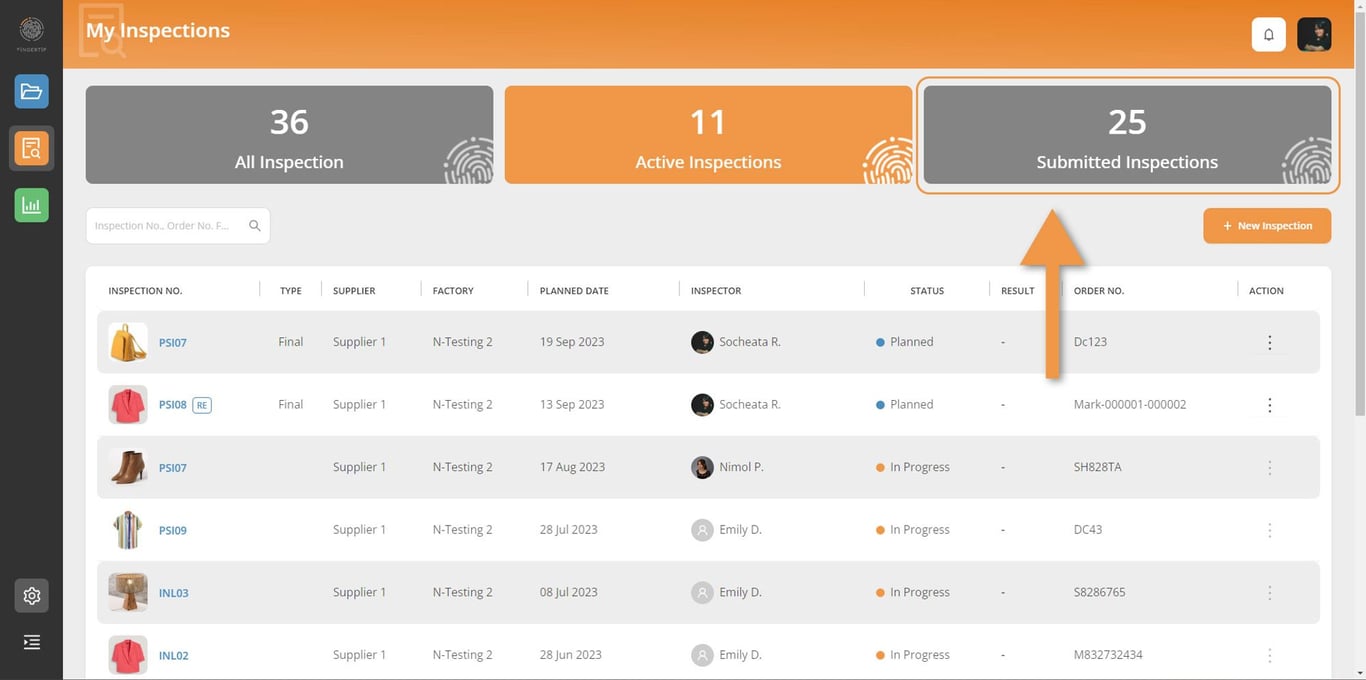
Click on the “SUBMITTED INSPECTION” tile to navigate to the submitted inspection list.
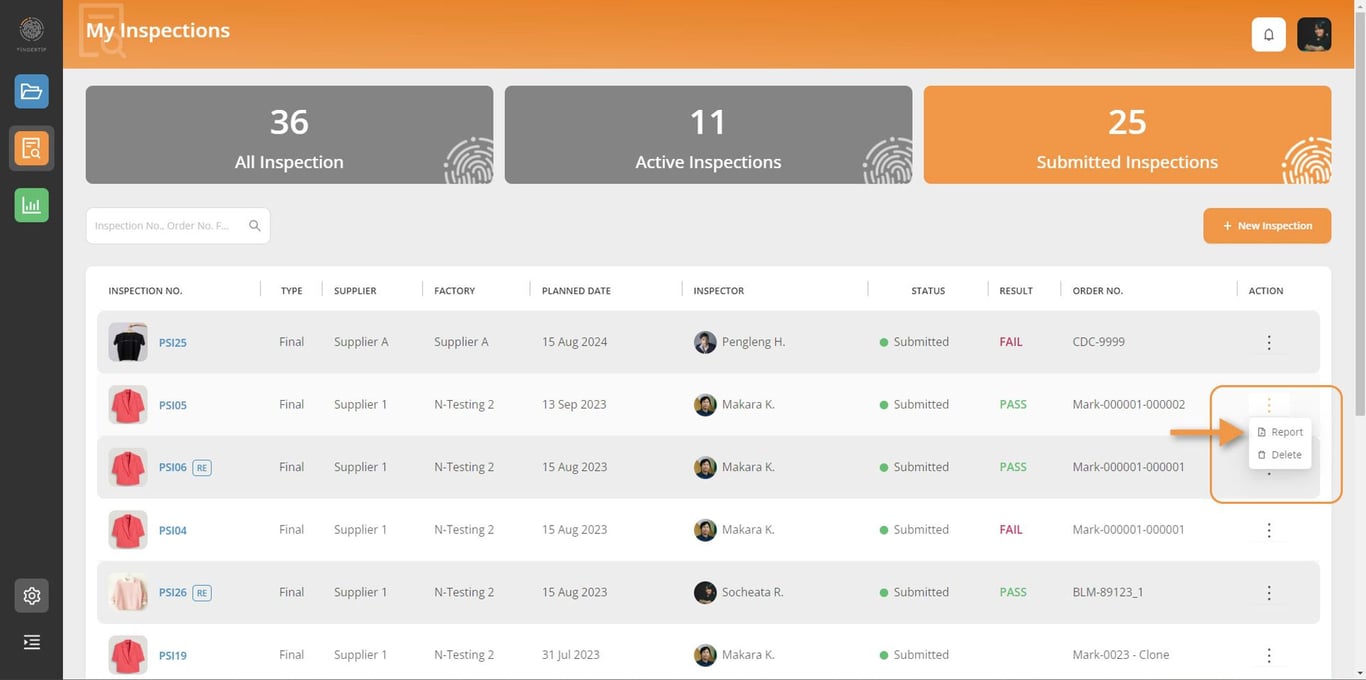
Find the inspection item you want to review then click on the action and “Report” buttons to open the Inspection Report page.
Download Report
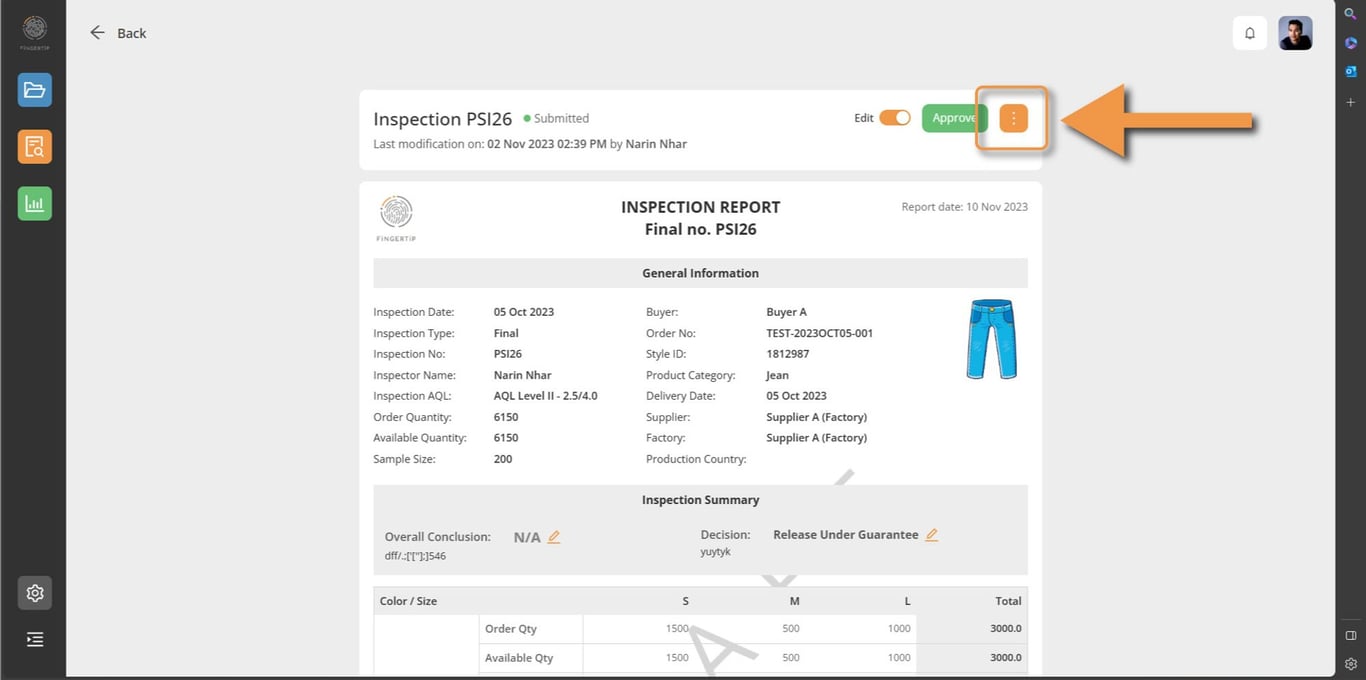
Navigate to your report from the inspection listing and locate the 3 DOTS orange action button at the top right corner of your report. Click on it and select the “DOWNLOAD AS PDF” option.
⚠️ This option is only available to Admin users.
Edit Report
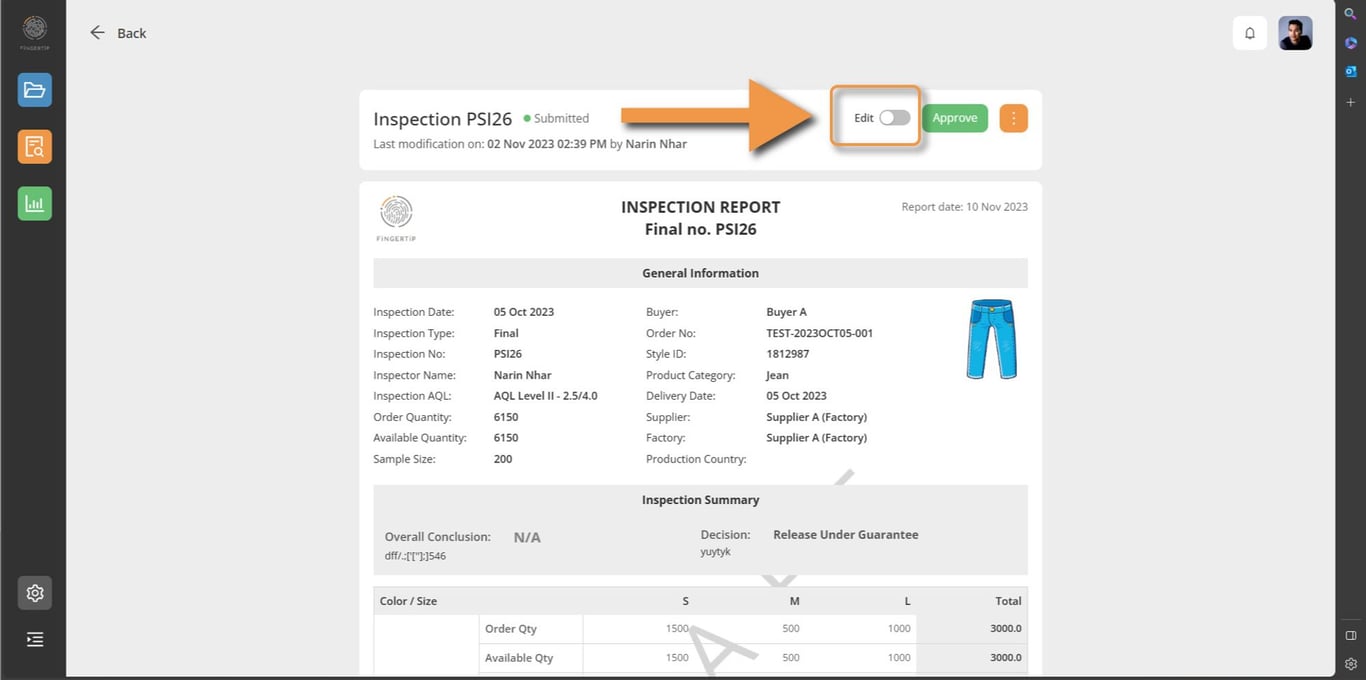
Navigate to your report from the inspection listing and locate the TOGGLE SWITCH next to the Edit word at the top of your report.
⚠️ This option is only available to Admin users.
Note that only submitted inspections can have their reports edited.
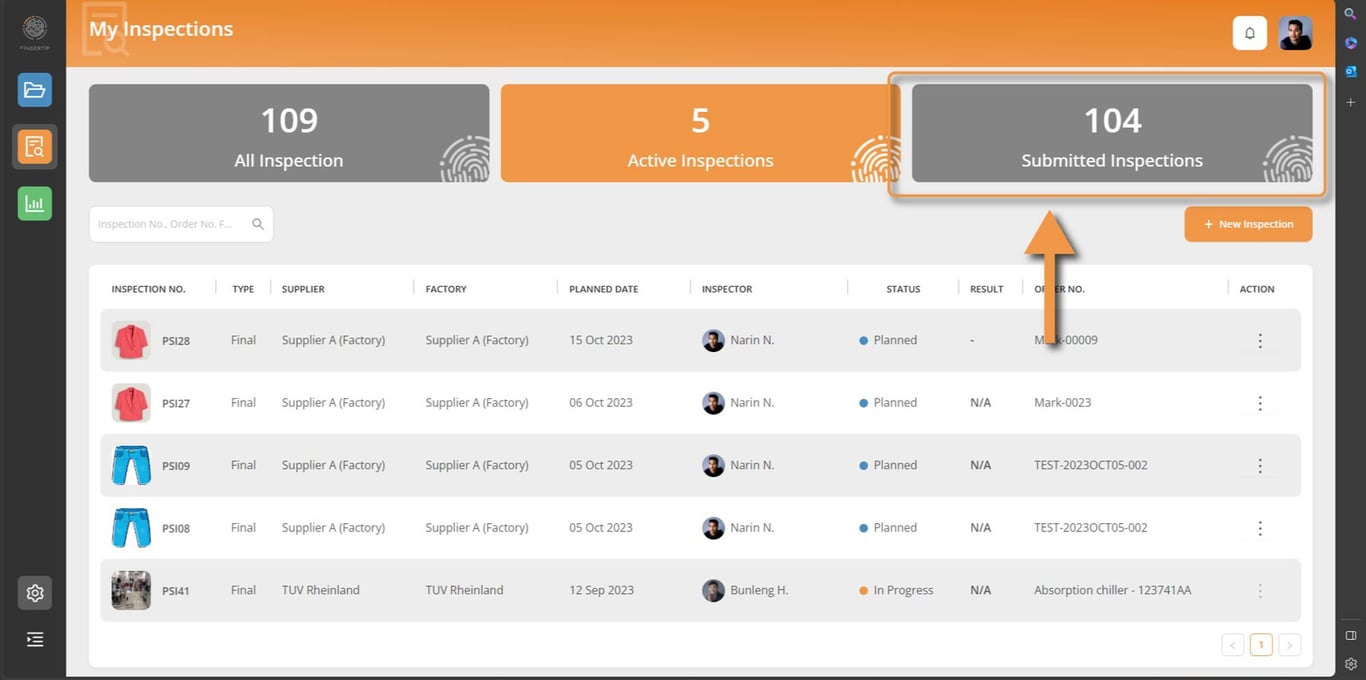
Click on the TOGGLE SWITCH button to start editing your report.
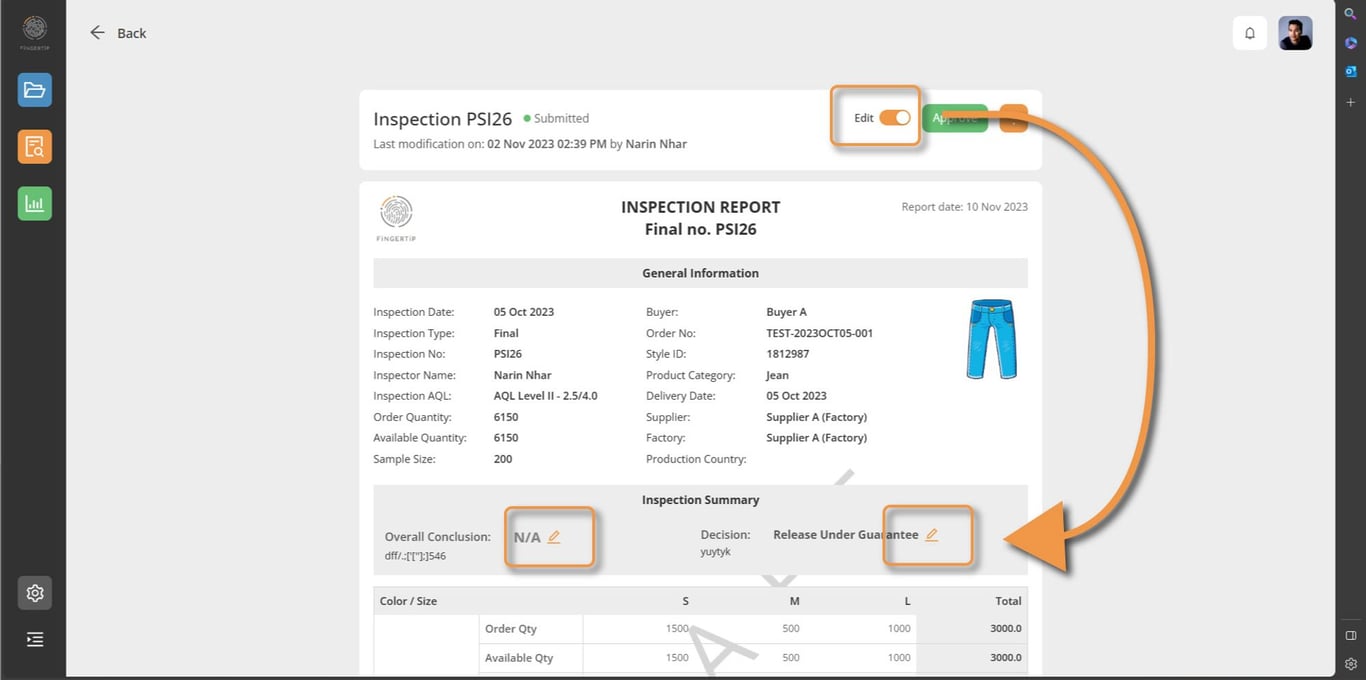
Once you turn it on, you will see the PENCIL icon next to all the fields you can edit.
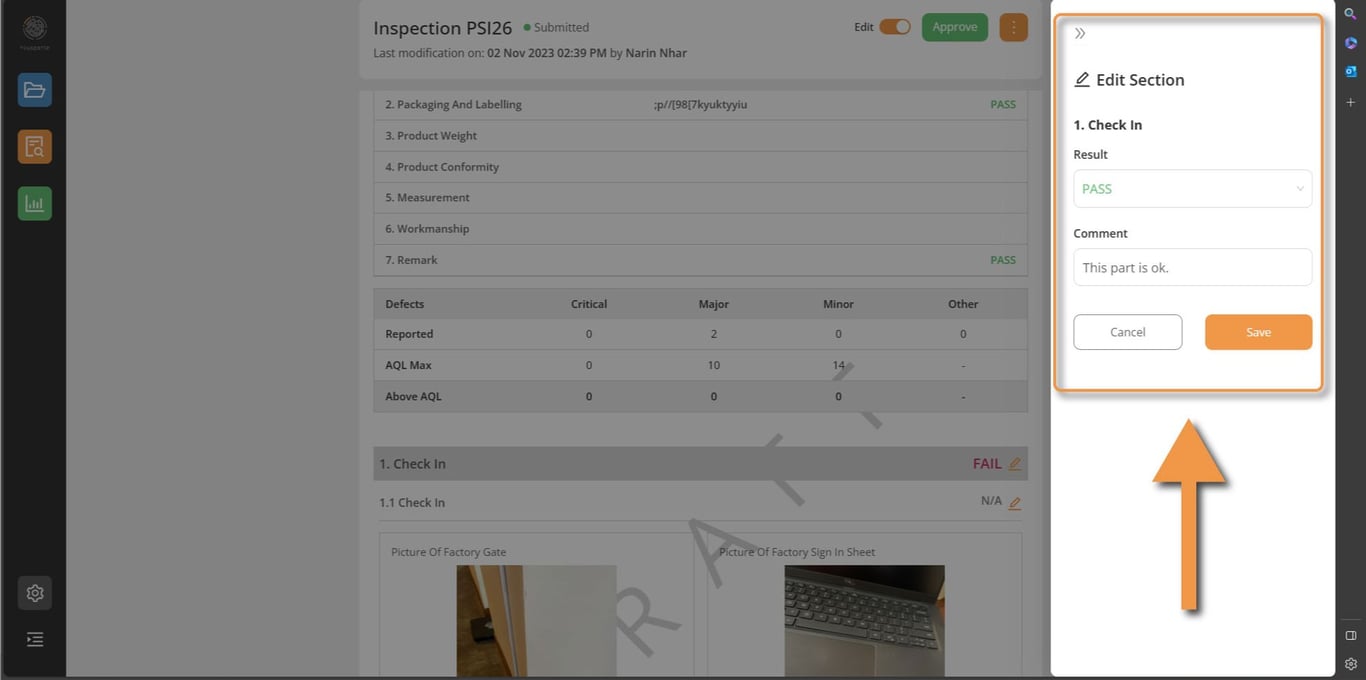
Once you click on the PENCIL icon, an EDIT sliding panel will appear, where you can change data and info.
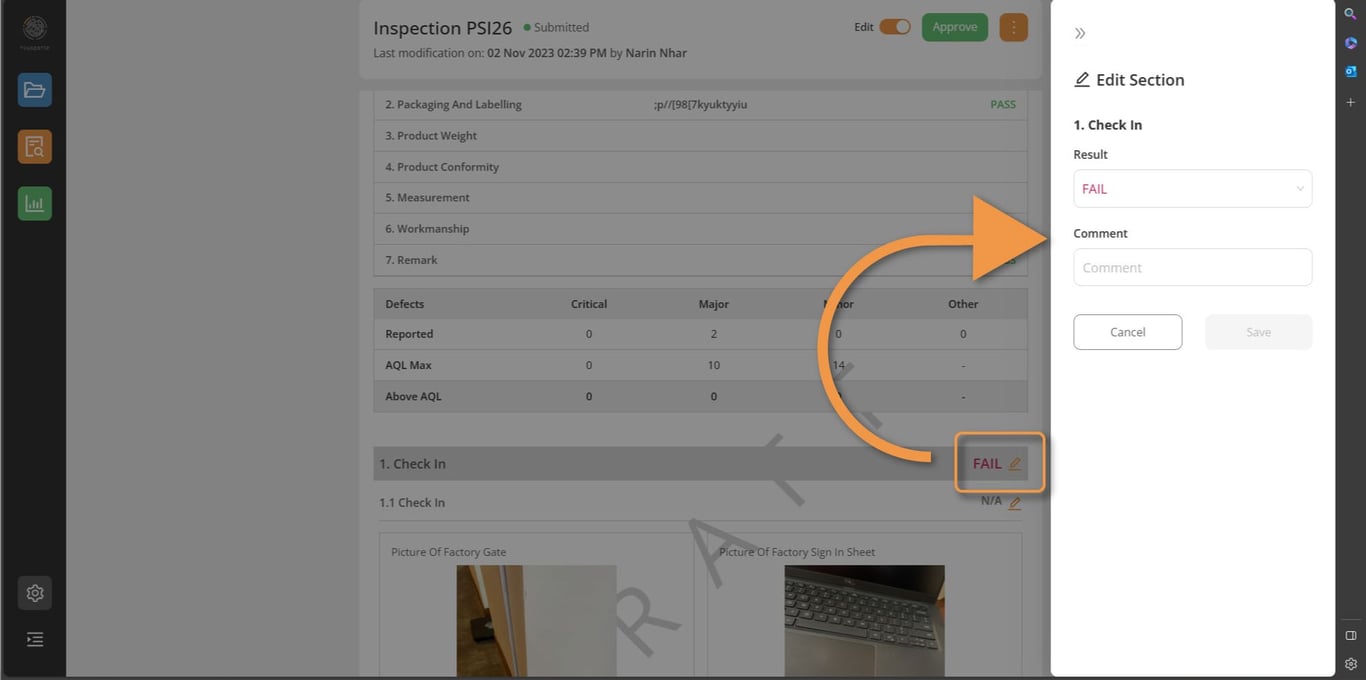
In here you can edit the result and the comments. Click save after you are done with editing.
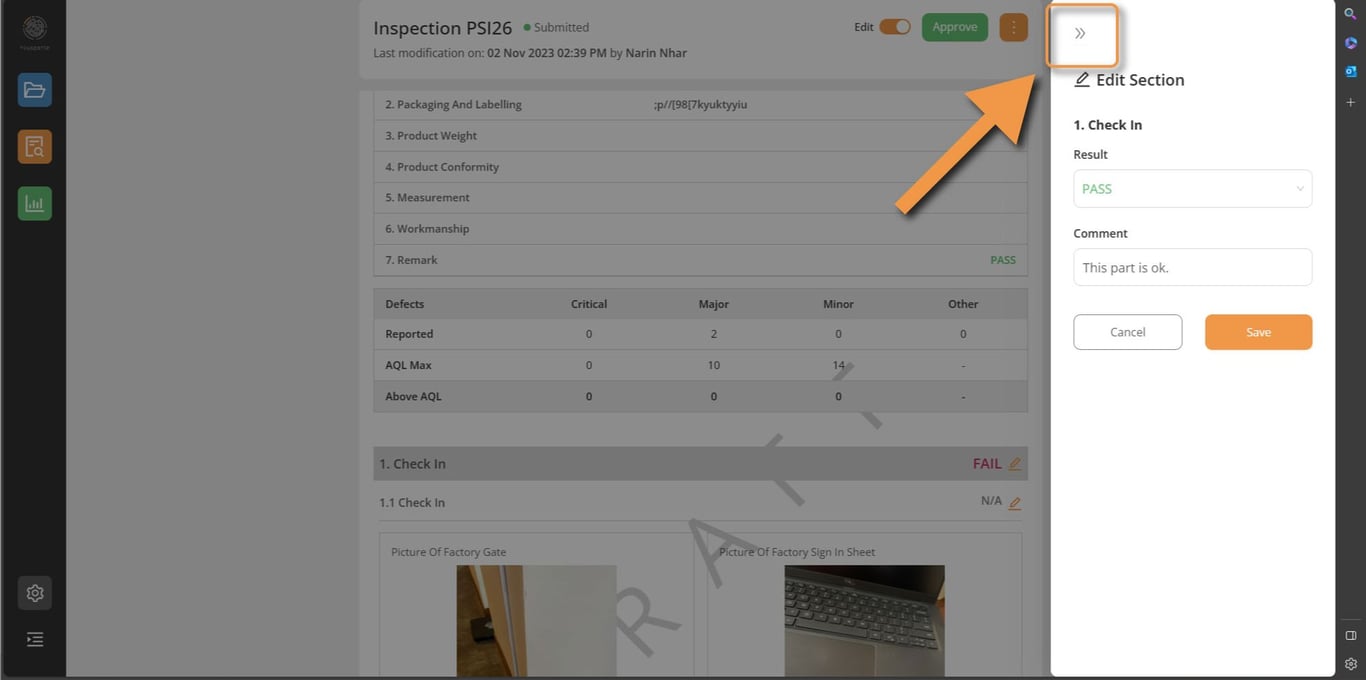
Click on this arrow icon to go back to the report.
Approve Report
In order to approve your report once you have reviewed/edited it, just click on APPROVE button, at the top of your report.
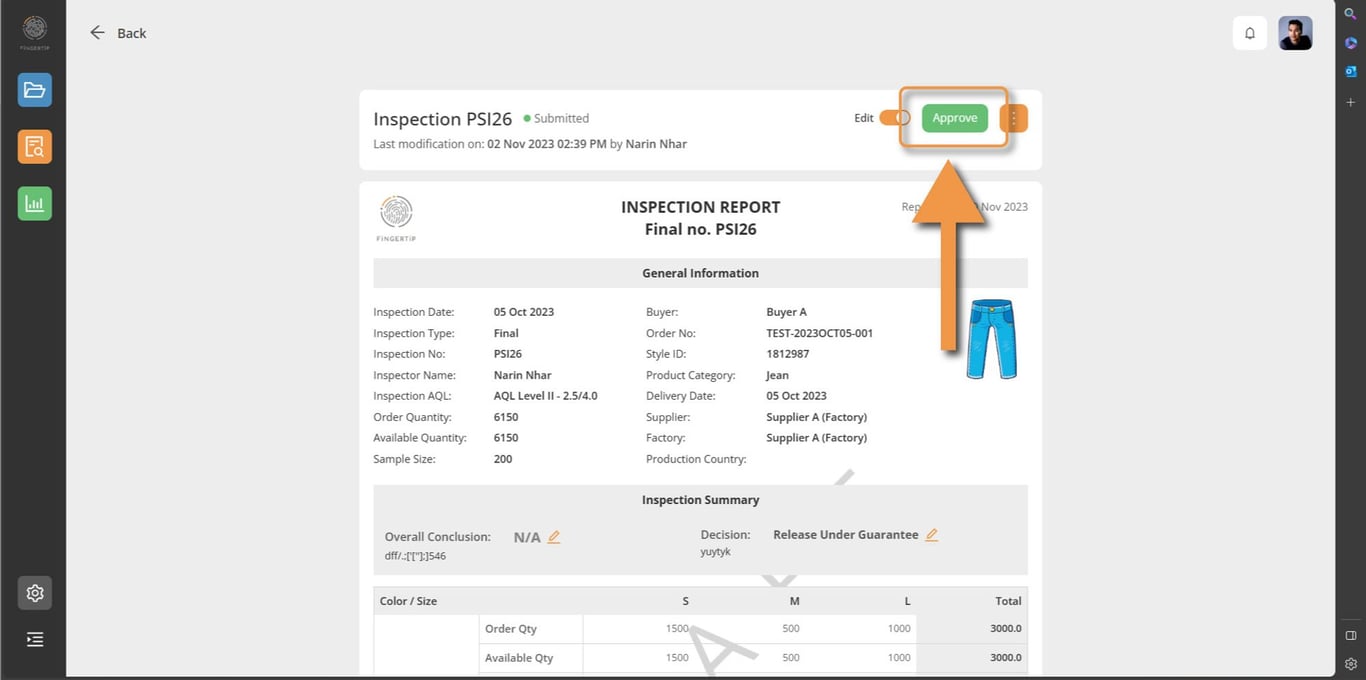
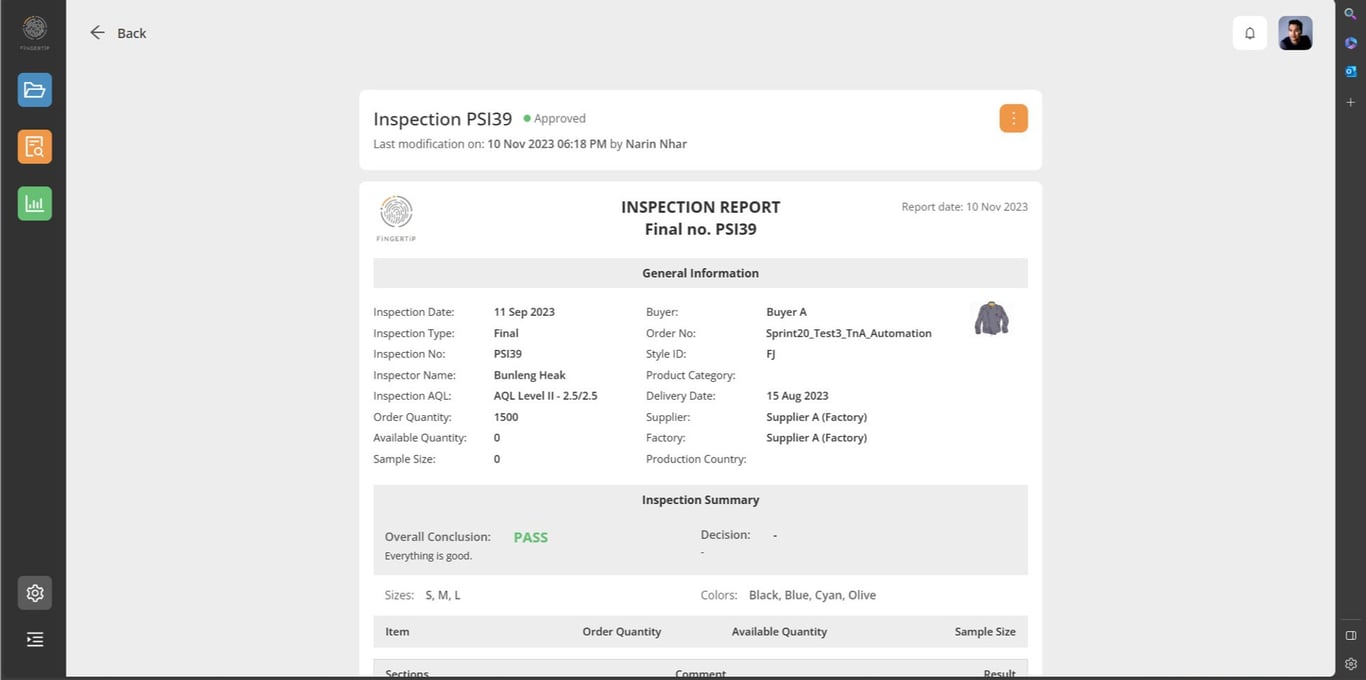
Once your confirm your approval, you will be brought back to the report, making the watermark and the edit function disappear.
⚠️ Note that once a report is approved you cannot go back to edit it.
View History
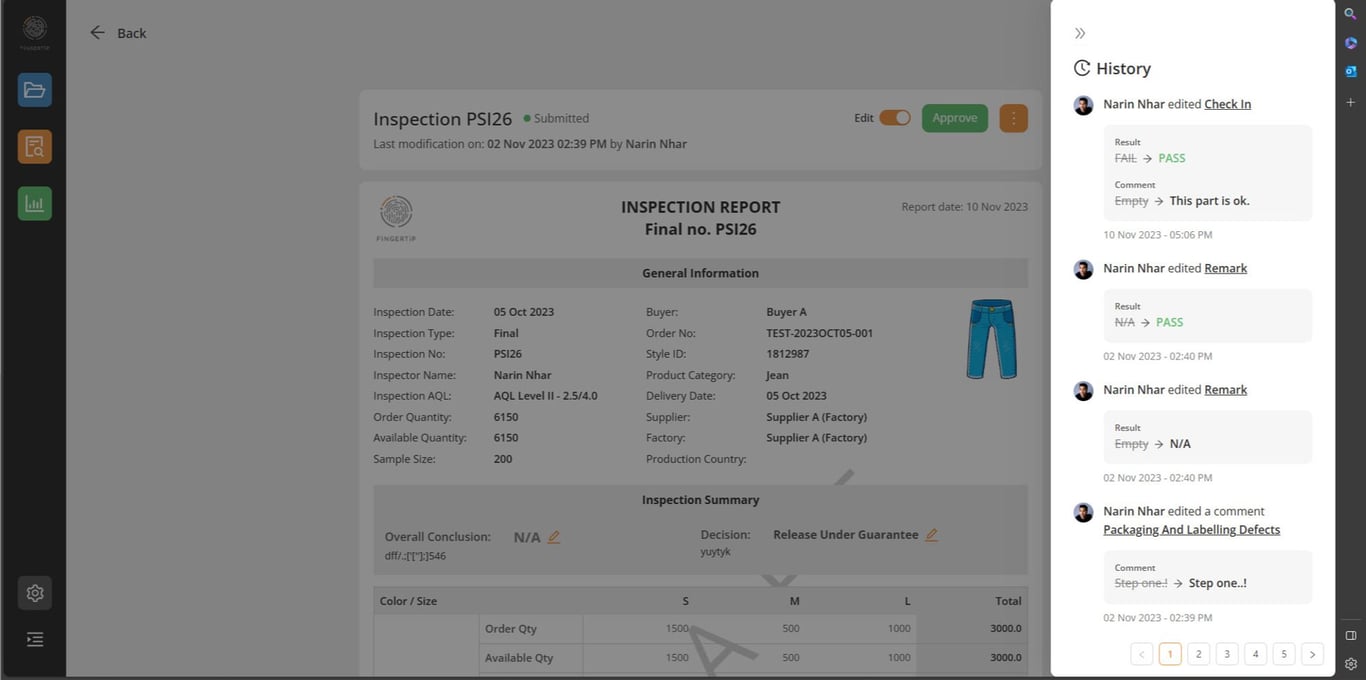
Fingertip is built to allow users to have full visibility and transparency over their quality processes. That is why you can access your report EDITION HISTORY, and track all the changes that have been made to the report before being approved.
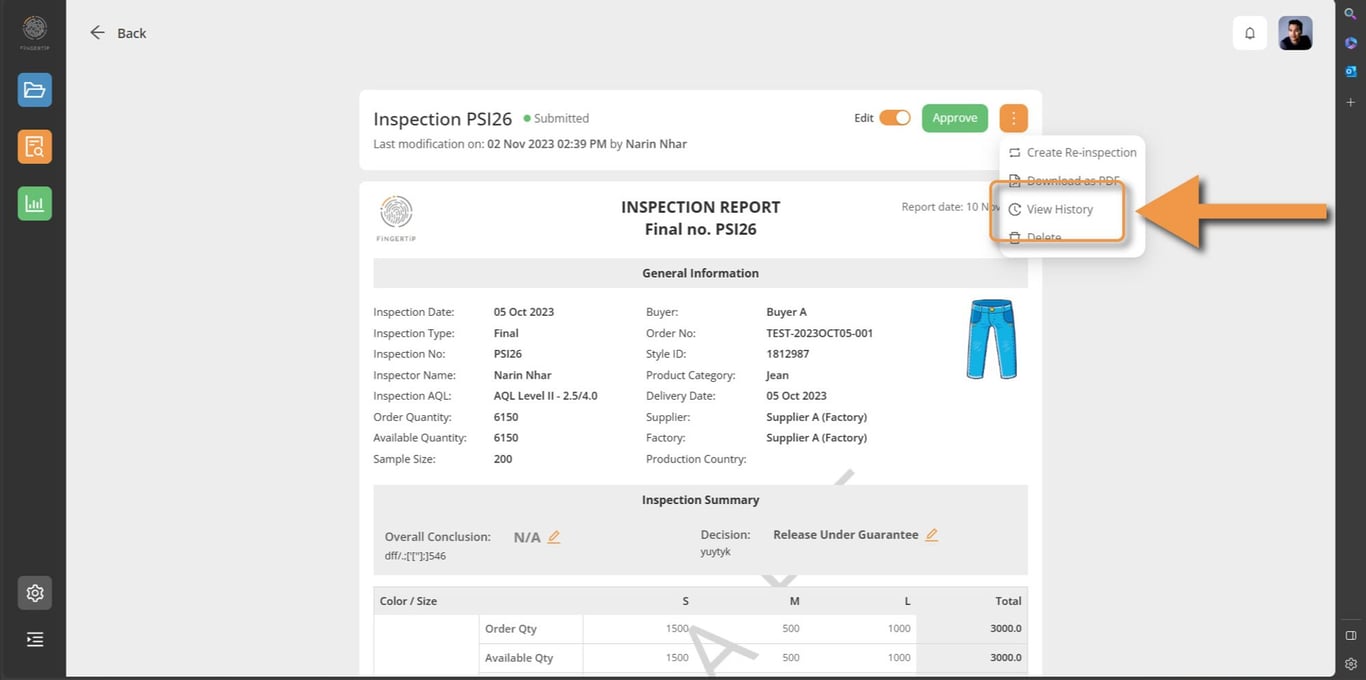
As you usual, Click on the 3 DOTS orange action button, select VIEW HISTORY, and access the list of changes made by Fingertip’s users.
 Made with Bullet