
List view
New Releases
New Releases
Getting Started
Getting Started


Order Management
Order Management


Inspection Management
Inspection Management
Templates
Templates
Template Management
Templates are the center piece of Fingertip. In order to get their own processes in Fingertip, organization
In Fingertip, templates are a cornerstone of the platform, enabling you to customize and streamline your supply chain processes to fit your specific needs. By leveraging templates, you can create a structured and efficient workflow without the need to manually configure each project repeatedly. Templates provide a robust framework that allows you to maintain consistency, save time, and enhance productivity. Whether you’re managing orders, conducting inspections, or tracking progress, Fingertip offers a flexible and intuitive template system designed to adapt to your unique requirements.
Fingertip supports three types of templates:
1. Order Template: Customize the data and properties required for creating orders. (Orders to be created from home page)
2. Inspection Template: Design specific inspection workflows with tailored checklists.
3. Time and Action Template: Define your critical path with unique milestones and tasks for order follow-up.
🎬 Video Tour: How to Create Templates
Inspection Template
Create New Inspection Template
Edit Inspection Template
Time & Action Template
📝 Step by Step guide: How to Create Templates
Order Template
The Order Template in Fingertip allows you to define and gather all the necessary information, data, and properties required when creating an order. This template ensures that every order is initialized with the correct details, maintaining consistency across your projects. By setting up an Order Template, you can standardize the order creation process, ensuring that all essential fields are filled and relevant information is included from the start. This not only saves time but also reduces the risk of errors and omissions, providing a solid foundation for managing your supply chain activities.
⚠️ Before editing an order, start with Creating an order: Follow the instructions here
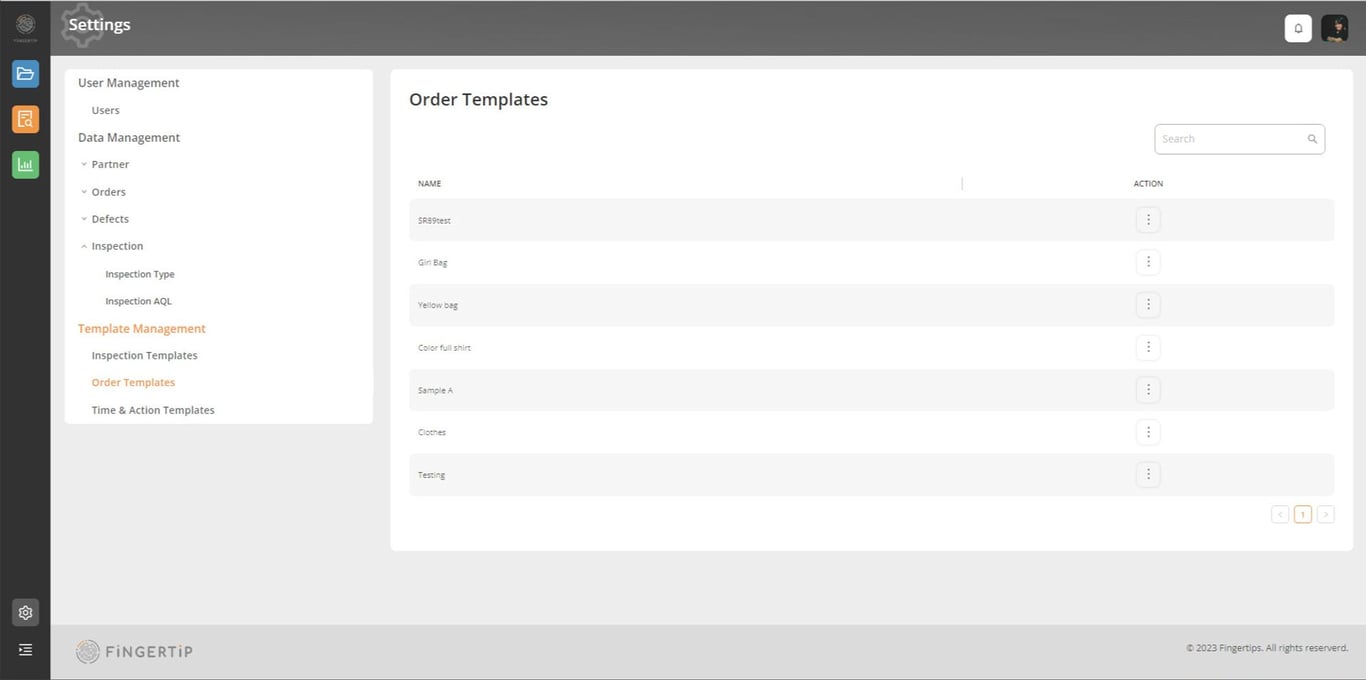
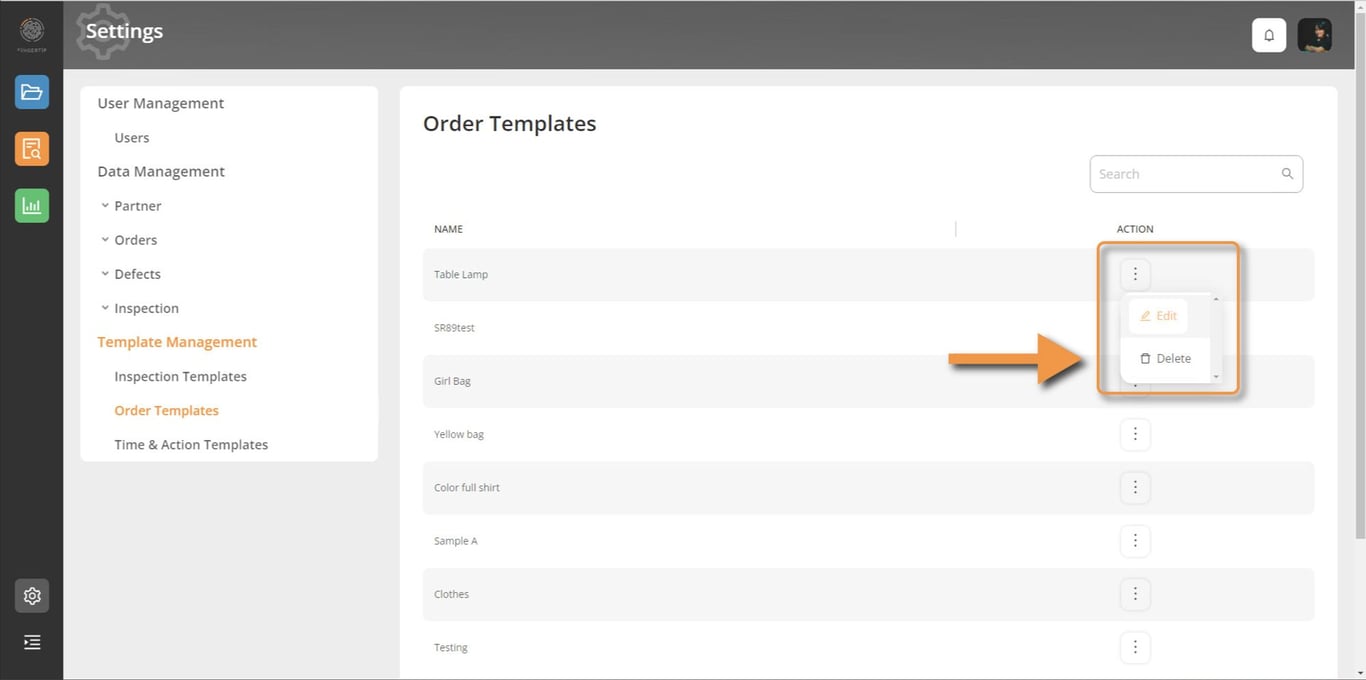
You can edit your order template by clicking on the three dots located on the right side of the template. This menu provides two options: 'Edit' and 'Delete'.
If you choose 'Edit', the application will display the elements that you can modify: currently you will only be able to edit the name of the template.
Inspection Template
The Inspection Template in Fingertip empowers you to design your own inspection workflows with specific checklists tailored to your quality control requirements. This template allows you to create comprehensive inspection procedures, ensuring that all critical checkpoints are covered during the inspection process. By customizing the inspection workflow, you can address the unique quality standards of your products and ensure thorough evaluations. The Inspection Template enables you to streamline the inspection process, enhance consistency, and maintain high-quality standards across all inspections.
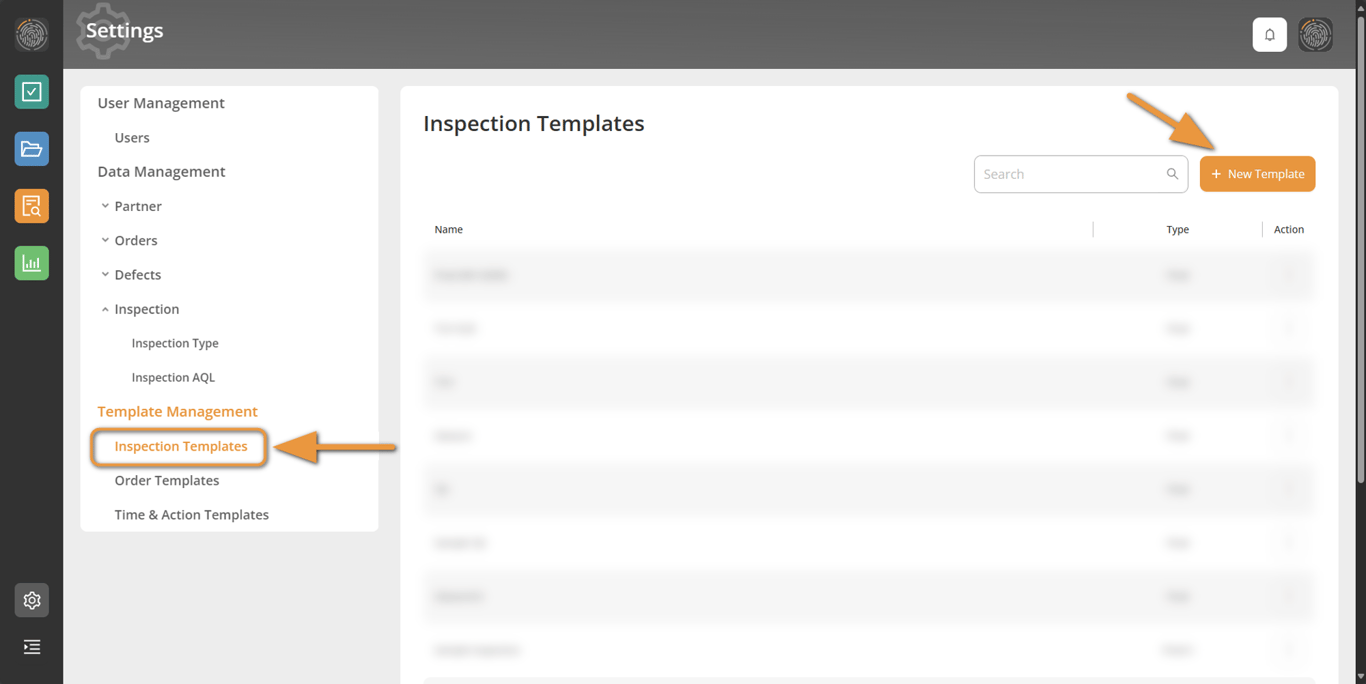
- Click on Inspection Templates under Template Management in the side bar
- Then click on the “+ New Template” button
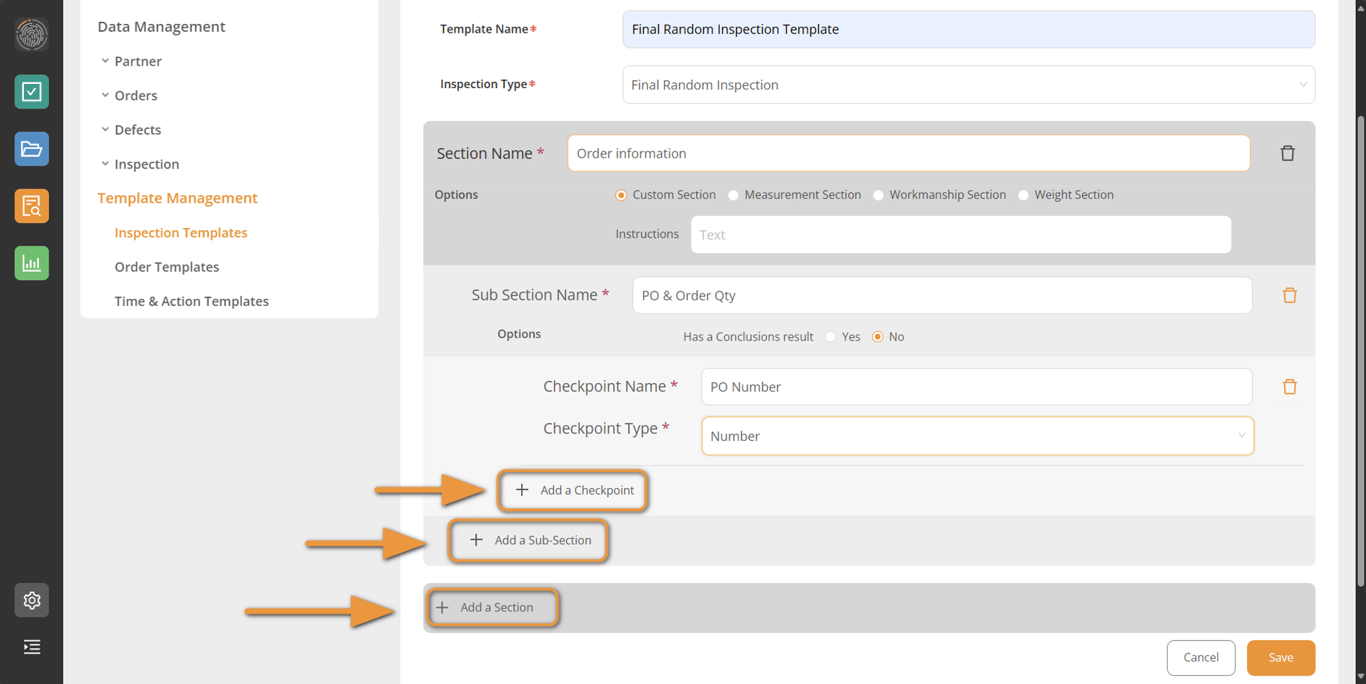
You will then land on our template builder where you can create the name of the template, link it to the right inspection type and start building your inspection checklist
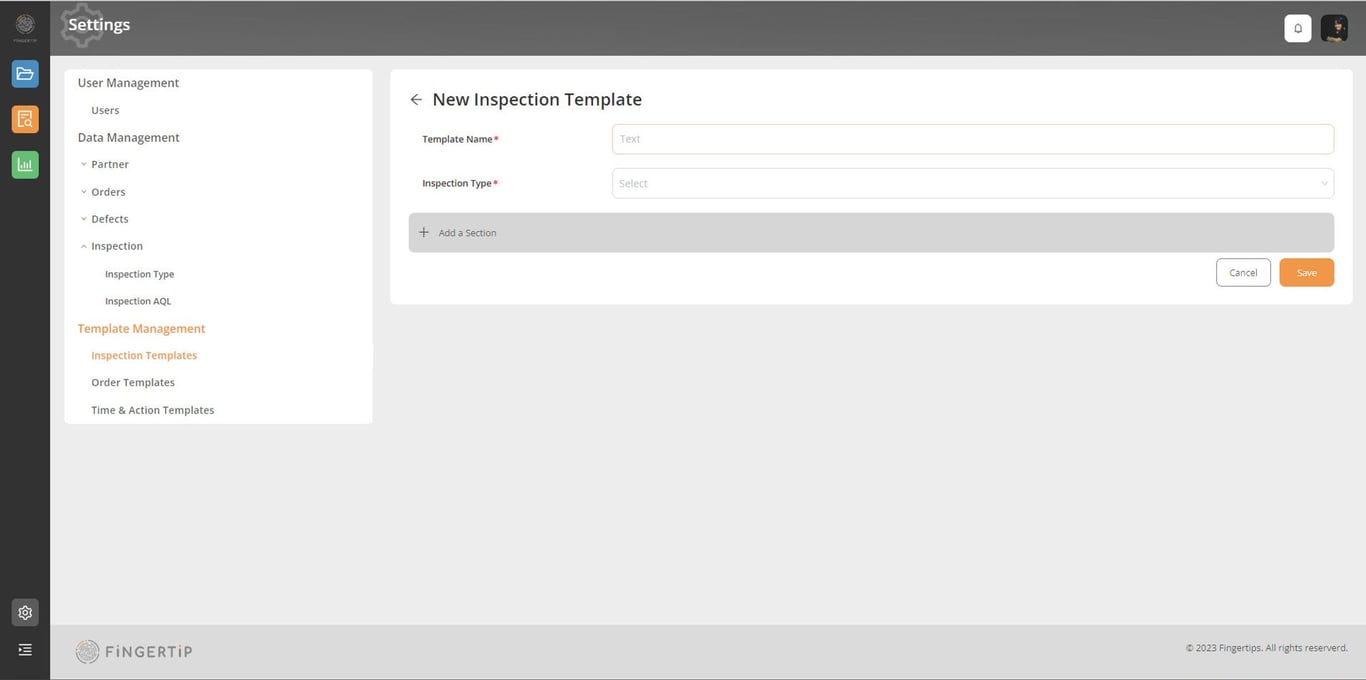
- Fill Name and Type for the new template
- Click on “+ Add a Section” to create a new section
- Click on “+ Add a Sub-Section” to create a new sub-section and the sub-section can be added as many times as needed. For Example, if your main section was “Packaging and Labeling”, your sub-sections could be: “Carton Inspection”, “Assortment” and “Labeling”.
- Click on “+ Add a Checkpoint” to create a new checkpoint or task for the inspector to work on, and the checkpoint can be added as many times as needed. It could be a Text, Number, Photo, Date, Select, and Editable Choice type.
- You can Delete any section, sub-section or checkpoint with the bin icon.
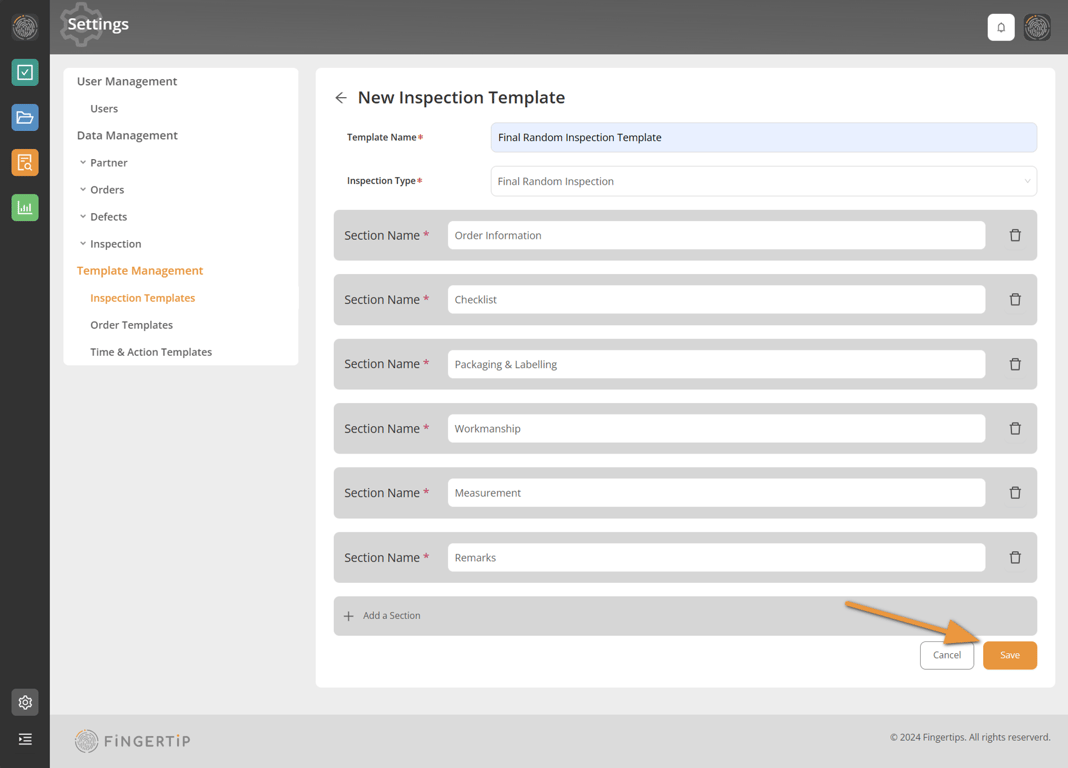
After you are done with building your template, click Save
Time & Action Template
The Time and Action Template in Fingertip is designed to help you create your critical path, complete with unique milestones and tasks that structure your order follow-up. This template allows you to map out the entire lifecycle of an order, from initiation to delivery, ensuring that every critical step is accounted for and tracked. By defining your own milestones and tasks, you can customize the order follow-up process to fit your specific operational needs. The Time and Action Template provides a clear and organized framework for managing deadlines, responsibilities, and progress, ensuring timely and efficient order fulfillment.
In Time & Action Template, you can manage your time and action templates: edit and delete your templates. Time and action templates can only be created in your order module (Create a time & action template)
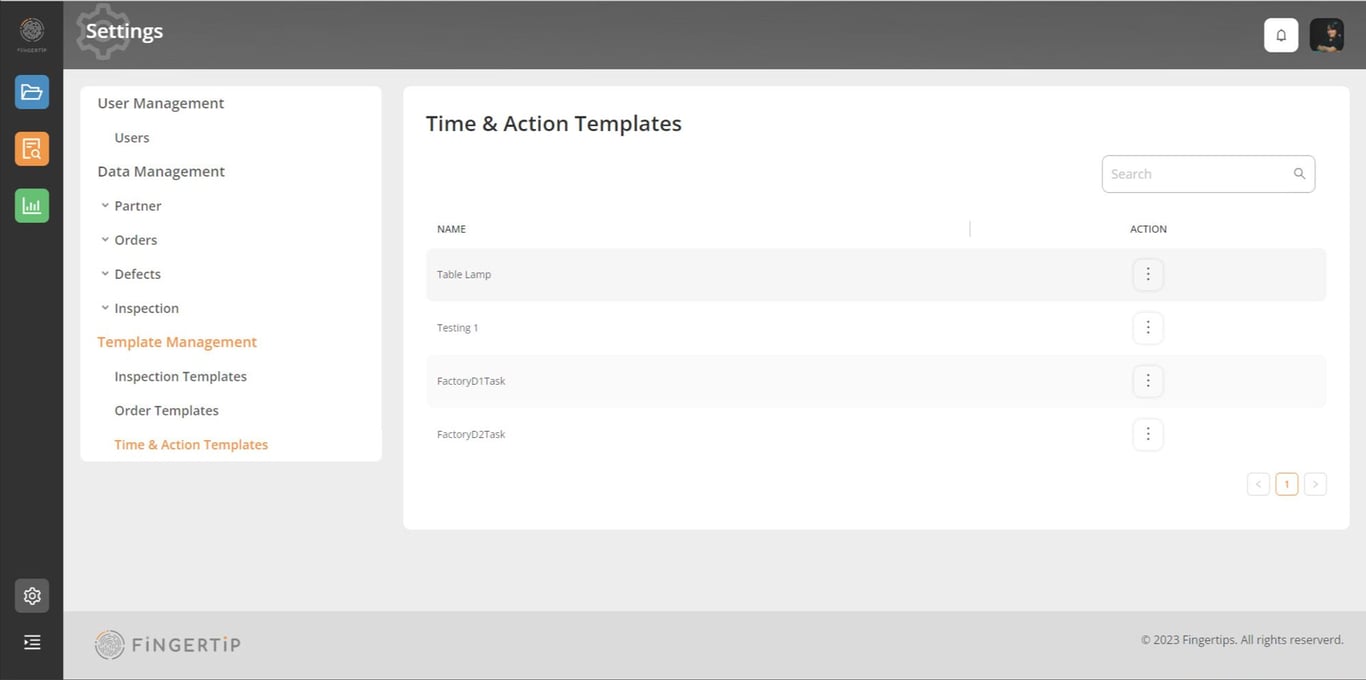
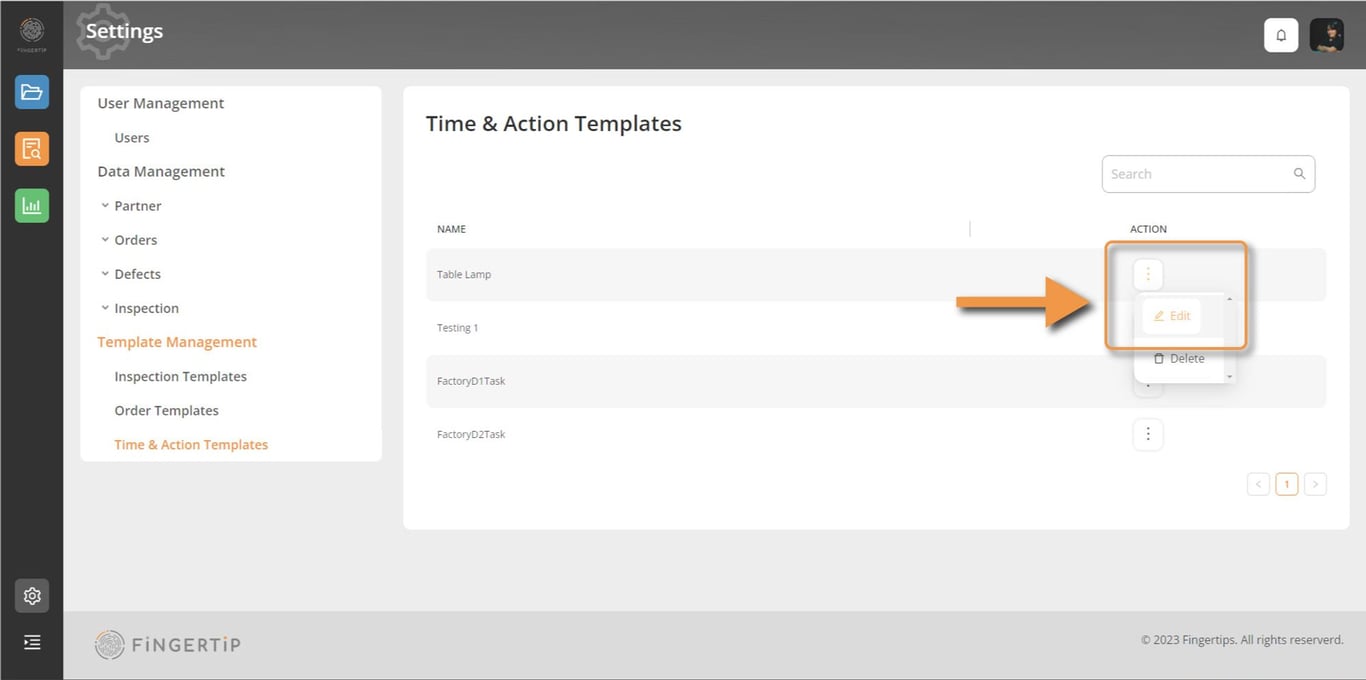
Use the 3 dots to edit (Change the template name) or delete a template
 Made with Bullet