List view
New Releases
New Releases
Getting Started
Getting Started


Order Management
Order Management


Inspection Management
Inspection Management
Templates
Templates
Everything you need to know
What is Time and Action?
In this section, we will explain the concept of Time and Action within Fingertip, how it is utilized to manage and track various tasks and milestones of your critical path, and the benefits it brings to your workflow.
The Time and Action (T&A) module is a powerful tool designed to provide transparency, visibility, accountability, user-friendliness, and collaboration across your projects. By using this feature, you can ensure that all tasks are completed on time and in accordance with your planned schedule, enhancing overall efficiency and effectiveness.
Structure of Time and Action Tracker
In this section, we will break down the structure of a Time and Action (T&A) tracker within Fingertip. Understanding the components of a T&A tracker is essential for effectively managing your projects, ensuring all tasks are organized and aligned with your timelines. The T&A tracker is composed of several key elements that provide clarity and structure to your project management workflow.
Key Components of a Time and Action Tracker
Timeline View
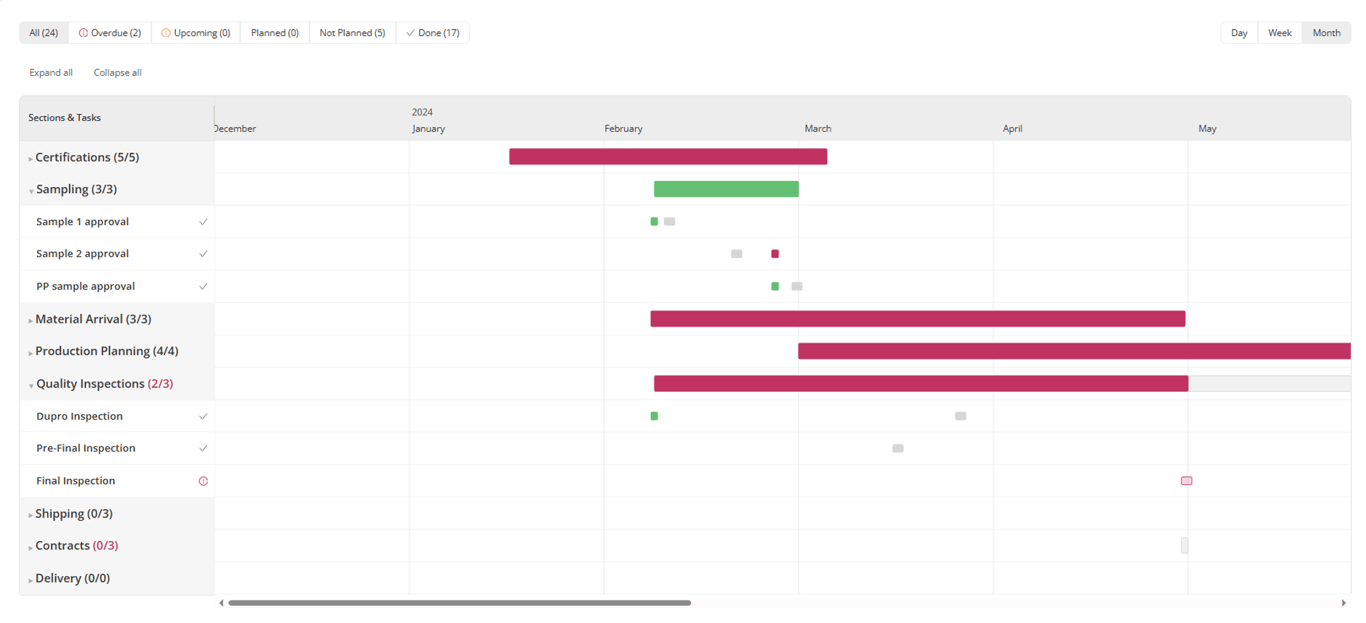
The Timeline View in our Time and Action Tracker provides a visual representation of all the tasks and milestones within a a specific order/PO. It helps you easily monitor progress, deadlines, and status. Here’s how it works:
- Visual Layout: Tasks and milestones are displayed on a horizontal timeline, showing their start and end dates.
- Color Coding: Different colors represent various statuses (RED: completed late, GREEN: Completed on time, GREY: To be completed), making it easy to assess the project's health at a glance.
- Milestones: Key project milestones are highlighted, giving a clear view of critical deadlines and checkpoints.

- Gantt chart: Track all your milestones and tasks all the way until delivery date to easily see which milestones and tasks need your attention
Task View
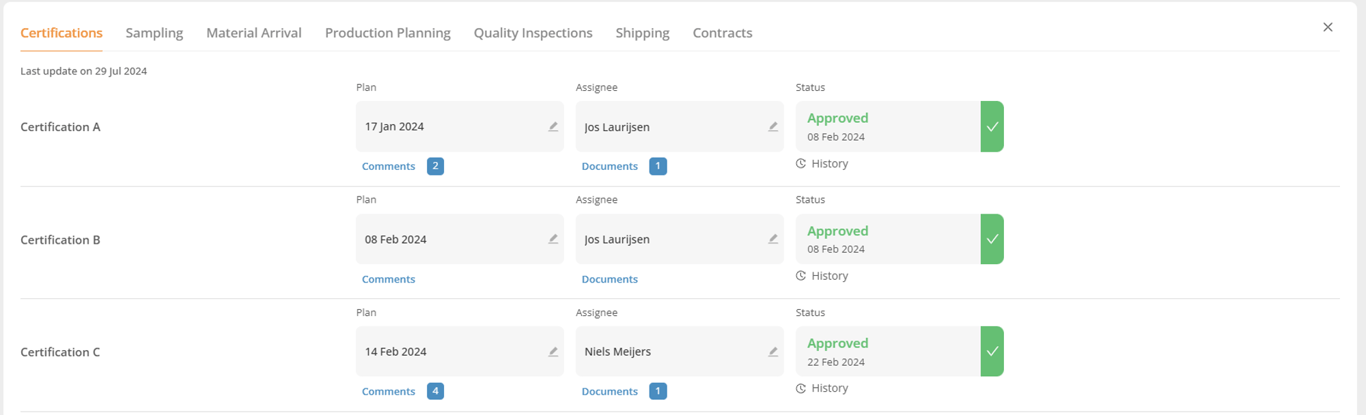
Task Details: Clicking on a milestone reveals detailed information, including the responsible person, deadlines, and current status.
Tasks are made of 3 columns: Plan, Assignee, and Status
Tasks are made of 3 columns: Plan, Assignee, and Status
PLAN COLUMN: This is where you assign a deadline to your task. This deadline can be a single date, or a date range.
ASSIGNEE COLUMN: Assign the stakeholder responsible for the task.
STATUS COLUMN:
Workflow Overview
Workflow Name: The title of the ORDER for easy identification.
Description: A brief summary of the project's objectives and scope.
Milestones (Also referred to as SECTIONS)
Milestone Name: Significant points or goals within the project timeline/critical path.
Milestone Status: The progress status of each milestone.
Milestone % info: The percentage indicates the % of progress of your milestones. This % is calculated based on the amount of completed tasks vs the total amount of tasks for this section. Example: 1 task completed out of 4 tasks will give you 25% progress.
Milestone color code info: Green wheel indicates that your milestone is on time. Red indicates that your milestone is late.
Tasks (Also referred to as SUB-SECTIONS)
Task Name: Each task is given a clear and descriptive name.
Assigned To: The individual or team responsible for completing the task.
Plan Date: The deadline for task completion.
Status: The current status of the task (e.g., Not Started, In Progress, Completed, Submitted, Approved, etc…). The type of Status
Control Types
Task tracking: When you create a task as part of your workflow, you can decide how this should be considered completed.
A control type in Fingertip is a way to track and manage tasks. It helps ensure tasks are completed correctly and on time. There are different control types, such as:
- Submit/Approve/Reject: Allows tasks to be submitted for approval and can be accepted or rejected.
- Percentage Progress: Tracks how much of a task is completed in percentage terms.
- In Progress/Done: Marks tasks as either in progress or completed.
- Pass/Fail: Indicates if a task meets the required standards or not.
These control types help keep projects organized and ensure everyone knows the status of their tasks.
Reminders and Alerts
Reminder Settings: Notifications set for overdue and upcoming tasks or milestones.
Alert Types: Various types of alerts (Update on tasks) to keep the team informed.
Comments
Task Comments: Space for team members to leave notes or updates related to a task.
Approval Workflow for a task with the control type SUBMIT/APPROVE/ REJECT
Submission for Approval: Process to submit completed tasks or plans for review.
Approval Status: Indicates whether a task or plan is approved, pending, or rejected.
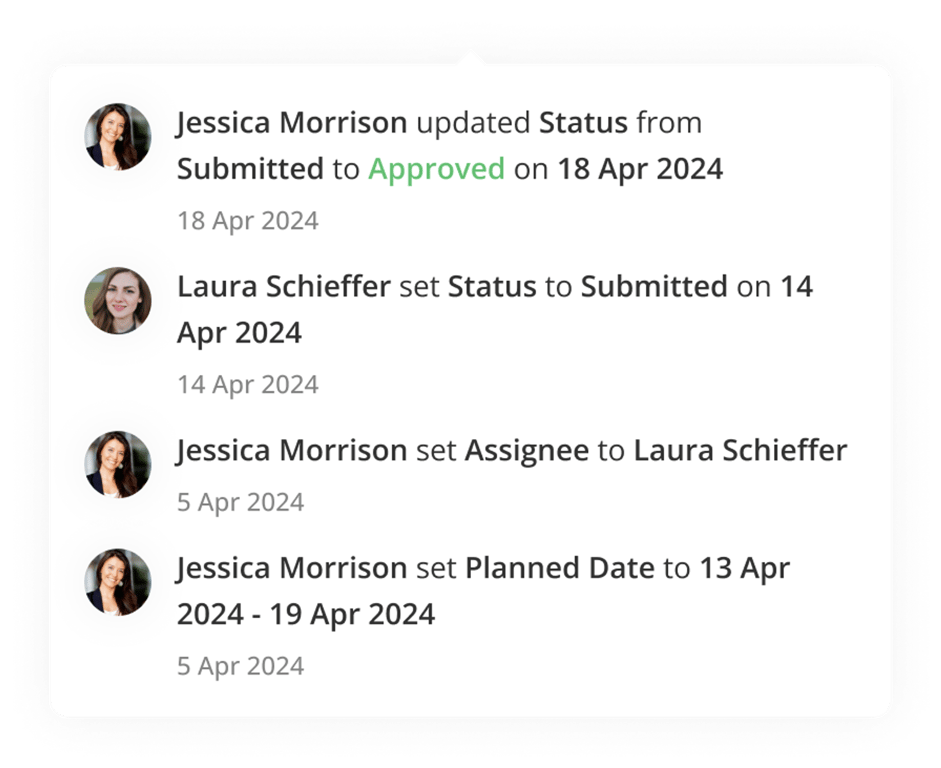
History Tracking
Modification Log: A record of all changes made to tasks and milestones, including who made the changes and when.
Version Control: Ability to view previous versions of the T&A tracker.
Everything you need to knowWhat is Time and Action?Structure of Time and Action TrackerKey Components of a Time and Action TrackerWorkflow OverviewMilestones (Also referred to as SECTIONS)Tasks (Also referred to as SUB-SECTIONS)Control TypesReminders and AlertsCommentsApproval Workflow for a task with the control type SUBMIT/APPROVE/ REJECTHistory Tracking
 Made with Bullet