List view
New Releases
New Releases
Getting Started
Getting Started


Order Management
Order Management


Inspection Management
Inspection Management
Templates
Templates
What is an Order?
In Fingertip, everything starts with an order. Each order consists of a set of Properties that make up your Order Info. You can add, edit, or delete properties based on your own workflow. Fingertip offers basic properties when you create a new order, but you can add as many as you want during the order creation process (which you can save into a Template you can re-use infinitely). At order creation you can also fill in Product Info and Requirements.
Order Info
Default Properties
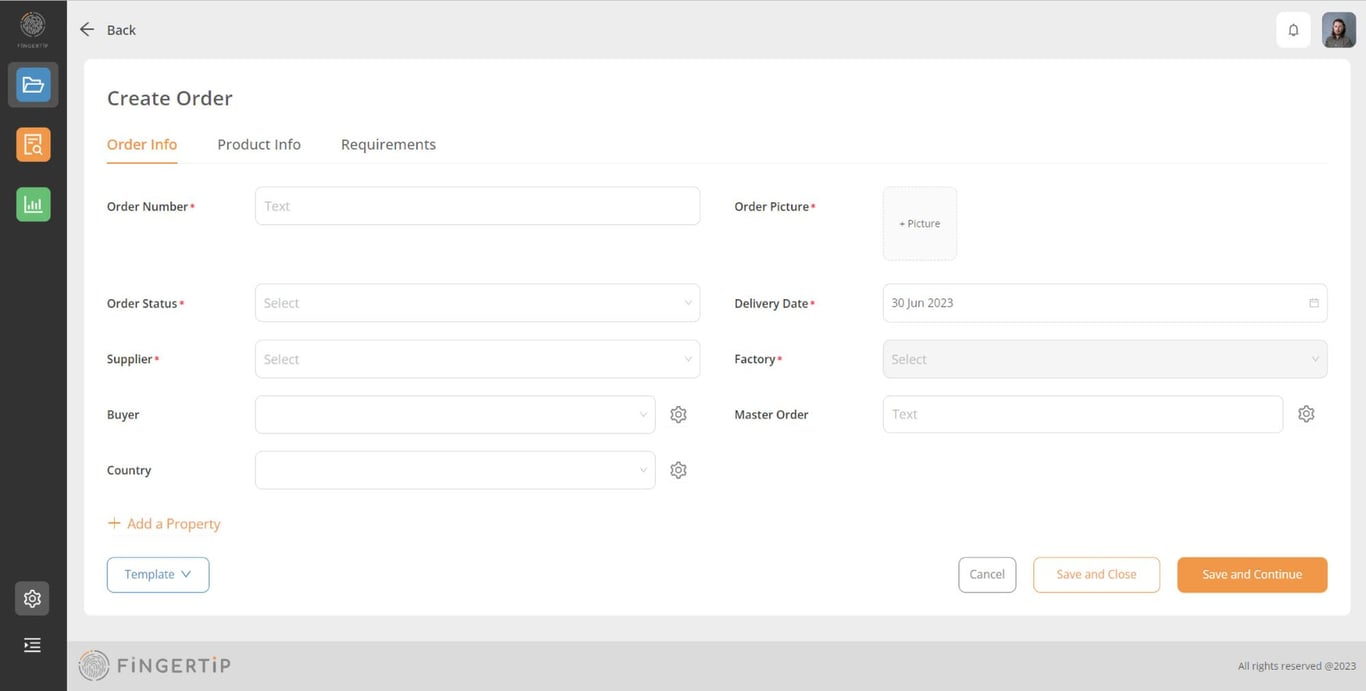
An order has a set of default properties which are mandatory to fill in: Order Number, Order Picture, Delivery Date, Supplier, Factory.
Custom Properties
If the default properties aren’t covering all the information related to your current order process, you can easily add new properties. Your order info might be more detailed than the Fingertip default order.
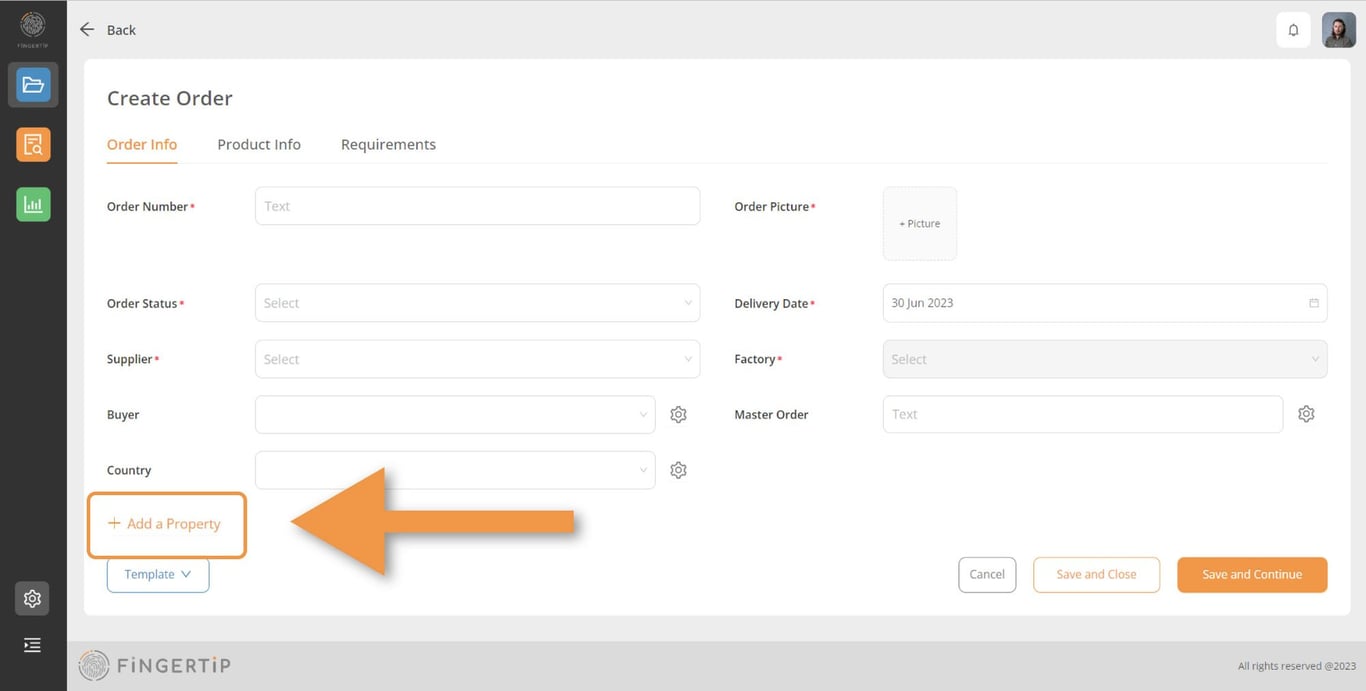
1) Click on “+ Add a Property” button
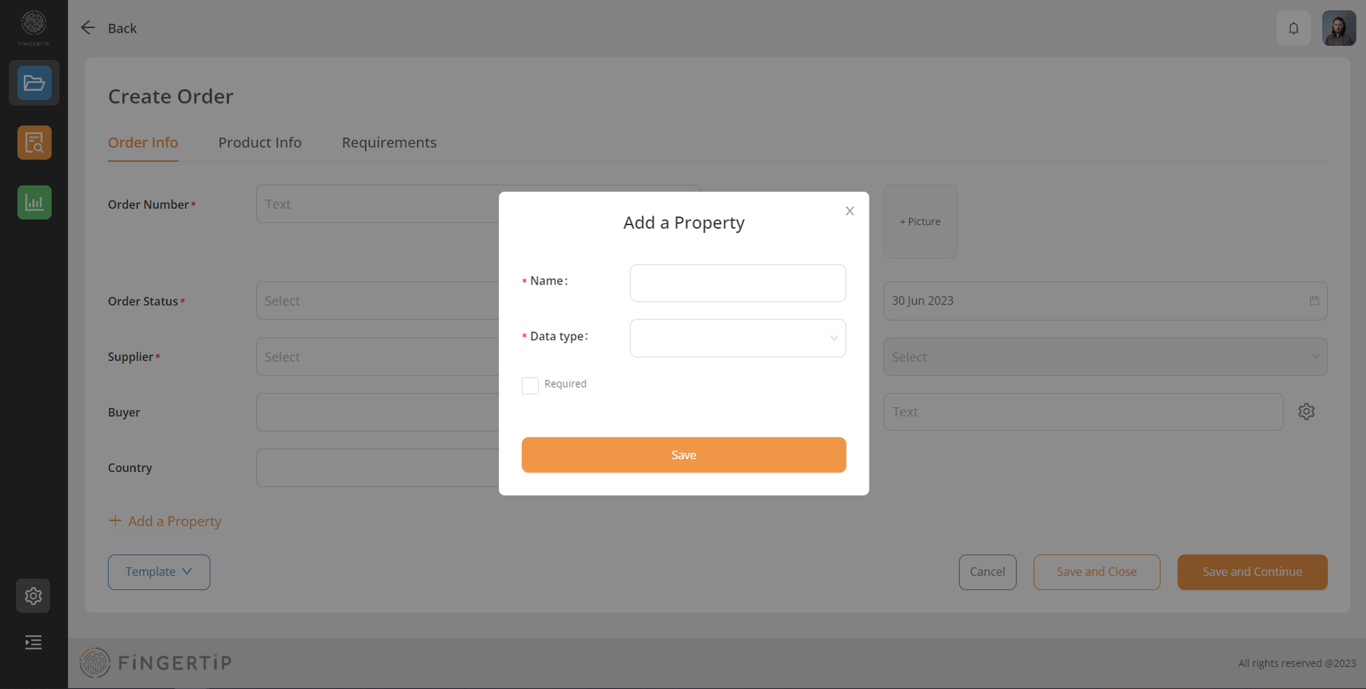
2) Give a name to your property (for example: Region)
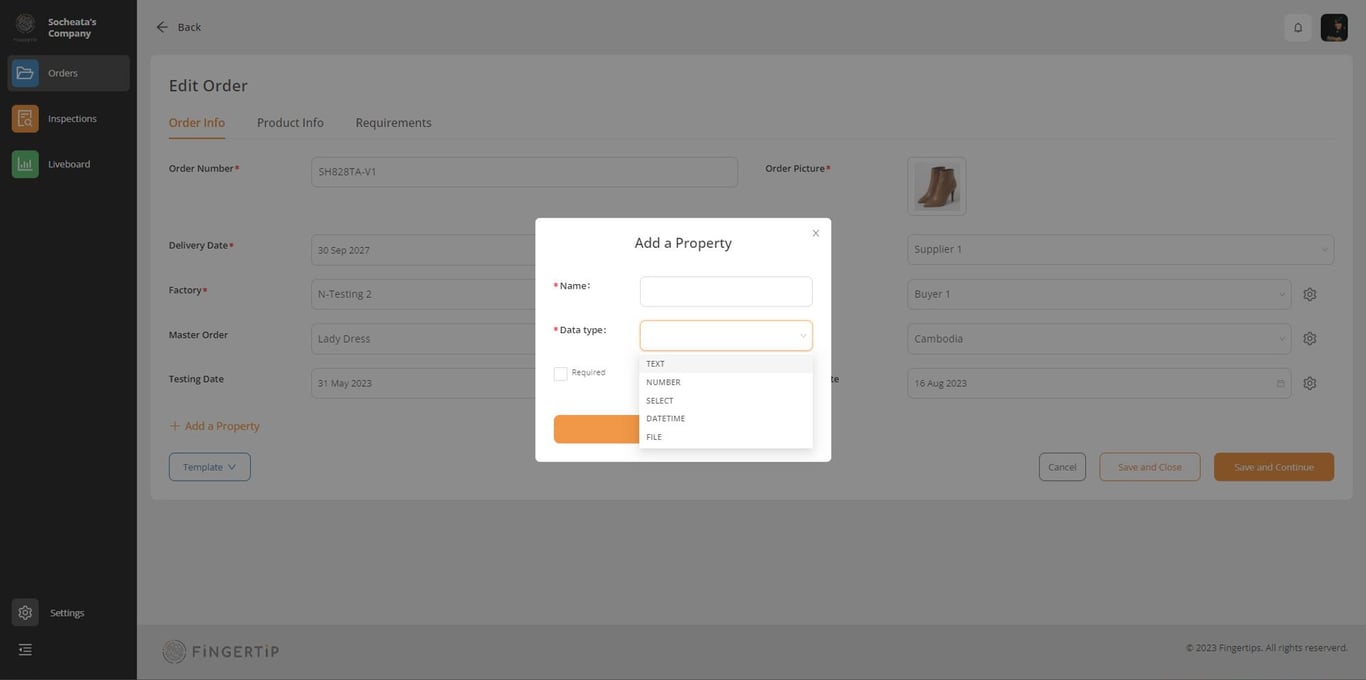
3) Select a data type. It can be a text field, a number field, a select field, a date field, or file upload field. Once a new property is created, you can edit the name or the data type in the admin: Edit a Property (Only available to user with an Admin role).
⚠️ Check the “Required” checkbox if you wish the property to be mandatory in your order when you create new order.
Product Info
Properties & Attributes
A product has a set of default properties:
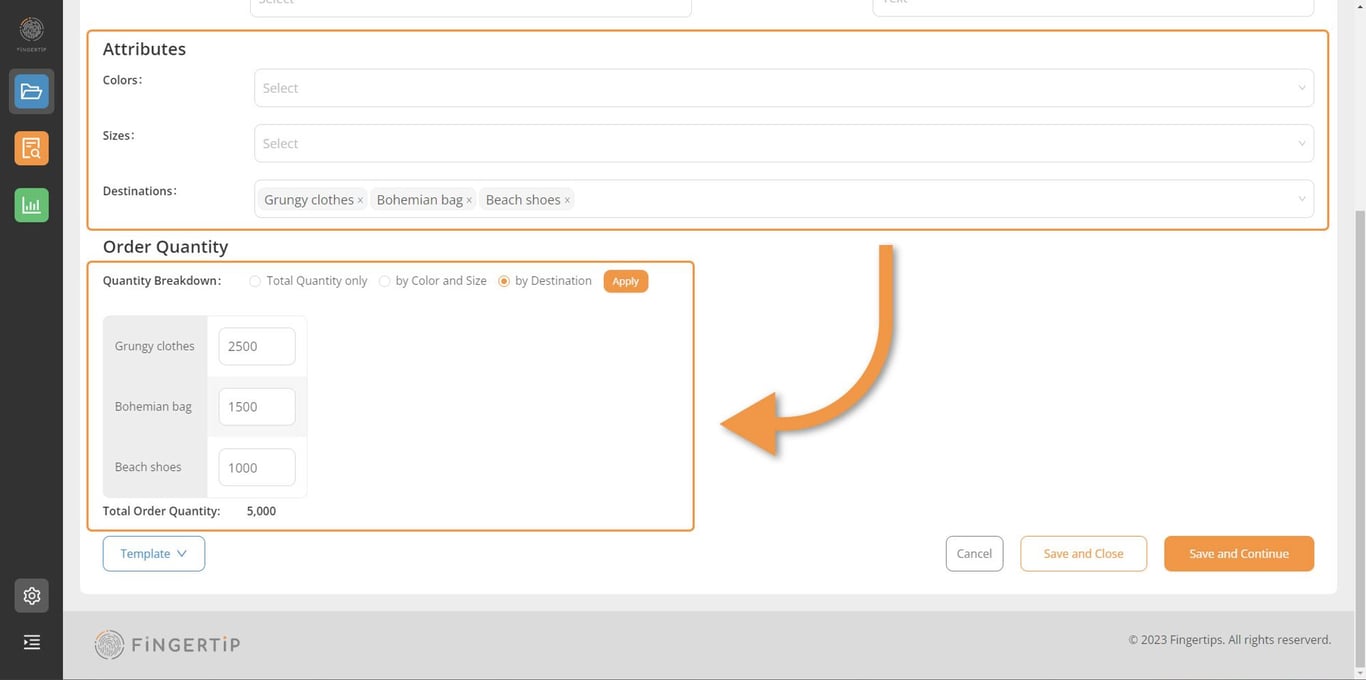
Style ID, Brand, Product Category, Product Description.It can also have attributes such as
Colors, Sizes and Destinations.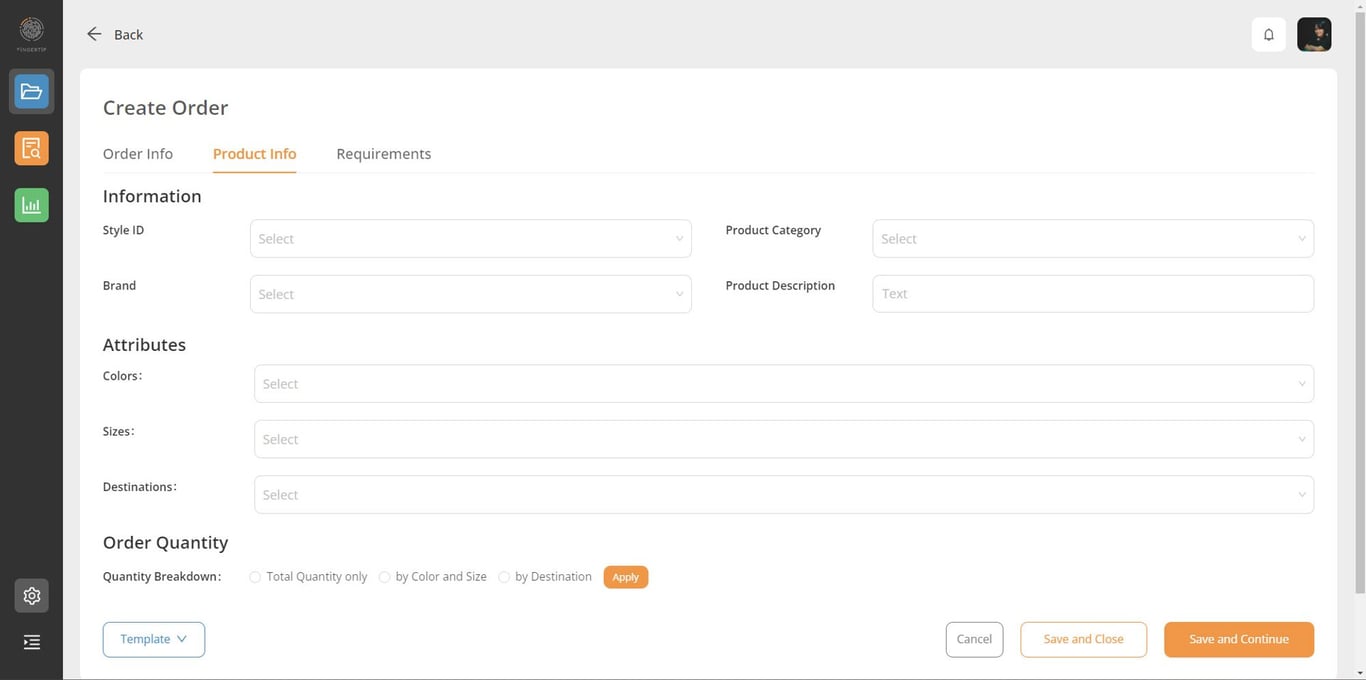
Order Quantity
Fingertip relies on user inputting quantity based on its total or by using the breakdown of colors and sizes, or destinations. As you enter the total quantity, the quantity by colors and sizes, or quantity by destinations in the respective fields, a table is automatically created as you hit the “Apply” button. Then fill in your quantities before saving.
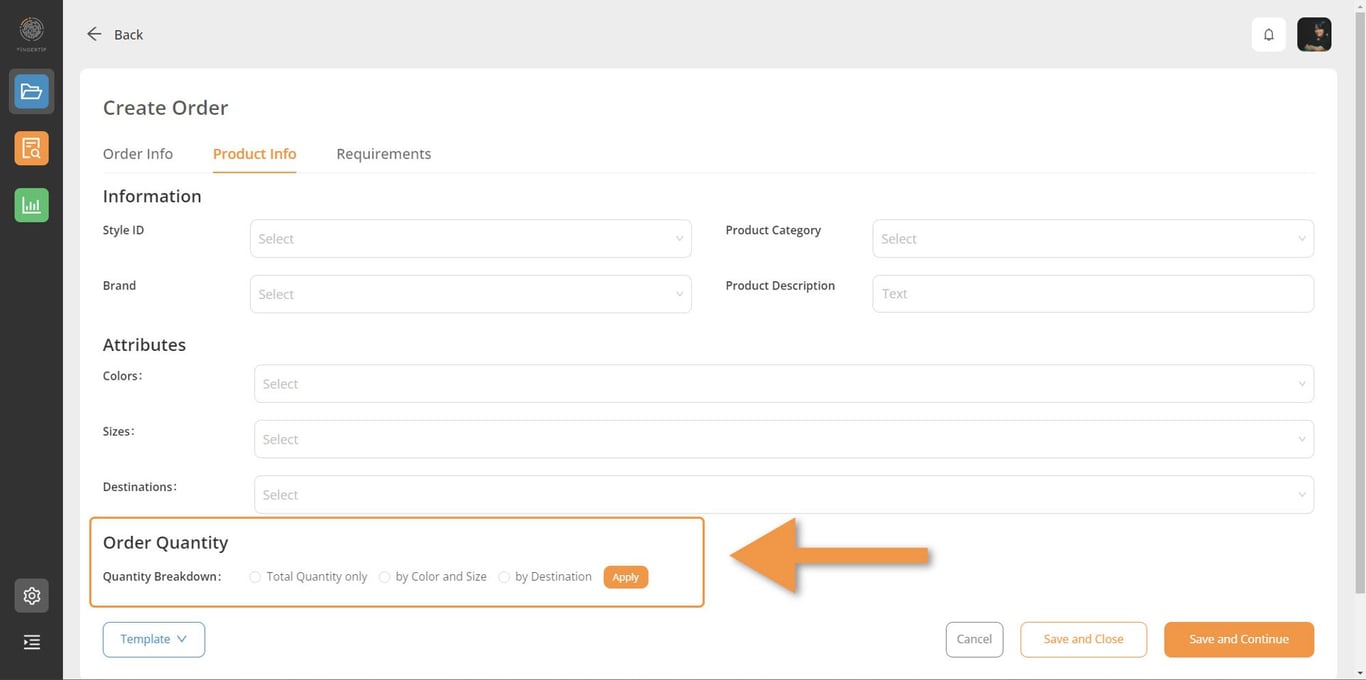
Total Quantity
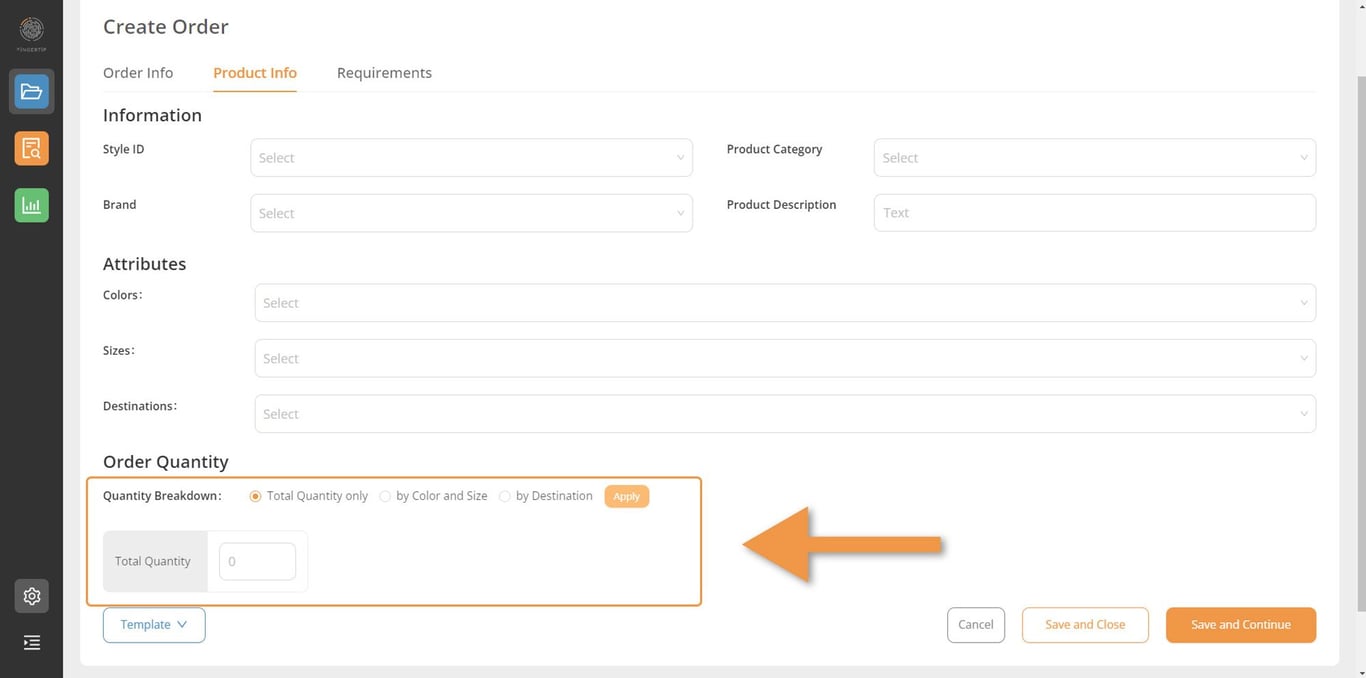
If you plan to inspect your order/article/PO based on its total quantity, simply check the “Total quantity only” and click on “Apply” button. You can then enter that quantity in the table that just opened below.
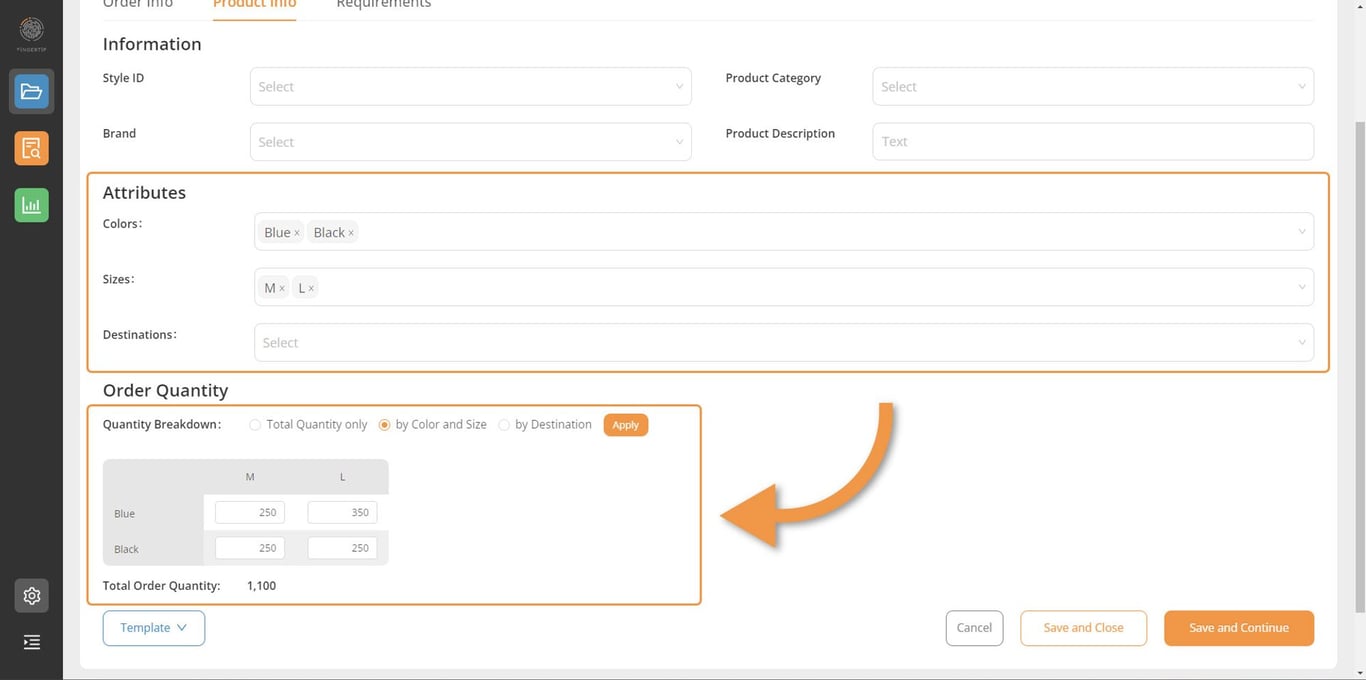
Breakdown by Color & Size
If you plan to inspect your order/article/PO based on various styles, choose the “by Color and Size” option. Once you click on the “Apply” button the quantity table opens. Fill in quantities for each combination of color/size before saving. These quantities will be shown in your Fingertip QA/QC app when you start inspecting this order.
Breakdown by Destinations
If you plan to inspect your order/article/PO based on various destinations, choose the “by Destinations” option. Once you click on the “Apply” button the quantity table opens. Fill in quantities for each destination before saving. These quantities will be shown in your Fingertip QA/QC app when you start inspecting this order.
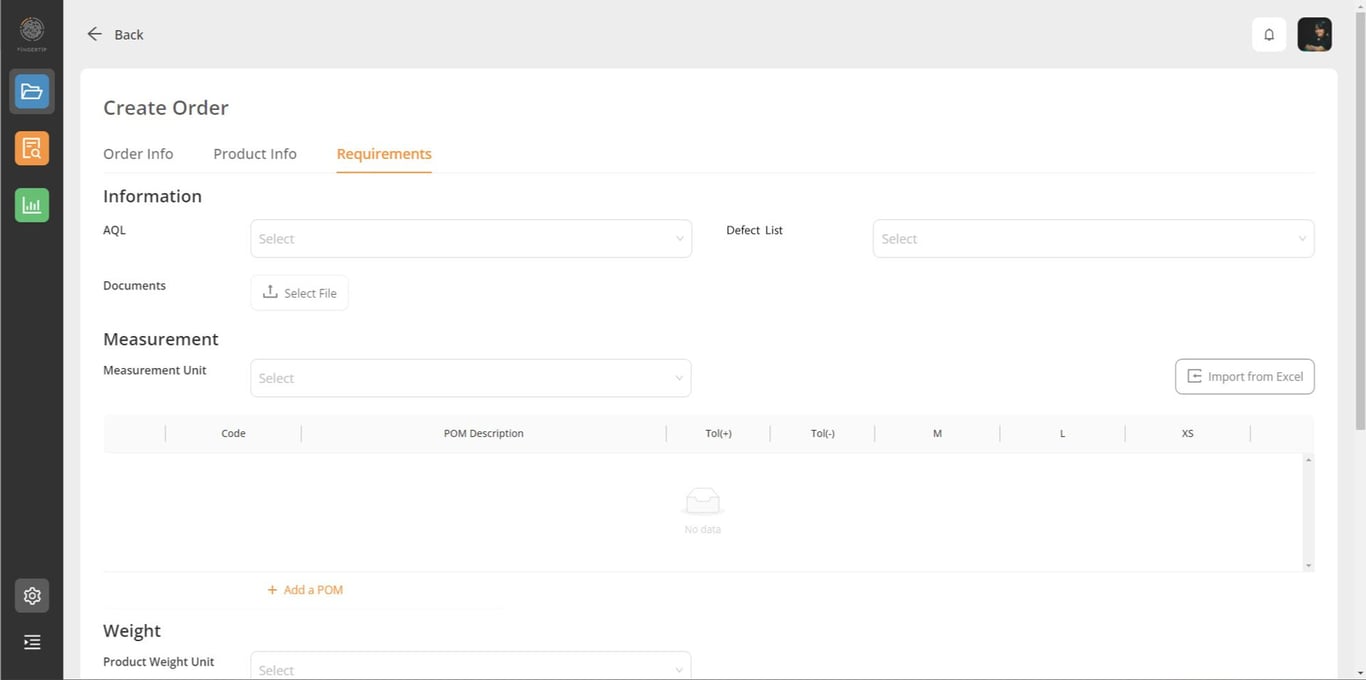
Requirements
Requirements tab allows you to fill in some of the specs of your product. These specs will be available in your inspections.
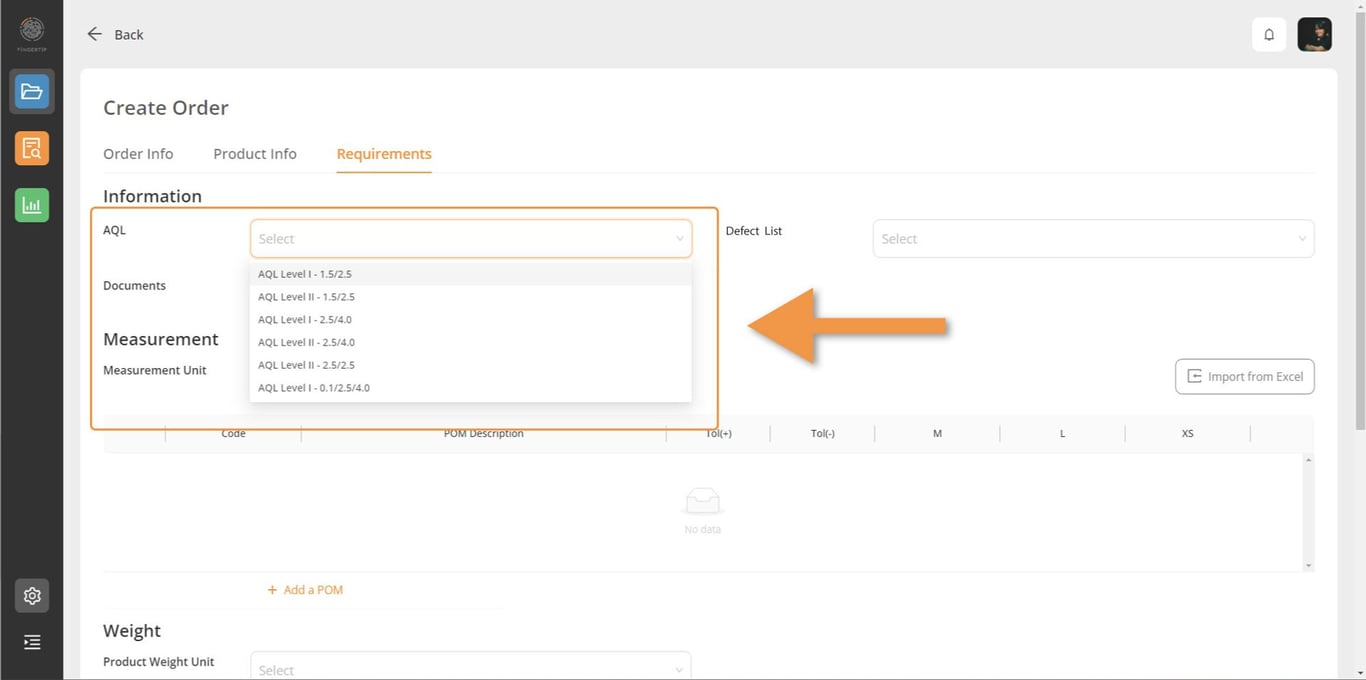
AQL Selection
Select your AQL level which will be used for your inspections.
⚠️ To create a new AQL LEVEL, check DATA MANAGEMENT chapter in this user manual. Access it here
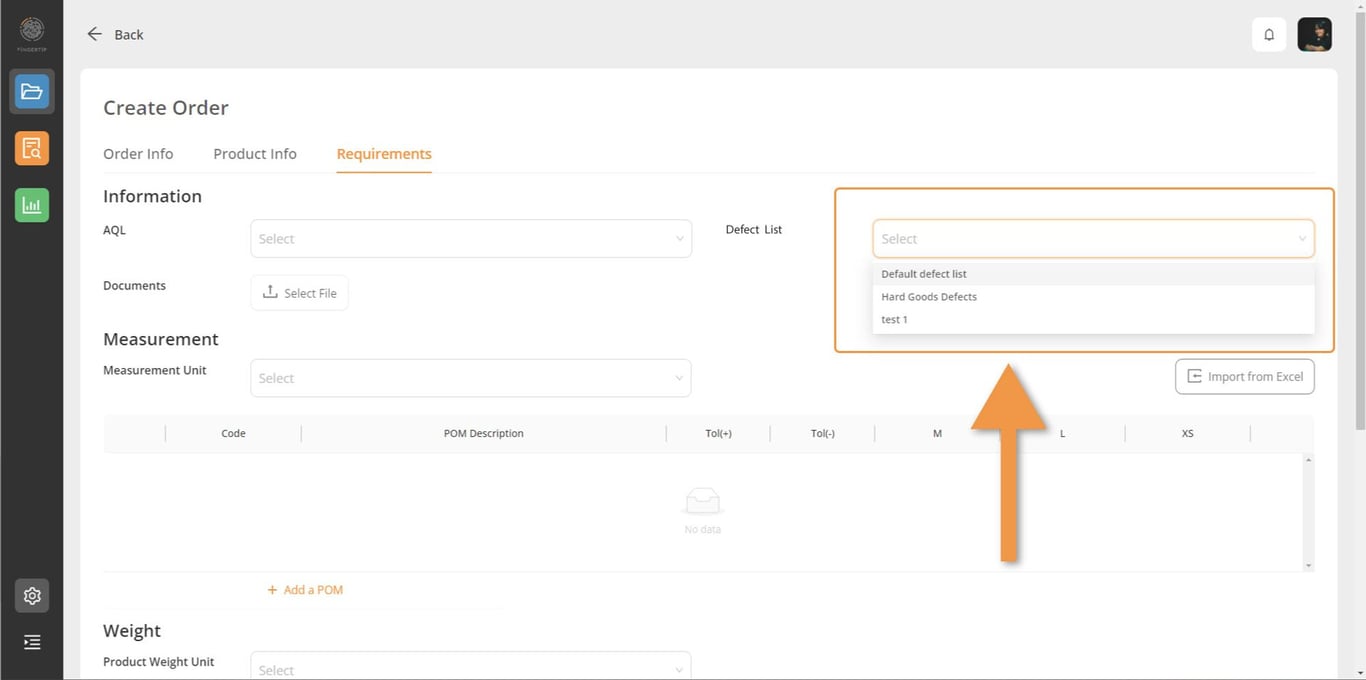
Defect List Selection
Select the defect list which will be used for your inspections. If not selected, the default defect list of your company will be used.
⚠️ To create a new DEFECT LIST, check DATA MANAGEMENT chapter in this user manual. Access it here
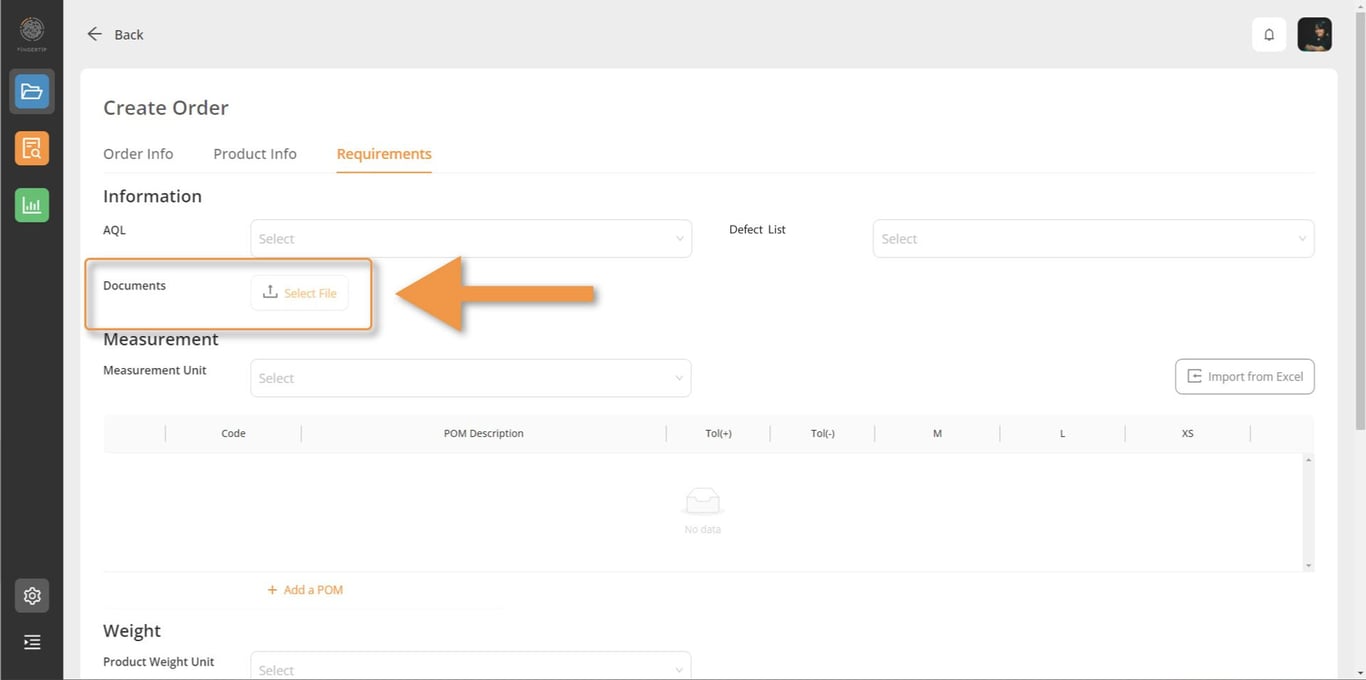
Required Documents Upload
Upload here all specs document you want attached to your order. These documents will be automatically added to your inspections, allowing your inspectors to download them on their mobile phone or tablet for reference.
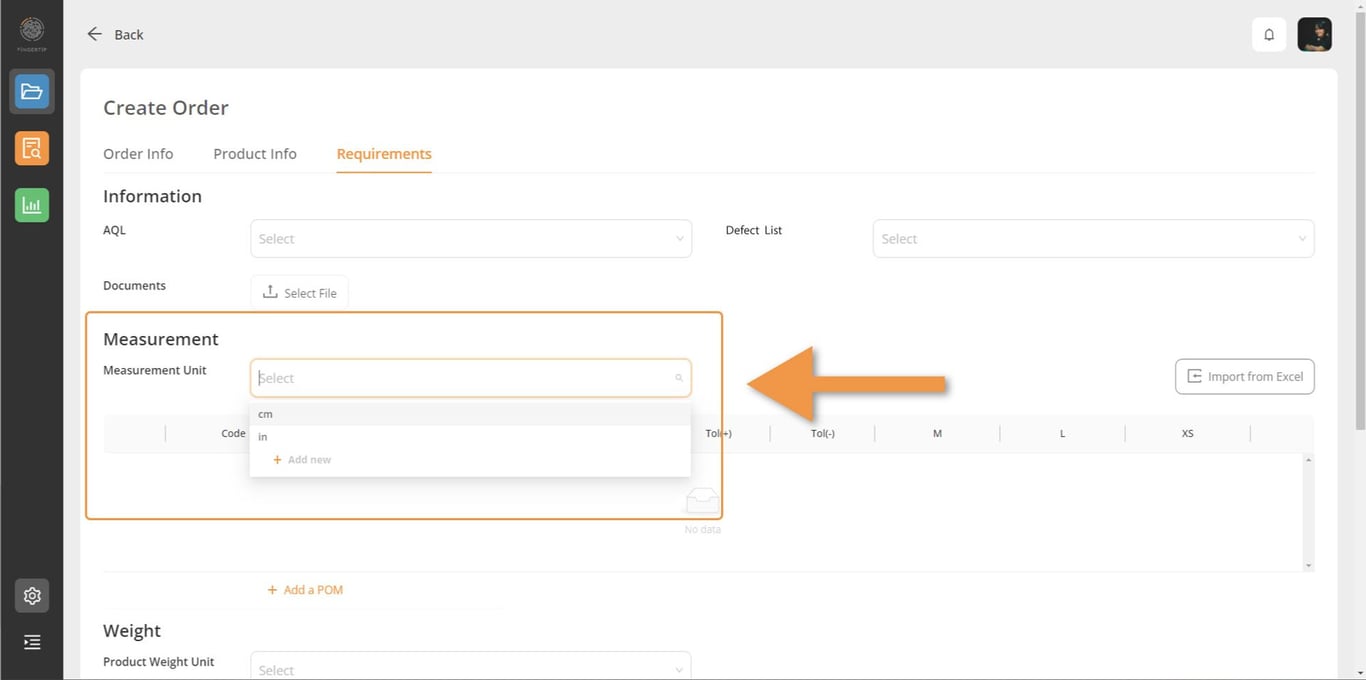
Measurement Chart creation
1) Measurement unit selection: select “cm” or “in”
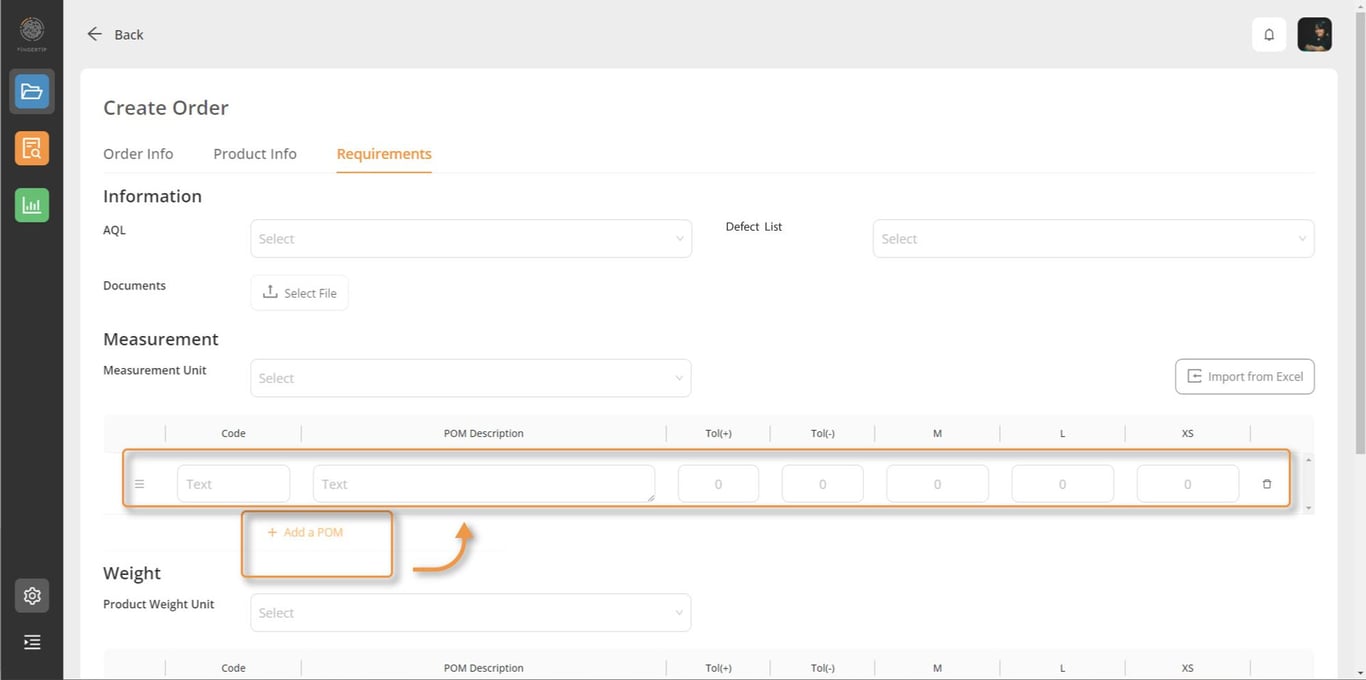
2) Measurement chart creation: Input your point of measurement list here. POM description, tolerance and measurement for each size.
Note that this chart can be created automatically through Excel doc upload for POM
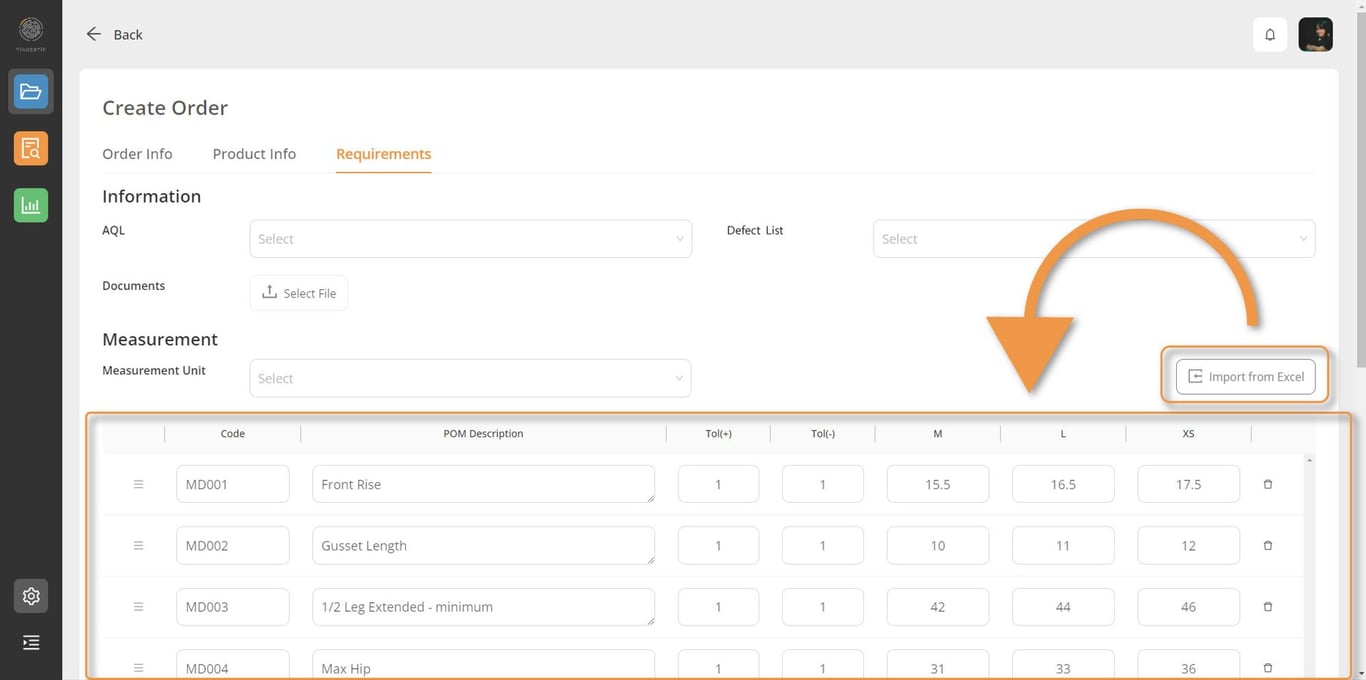
Measurement Chart Creation through Excel doc upload
At Fingertip, we understand you might not want to manually input all your POM details manually, especially if you already have that data sitting on an Excel doc. That is why you can automatically create your measurement chart for your product, through an Excel upload. These Points of Measurement will then be reflected in your Fingertip: QA/QC app allowing your inspectors to measure all POM according to your chart.
That process is made of 3 steps:
Step 1: Download Template
In your measurement section, start with clicking on the button “Import from Excel”. In the dialog box that just opened, you are reminded of the sizes registered for your product. If they match, go ahead and download your template by clicking on the blue Excel file icon. As you click on it, the template is being downloaded in your download folder on your computer.
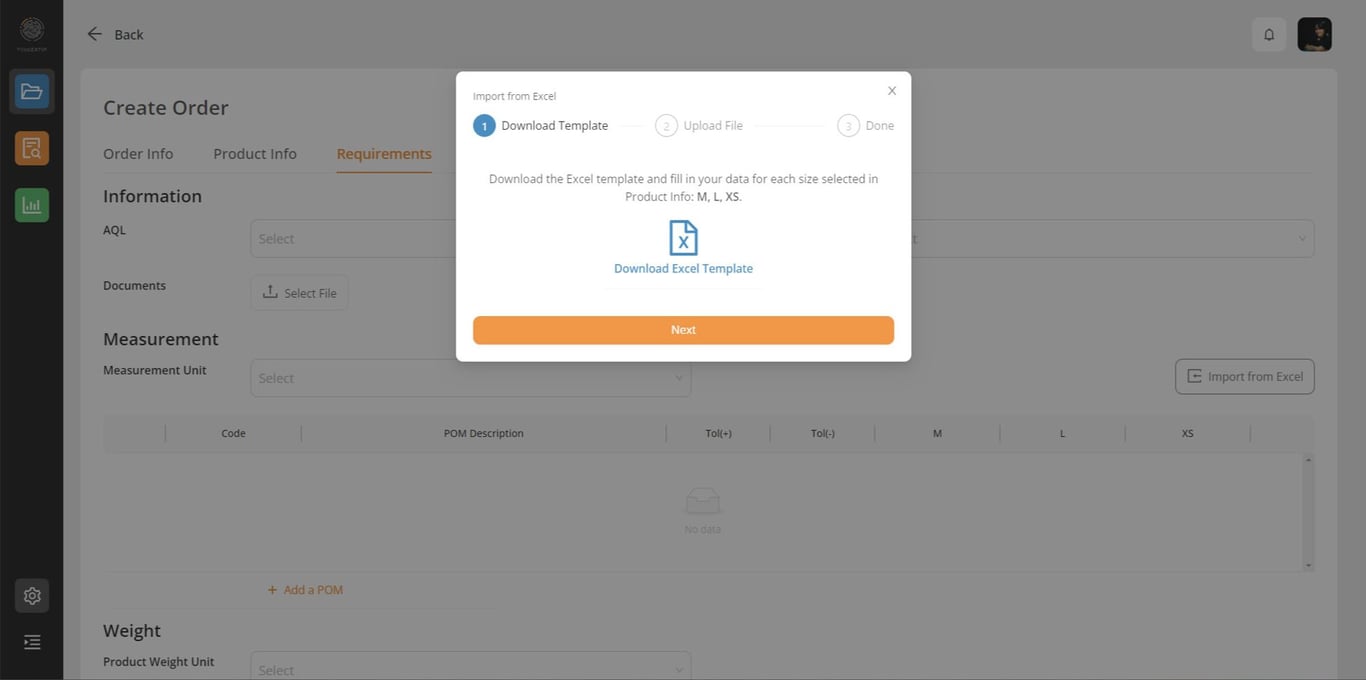
As you open the template, you’ll see a table with your styles and your sizes divided in column. Enter your points of measurements, or copy paste them from an existing document and once you are done, save your file.
Note: while you work on your Excel file, keep the dialogue box opened in Fingertip
Step 2: Upload File
Once your Excel document is ready, click “Next” in the dialogue box and move to step 2: “Upload File”. Drag and drop your file or simply click on the cloud icon to select your Excel file. Then click on the “Next” button.
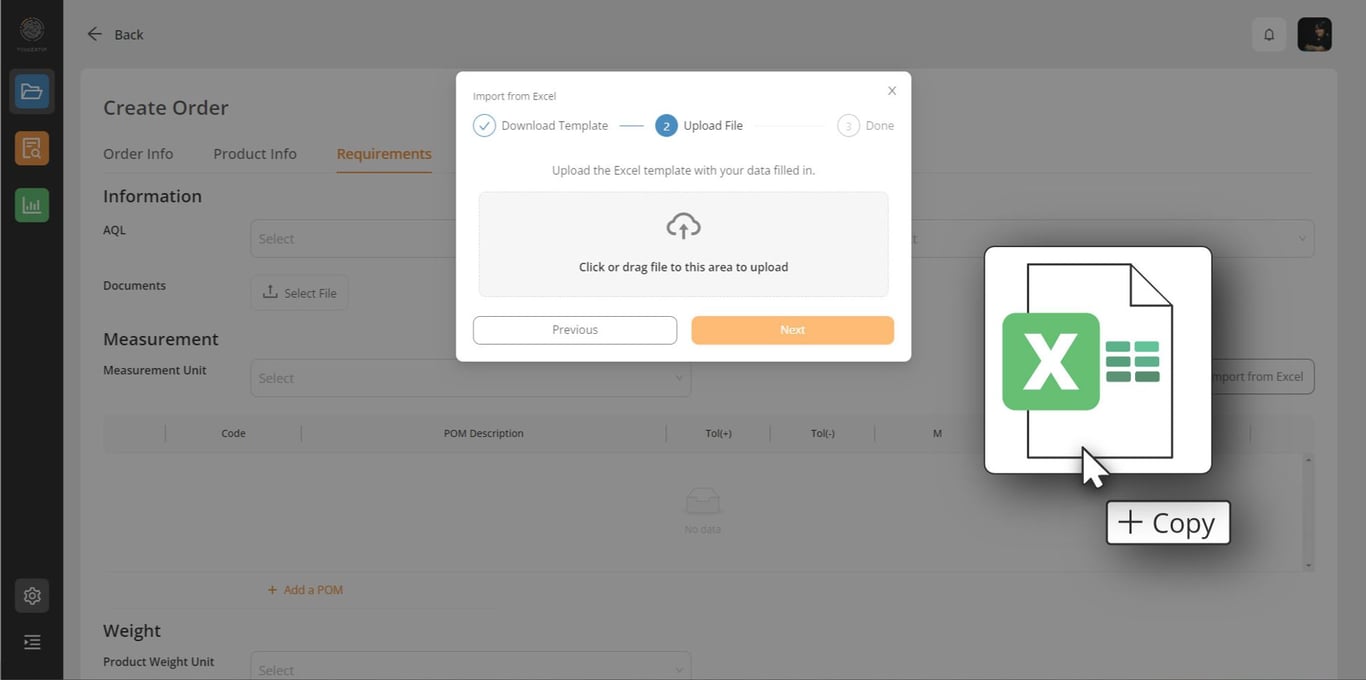
Step 3: Done
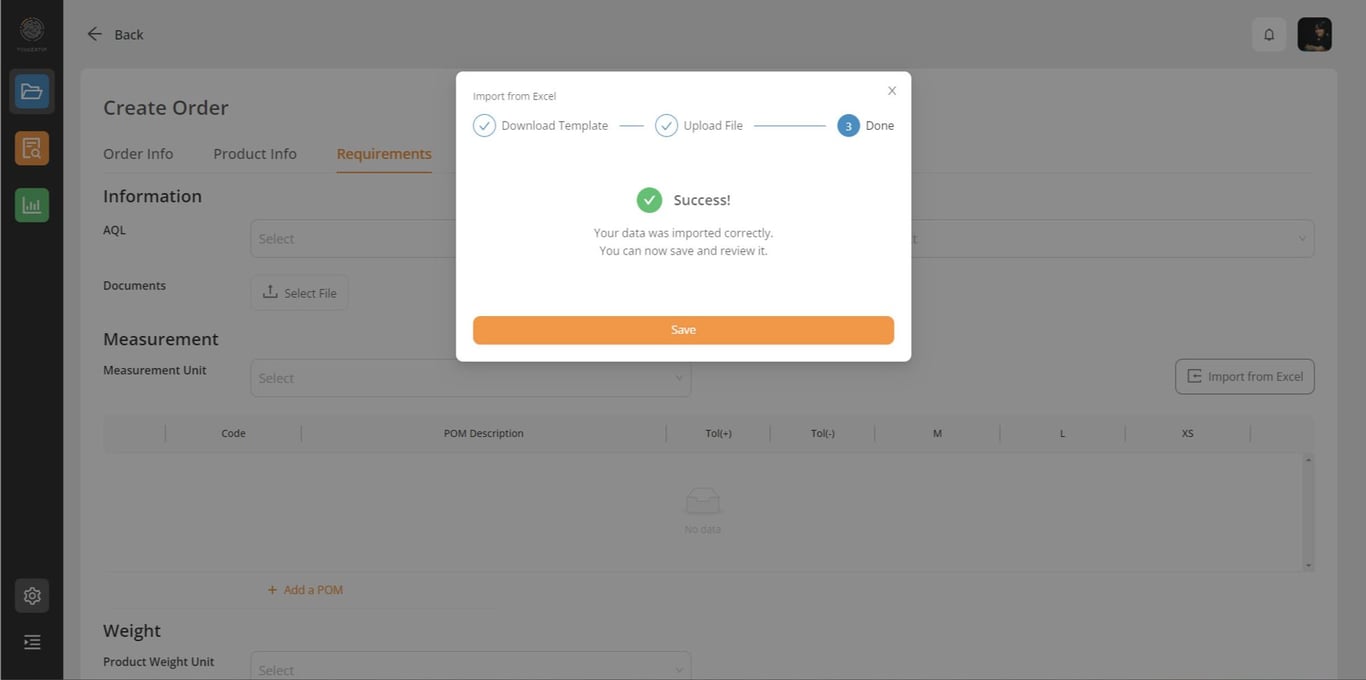
If everything is in order, you’ll see a success message. Close the dialog box and see all your Points of Measurements filled in accordingly. If an error occurred, you’ll see the details in order to correct your file and upload it back.
Weight Chart Creation
In Fingertip, you can simply add your weight specs to be inspected later on by your inspectors during inspection.
1) Product weight unit Selection: Select your unit type (ex: g, oz, etc..).
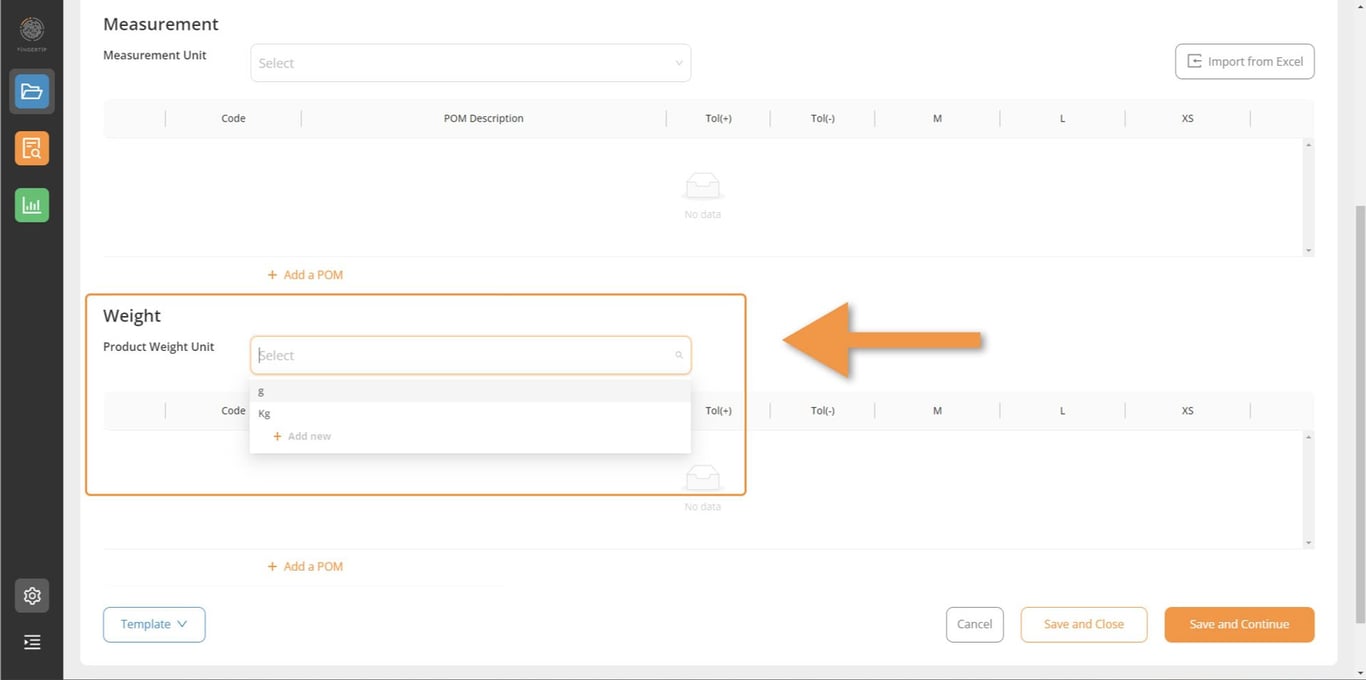
If no unit appears in the dropdown list, simply write one down and click on the button “+ Add new”. Then select that unit before moving on to the next step.
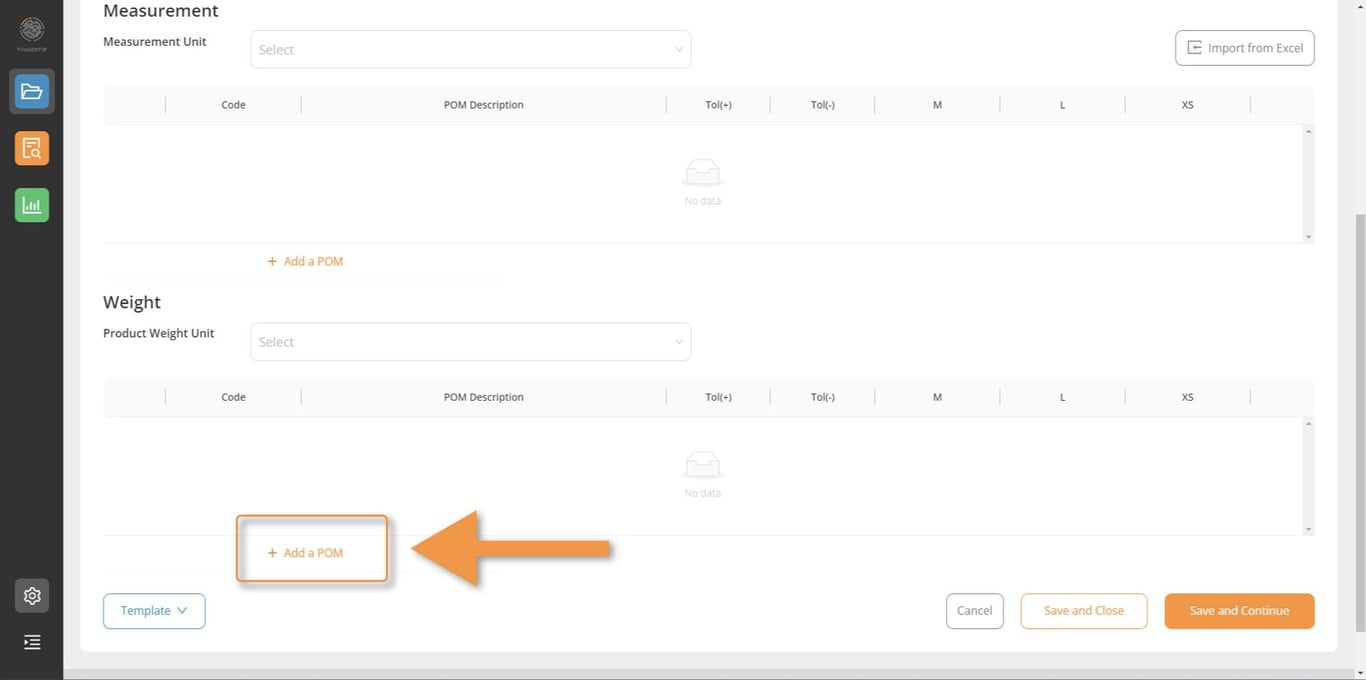
2) Add POM: As you create your order, you see an empty Weight / POM chart table. Click on “+ Add a POM” to start adding your weight specs.
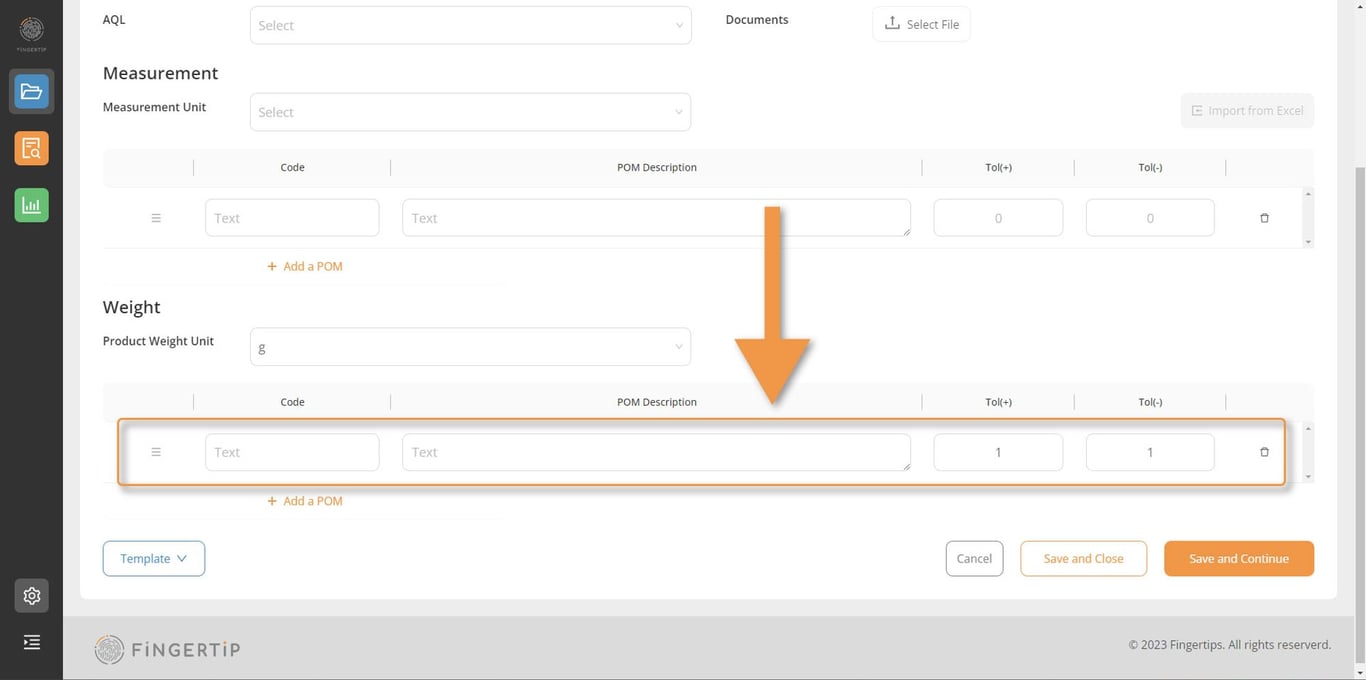
Enter your Code if any, the POM description, the +/- tolerance and your value per size.
What is an Order?Order InfoDefault PropertiesCustom PropertiesProduct InfoProperties & AttributesOrder QuantityTotal QuantityBreakdown by Color & SizeBreakdown by DestinationsRequirementsAQL SelectionDefect List SelectionRequired Documents UploadMeasurement Chart creationMeasurement Chart Creation through Excel doc uploadWeight Chart Creation
 Made with Bullet